Video Commerce: customize the appearance
Where in the dashboard: Video Commerce › Aparência
The Aparência (Appearance) tab changes the look of every video showcase and of the player at once: colors, corners, logo, font, texts and behavior. You adjust with a preview alongside, your changes are saved as a draft, and they only reach your store when you click Publicar (Publish).
It sits in Video Commerce › Aparência, between Vitrines (Showcases) and Resultados (Results).
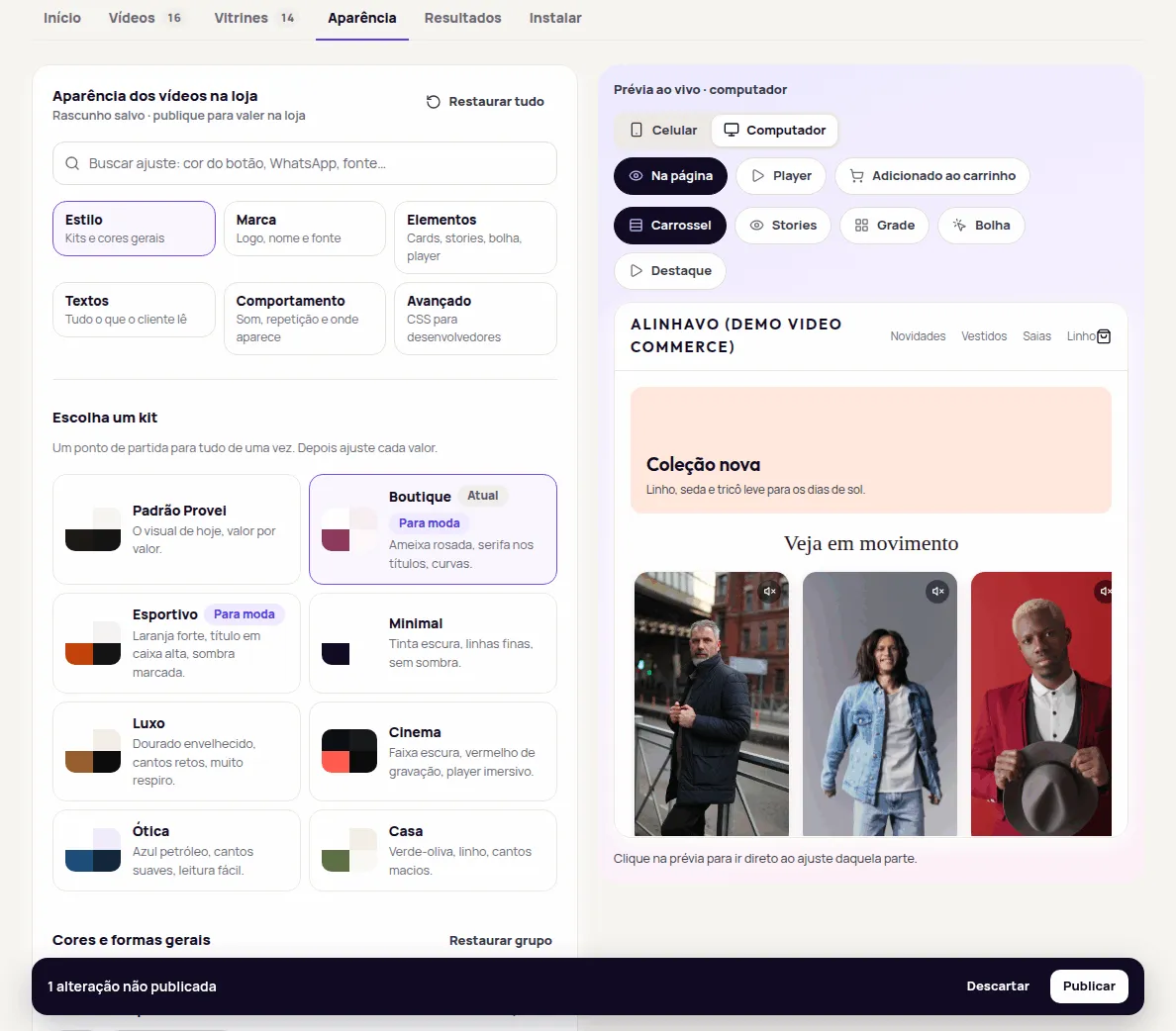
The six areas
Section titled “The six areas”| Area | What you change |
|---|---|
| Estilo (Style) | A ready-made kit and the general colors and shapes: accent color, text, background, corners, shadow and video size. See Kits and style. |
| Marca (Brand) | Logo, logo for dark backgrounds, brand name in the player, font and the “Tecnologia por Provei.AI” (Powered by Provei.AI) badge. See Logo and brand. |
| Elementos (Elements) | Each part in detail, in tabs: Cards, Stories, Bolha (Bubble), Destaque (Highlight), Player and Produtos no player (Products in the player). |
| Textos (Texts) | Everything the customer reads, grouped by moment. See Texts. |
| Comportamento (Behavior) | Player sound, starting over at the end, the WhatsApp button in the player and, for each showcase, phone, computer, auto-advance, WhatsApp and silent preview. See WhatsApp question in the player. |
| Avançado (Advanced) | Theme and player CSS, for whoever looks after the store’s code. See Advanced CSS. |
In each group, the main settings come first. The others are in Mais opções (More options) and, where they exist, Para desenvolvedores (For developers). The number next to each one says how many settings it holds.
The first-visit guide
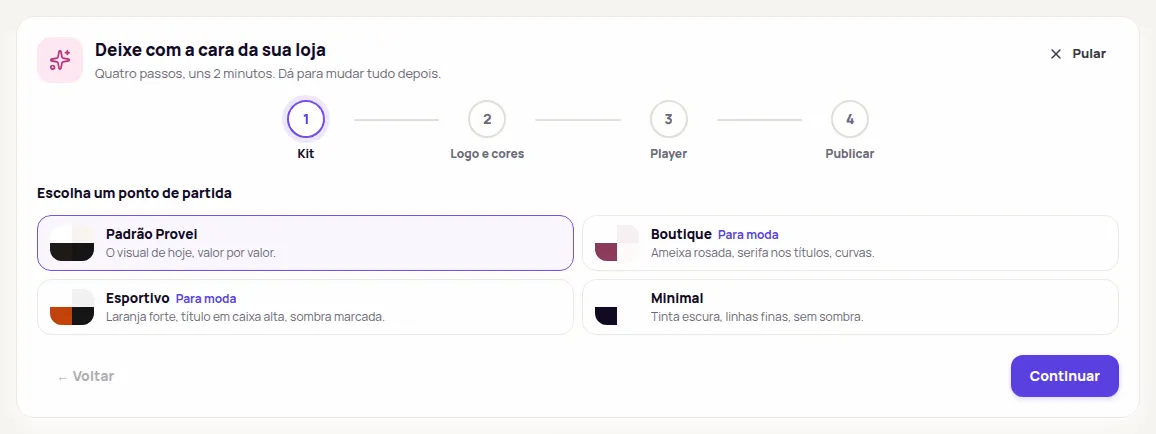
Section titled “The first-visit guide”On your first visit, while the appearance is still the default, the tab opens the Deixe com a cara da sua loja (Make it look like your store) guide: “Quatro passos, uns 2 minutos. Dá para mudar tudo depois.” (Four steps, about 2 minutes. You can change everything later.) While the guide is open, the tab shows only the steps and the preview. The appearance areas show up after you publish in the last step or click Pular (Skip).
-
Kit: under Escolha um ponto de partida (Pick a starting point), tap one of the kits. The preview changes right away.
-
Logo e cores (Logo and colors): pick the Cor de destaque (Accent color) or click Importar do Provador (Import from the Provador) to bring the color (and, on the Enterprise plan, the logo) from your try-on. Your own logo goes in Marca.
-
Player: pick the Tema do player (Player theme), Escuro (Dark), Claro (Light) or Cor da marca (Brand color), and click Ver o player na prévia (See the player in the preview).
-
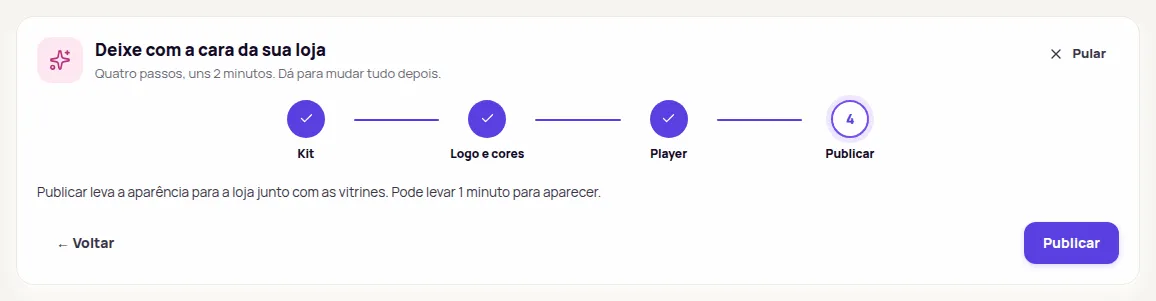
Publicar: click Publicar to take the appearance to your store together with the showcases. It can take 1 minute to show.
Use Continuar (Continue) and ← Voltar (Back) to move between steps. To leave the guide, click Pular (Skip): everything you picked stays in the draft. Once you skip or finish, the guide doesn’t come back in that browser.
Find a setting
Section titled “Find a setting”Use the search at the top, Buscar ajuste (Search settings). Type what you want to change, such as “cor do botão” (button color), “WhatsApp” or “fonte” (font). The list shows each setting and where it lives, for example Elementos › Bolha. Click a result, or press Enter for the first one, and the screen opens the right area, tab and group and highlights the field.
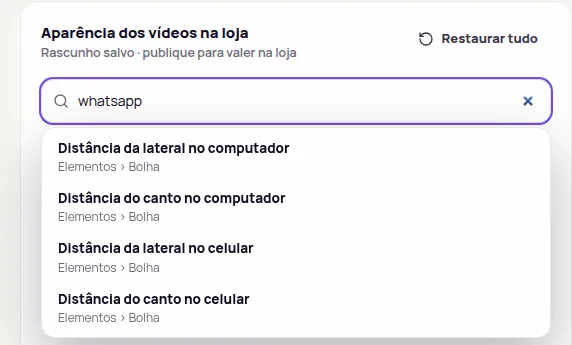
The search also finds the settings kept in Mais opções and Para desenvolvedores.
The live preview
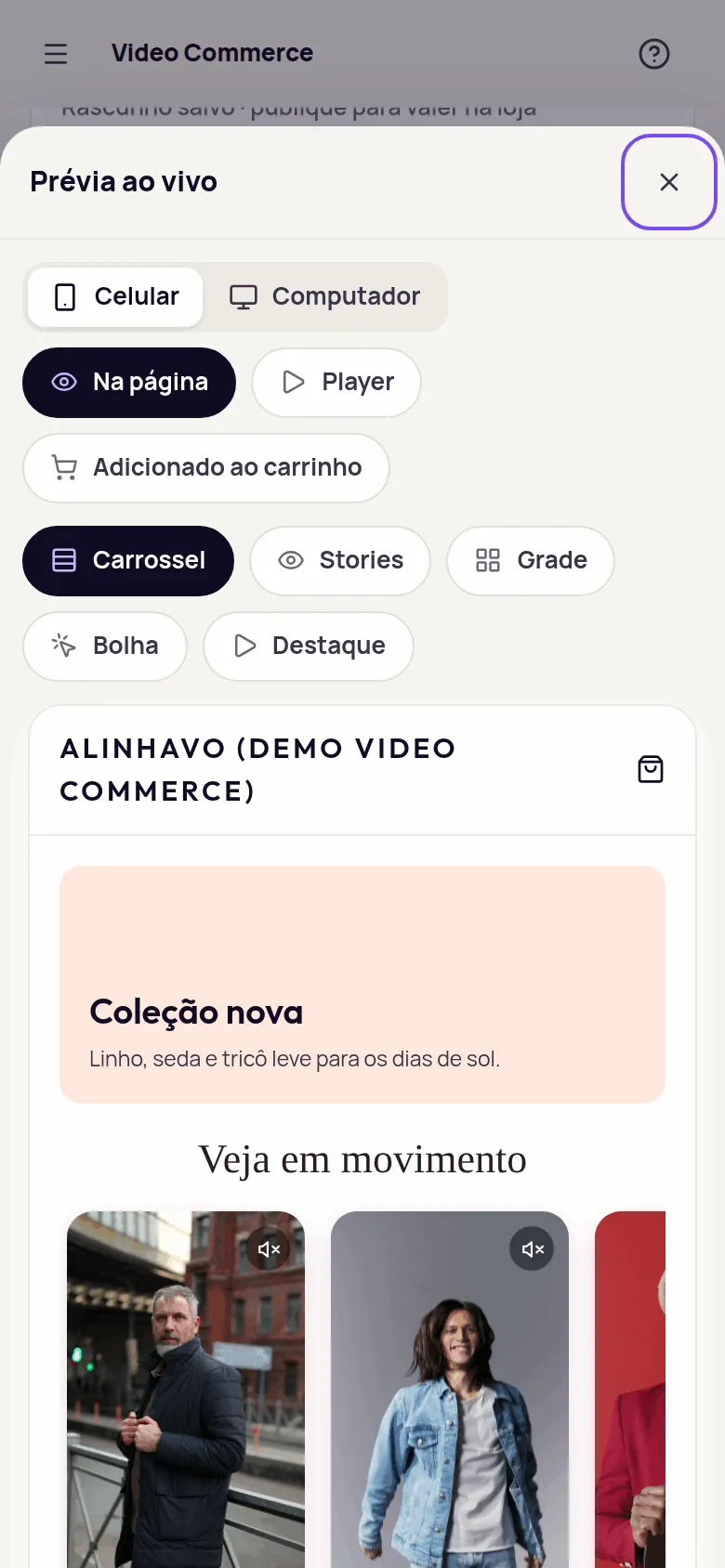
Section titled “The live preview”The Prévia ao vivo (Live preview) shows your store with the draft applied. Choose:
- Celular (Phone) or Computador (Computer);
- the moment: Na página (On the page), Player or Adicionado ao carrinho (Added to cart);
- the format: Carrossel (Carousel), Stories, Grade (Grid), Bolha (Bubble) or Destaque (Highlight).
Click a part of the preview to jump to its setting. For example, clicking the bubble opens Elementos › Bolha.
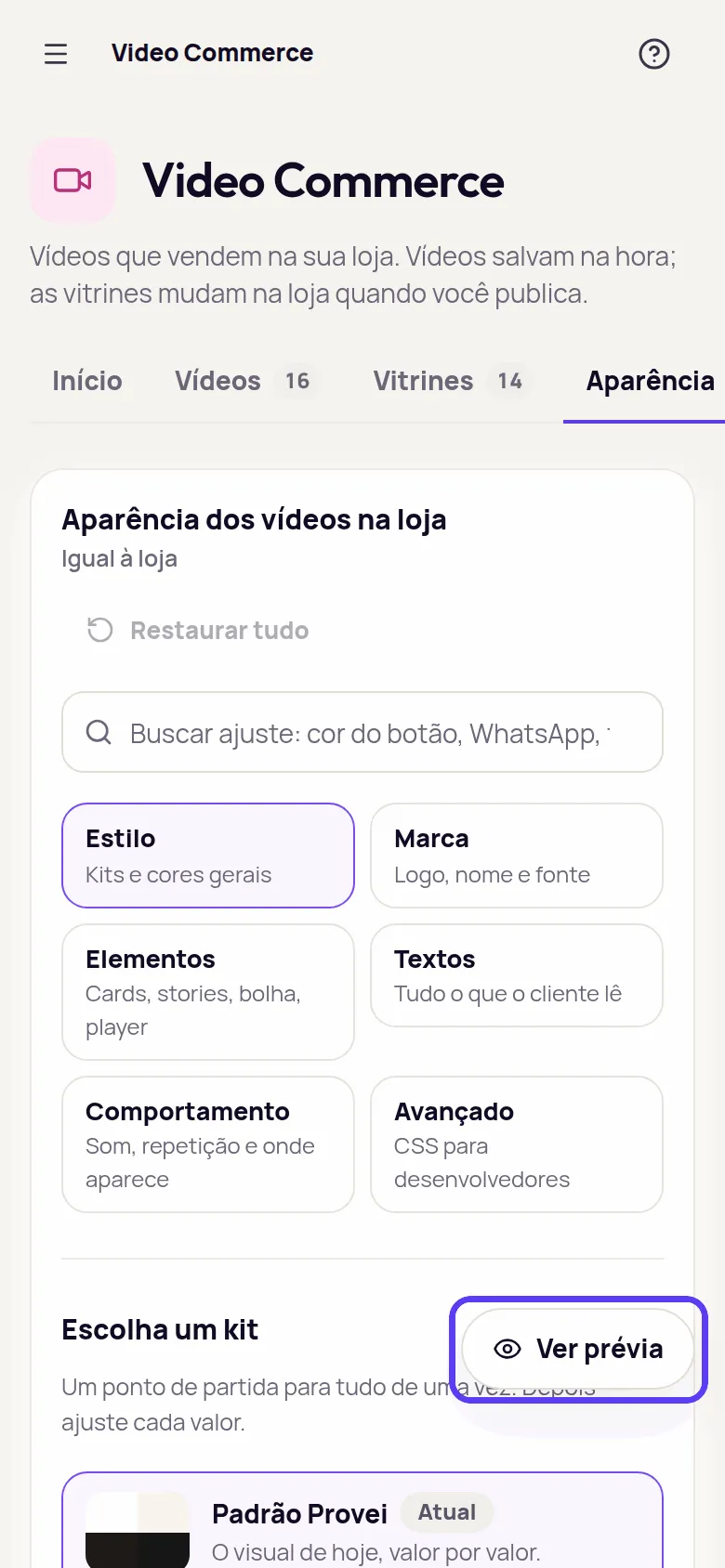
On smaller screens, such as a phone, the preview sits behind the Ver prévia (See preview) button at the bottom of the screen. It opens the preview over the editor; close it with the X.
Behavior
Section titled “Behavior”In Comportamento (Behavior), the Player group applies to every showcase:
- O player abre com som (The player opens with sound): Com som (With sound) or Sem som (Muted). Some browsers still start muted until the customer taps.
- Recomeçar depois do último vídeo (Start over after the last video): when on, the player goes back to the first video after the last one ends.
Motion: customers who ask their phone or computer for less animation see the videos still until they tap. This always applies, for every customer.
Under Onde e como cada vitrine aparece (Where and how each showcase shows), each showcase has the No celular (On phones), No computador (On computers), Avançar automático (Auto-advance: in the player, moves to the next video when one ends) and WhatsApp switches, and the Prévia silenciosa (Silent preview) choice: how the videos move without sound on the page, Um por vez (One at a time), Todos (All), O do meio (The middle one), Ao passar o mouse (On mouse hover) or Desligada (Off). These changes apply after publishing. Click the showcase name to open its editor.
WhatsApp question in the player
Section titled “WhatsApp question in the player”With the WhatsApp button on, the customer sends a question about the video straight to the store’s WhatsApp.
-
In Video Commerce › Aparência › Comportamento (Appearance › Behavior), turn on Botão de WhatsApp no player (WhatsApp button in the player).
-
In Número do WhatsApp (WhatsApp number), type a mobile or landline number with WhatsApp, with 55 and the area code. If the account already has a WhatsApp number, click Usar o número da conta (Use the account’s number) to fill it in. With no number, the button doesn’t show.
-
If you want, change the Mensagem que já vem escrita (Prewritten message).
{video}becomes the video name and{produto}the product name. The customer’s question comes after it. -
Click Publicar (Publish).
In the player, the customer taps Perguntar no WhatsApp (Ask on WhatsApp), writes the question in Sua pergunta (opcional) (Your question, optional) and taps Enviar no WhatsApp (Send on WhatsApp). WhatsApp opens with the message ready.
To remove the button from one showcase, turn off Botão de WhatsApp no player in the showcase editor’s Reprodução (Playback) section, or the WhatsApp switch under Onde e como cada vitrine aparece, and publish. Clicks show in Resultados (Results), under Perguntas pelo WhatsApp (WhatsApp questions). See Also in the period.
Draft, Publicar and Descartar
Section titled “Draft, Publicar and Descartar”Everything you change in Aparência is saved on its own as a draft. Under the Aparência dos vídeos na loja (Appearance of the videos in your store) title, the screen tells you where things stand:
- Salvando rascunho… (Saving draft): the change is going into the draft.
- Rascunho salvo · publique para valer na loja (Draft saved · publish to apply it in your store): the draft has changes your store doesn’t have yet.
- Igual à loja (Same as the store): nothing to publish.
- Não salvo (Not saved): the last change wasn’t saved. A notice says what to fix.
Your store only changes when you click Publicar in the bar at the bottom of the screen. Descartar (Discard) takes the appearance back to what is published. See Publish and discard the appearance.
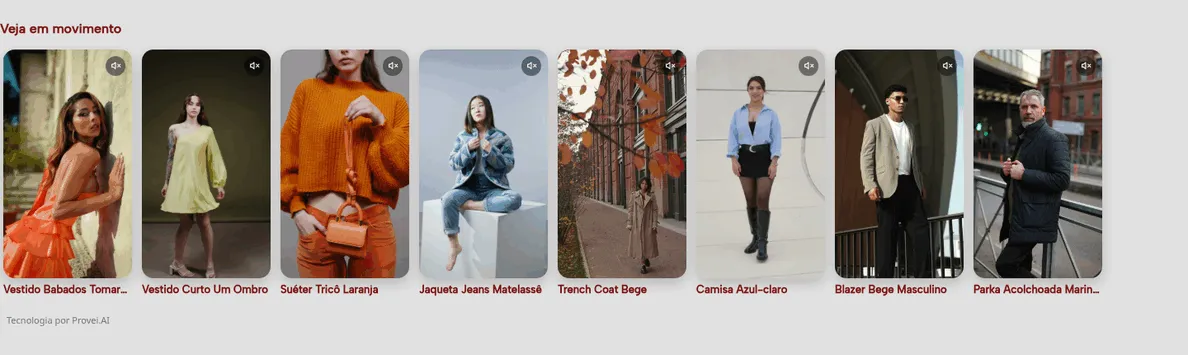
After you publish, open your store to check. For example, a carousel on the home page:
Restore the defaults
Section titled “Restore the defaults”- Restaurar padrão (Restore default), next to a field: takes only that setting back to the default.
- Restaurar grupo (Restore group), or Restaurar with the element’s name, such as Restaurar bolha: takes the whole group back.
- Restaurar tudo (Restore everything), at the top: colors, elements, texts and CSS go back to the Provei default in the draft. First, the dashboard asks Restaurar toda a aparência? (Restore the whole appearance?)
Restoring only changes the draft. Your store stays the same until you publish.
What depends on your plan
Section titled “What depends on your plan”Logo, brand name in the player, fonts, CSS and removing the “Tecnologia por Provei.AI” badge are part of the Enterprise plan. On other plans, these fields stay visible, with the Plano Enterprise badge and the Conhecer planos (See plans) link. Everything else works on every plan that has Video Commerce. See What is in the Enterprise plan.
Frequently asked questions
Does changing the appearance change my store right away?
No. Every change is saved as a draft. Your store only changes after you click Publicar (Publish), and Descartar (Discard) takes everything back to what is published.
Do I have to change each showcase to change the colors?
No. What you change in Aparência applies to every showcase and to the player. Change inside a showcase only what that showcase needs to look different.
The Deixe com a cara da sua loja guide is gone. How do I open it again?
It shows on the first visit, while the appearance is still the default. Once you skip or finish it, it doesn't come back in that browser. Everything it does is in the Estilo, Marca and Elementos areas.