Store style, kits and global settings
The Estilo (Style) area changes the look of every try-on element at once: the button, the invite, the try-on window and the size links. Start with a ready-made kit and fine-tune it with the global settings.
To open it, go to Experiência na loja › Estilo (In-store experience › Style).
Apply a ready-made kit
Section titled “Apply a ready-made kit”A kit changes the color, corners, shadow, font and tone of the button, the invite, the window and the links in one go.
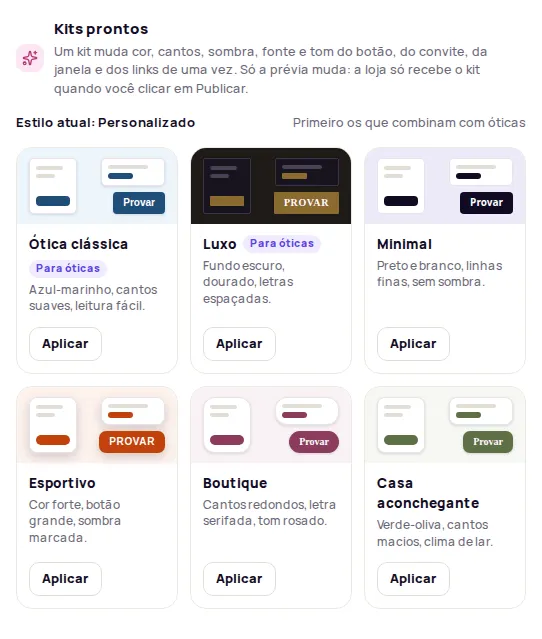
-
In Kits prontos (Ready-made kits), look through the thumbnails. The first kits in the list match your type of store and carry a tag such as Para moda (For fashion), Para óticas (For optical stores) or Para casa (For home).
-
Click Aplicar (Apply) on the kit you want. The preview changes right away and a message confirms the kit was applied to the preview.
-
Adjust anything you like in Ajustes globais (Global settings) or in each element.
-
Click Publicar alterações (Publish changes) to take the style to your store.
The six kits are:
| Kit | What it looks like |
|---|---|
| Minimal | Black and white, thin lines, no shadow. |
| Boutique | Round corners, serif lettering, a pink tone. |
| Esportivo (Sporty) | Strong color, large button, heavy shadow. |
| Luxo (Luxury) | Dark background, gold, widely spaced letters. |
| Ótica clássica (Classic optical) | Navy blue, soft corners, easy to read. |
| Casa aconchegante (Cozy home) | Olive green, soft corners, a homey feel. |
Above the kits, Estilo atual (Current style) shows the kit in use. If you change something after applying it, it reads “Personalizado, a partir do kit …” (Customized, based on the … kit).
Change the global settings
Section titled “Change the global settings”The Ajustes globais apply to the button, invite, window and links together. Like kits, they only change the preview until you publish.
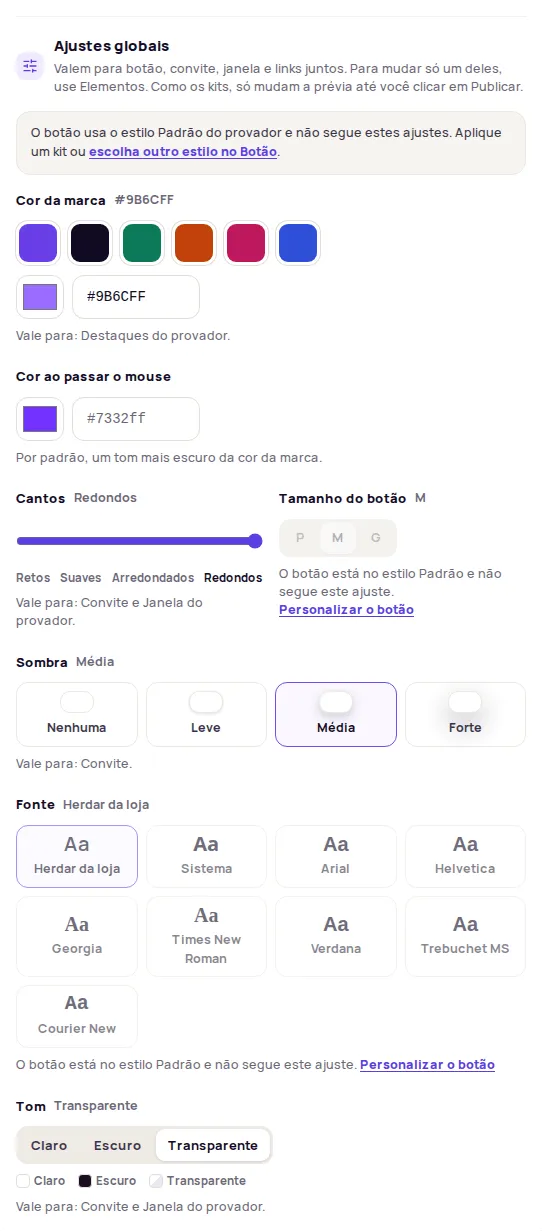
| Setting | Options |
|---|---|
| Cor da marca (Brand color) | The main color of the try-on buttons and highlights. Right below it is Cor ao passar o mouse (Hover color): by default, a darker shade of the brand color. To go back to that default, click Usar automática (Use automatic). |
| Cantos (Corners) | Retos (Square), Suaves (Soft), Arredondados (Rounded) or Redondos (Round). |
| Tamanho do botão (Button size) | P, M or G (S, M or L). |
| Sombra (Shadow) | Nenhuma (None), Leve (Light), Média (Medium) or Forte (Strong). |
| Fonte (Font) | The text font, such as Herdar da loja (Inherit from store), Sistema (System), Arial or Georgia. |
| Tom (Tone) | Claro (Light), Escuro (Dark) or Transparente (Transparent). |
Under each setting, the Vale para: (Applies to:) line shows which elements follow it.
When an element has its own setting
Section titled “When an element has its own setting”If you change a setting inside an element, for example the corners of the invite only, that element stops following the global setting. The global setting then shows the notice Com ajuste próprio, não mudam com este global (Have their own setting and don’t change with this global one), with the element’s name.
Inside the element, the setting shows the tag Personalizado aqui · voltar ao global (Customized here · back to global). Click it to make the element follow the global setting again.
The button in the Padrão style
Section titled “The button in the Padrão style”The button on the page has two styles: Padrão (Default) and Personalizado (Custom). In Padrão, it uses the try-on theme’s icon and colors and doesn’t follow the global settings. When that happens, the global setting shows O botão está no estilo Padrão e não segue este ajuste. (The button uses the Default style and doesn’t follow this setting.) Click Personalizar o botão (Customize the button) to change it. See Button on the product page.
Settings that depend on your plan
Section titled “Settings that depend on your plan”Some settings are locked depending on your plan:
- Cor da marca: custom colors are available on paid plans.
- Tom: tones other than the default are on paid plans.
When a kit tries to change a setting your plan doesn’t include, that setting stays as it was and appears in the O que não mudou list.
See what your plan includes in Plan and credits.
Frequently asked questions
Does applying a kit change my store right away?
No. A kit only changes the preview. Your store gets the new style when you click Publicar alterações (Publish changes).
Why didn't the button change when I changed a global setting?
A button in the Padrão (Default) style doesn't follow the global settings. Click Personalizar o botão (Customize the button), shown on the setting itself, so the button starts following them.