Pop-up invite to try on
The Convite (pop-up) (Pop-up invite) is a reminder on the product page that invites shoppers to try the product on. It appears after a few seconds, has a button that opens the try-on, and can be closed at any time.
This feature used to be called Toast de Convite. It now lives in Experiência na loja › Elementos › Convite (pop-up) (In-store experience › Elements › Pop-up invite).
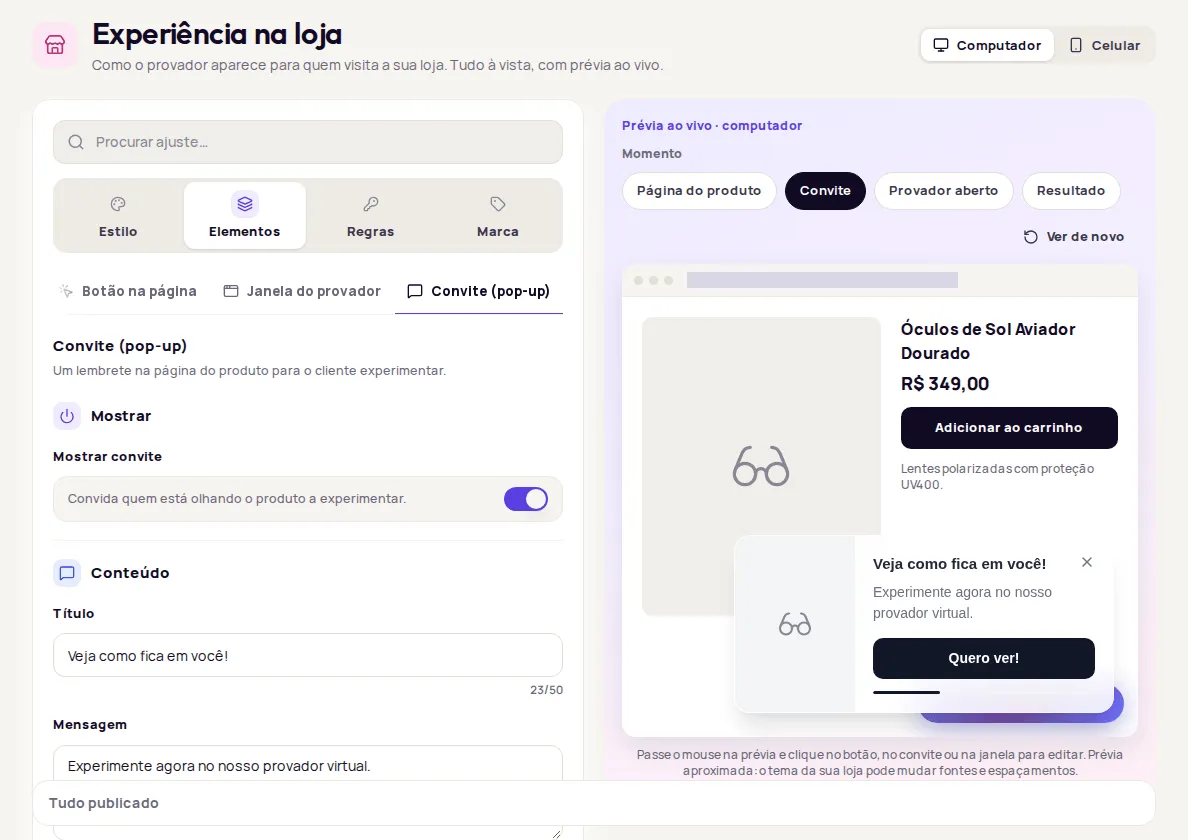
Turn the invite on
Section titled “Turn the invite on”In the Mostrar (Show) section, turn on Mostrar convite (Show invite). When it is off, your settings are kept for when you turn it back on.
Write the content
Section titled “Write the content”In the Conteúdo (Content) section:
- Título (Title): up to 50 characters. Example: “Veja como fica em você!” (See how it looks on you!).
- Mensagem (Message): up to 120 characters. Example: “Experimente agora no nosso provador virtual.” (Try it now in our virtual fitting room.).
- Texto do botão (Button text): up to 20 characters. Example: “Quero ver!” (Show me!).
- Imagem (Image): Produto (Product, the photo of the product on the page), Logo da loja (Store logo) or Nenhuma (None).
The store logo is an Enterprise plan feature and uses the logo uploaded in Brand. Without a logo, the invite appears with no image.
Choose the layout and animation
Section titled “Choose the layout and animation”In the Layout section:
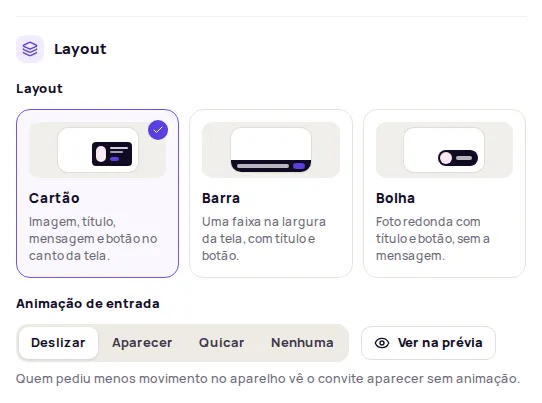
| Layout | What it looks like |
|---|---|
| Cartão (Card) | Image, title, message and button in a corner of the screen. |
| Barra (Bar) | A strip across the width of the screen, with title and button. |
| Bolha (Bubble) | A round photo with title and button, without the message. |
In Animação de entrada (Entrance animation), choose Deslizar (Slide), Aparecer (Fade in), Quicar (Bounce) or Nenhuma (None). Click Ver na prévia (See in preview) to watch the entrance. People who asked their device for reduced motion see the invite appear without animation.
Set when the invite appears
Section titled “Set when the invite appears”In the Quando aparece (When it appears) section:
- Aparece depois de (seg.) (Appears after, in seconds) and No máximo em (seg.) (At most after, in seconds): each visit picks a random moment between the two times. A varied delay feels less pushy. The maximum has to be greater than the minimum.
- Com que frequência (How often): Sempre (Always), Uma vez por visita (Once per visit) or Uma vez por dia (Once a day). Once per visit or once a day avoids showing the invite again to someone who has already seen it.
Choose where it appears
Section titled “Choose where it appears”The invite always appears on product pages. In the Onde aparece (Where it appears) section:
- Canto (Corner): Superior esquerdo (Top left), Superior direito (Top right), Inferior esquerdo (Bottom left) or Inferior direito (Bottom right). With the Barra layout, it only decides whether the bar sits at the top or the bottom.
- No celular (On mobile): Automático (Automatic) follows the corner you picked. Topo (Top) and Rodapé (Bottom) pin the invite to the edge of the phone screen. Esconder no celular (Hide on mobile) doesn’t show the invite on small screens.
Adjust the look
Section titled “Adjust the look”In the Visual section, choose the Tom (Tone: Claro, Escuro or Transparente, that is light, dark or transparent), the Cantos (Corners), the Sombra (Shadow) and the Cor do botão do convite (Invite button color): Do tema (From the theme) or Cor da marca (Brand color).
Set how the invite closes
Section titled “Set how the invite closes”In the Fechar (Close) section:
- Fechar sozinho (Close automatically): the invite disappears after a few seconds if the shopper doesn’t interact with it.
- Fica visível por (seg.) (Stays visible for, in seconds): from 1 to 60 seconds.
- Mostrar barra de tempo (Show timer bar): a thin line shows how long until it closes.
Shoppers can always close it with the X.
Test the invite
Section titled “Test the invite”-
In the preview, pick the Convite (Invite) moment. Click Ver de novo (See again) to replay the entrance.
-
Click Publicar alterações (Publish changes).
-
Open a product page in your store in a private window and wait for the time you set.
Frequently asked questions
Is the invite the same as the old Toast de Convite?
Yes. Toast de Convite is now called Convite (pop-up) and lives in Experiência na loja › Elementos › Convite (pop-up) (In-store experience › Elements › Pop-up invite).
Why doesn't the invite show up in my store?
Check that Mostrar convite (Show invite) is on, that the try-on button is showing, that the window isn't in the Dentro da página (Inside the page) format, and that the invite isn't hidden on mobile. With the Uma vez por visita (Once per visit) or Uma vez por dia (Once a day) frequency, it doesn't show again to someone who has already seen it.
Can shoppers close the invite?
Yes. Shoppers can always close it with the X.