Your store's brand in the try-on
The Marca (Brand) area sets how your store presents itself inside the try-on: the logo, the name and the “Provador por Provei” (Try-on by Provei) badge.
To open it, go to Experiência na loja › Marca (In-store experience › Brand). In the preview, the Provador aberto (Try-on open) moment shows the result.
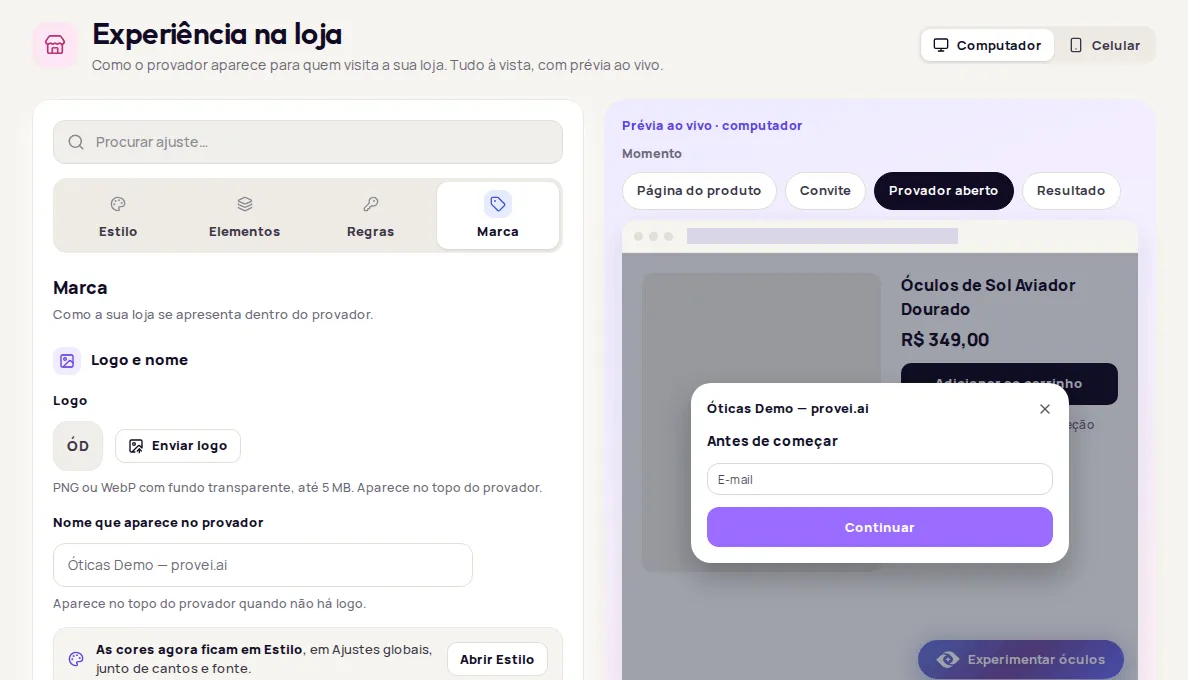
Upload your logo
Section titled “Upload your logo”-
In Logo e nome (Logo and name), click Enviar logo (Upload logo), or Trocar logo (Replace logo) if you already have one.
-
Pick a PNG or WebP image with a transparent background, up to 5 MB.
-
Click Publicar alterações (Publish changes).
The logo appears at the top of the try-on. It can also appear in the pop-up invite if you choose Logo da loja (Store logo) as its image.
Set the name shown in the try-on
Section titled “Set the name shown in the try-on”In Nome que aparece no provador (Name shown in the try-on), type your store’s name. It appears at the top of the try-on when there is no logo.
Change the brand color
Section titled “Change the brand color”Colors live in Estilo (Style), in the Ajustes globais (Global settings) section, together with corners and font. Click Abrir Estilo (Open Style) to go there. See Style.
Show or hide the “Provador por Provei” badge
Section titled “Show or hide the “Provador por Provei” badge”In Selo de atribuição (Attribution badge), use Mostrar “Provador por Provei” (Show “Try-on by Provei”). It is a small badge at the bottom of the try-on window. After changing it, click Publicar alterações.
If the switch is locked with the message Seu plano Enterprise já esconde o selo da Provei. (Your Enterprise plan already hides the Provei badge.), the badge is already hidden and you don’t need to do anything.
Frequently asked questions
Where do I change the brand color?
In Experiência na loja › Estilo (In-store experience › Style), in the Ajustes globais (Global settings) section.
What logo format can I upload?
PNG or WebP with a transparent background, up to 5 MB.