Install the virtual try-on in your store
To add Provei to your store, you copy a code from the dashboard and paste it once into your theme, at the end of the layout used by every page. The Instalação (Installation) screen walks you through four steps: Plataforma (Platform), Instalar (Install), Testar (Test) and Pronto (Done).
Before you start
Section titled “Before you start”- An active try-on on your account. If the screen shows Nada para instalar ainda (Nothing to install yet) and Sua conta ainda não tem um provador ativo. (Your account doesn’t have an active try-on yet.), contact support.
- Products in your catalog. The button only shows on the pages of products that are added and active. See Add products from a link.
- Access to the theme code editor, yours or that of whoever manages the store.
- Your store address enabled. Provei enables your store’s address for the try-on. If your store opens both with and without
www, or has more than one domain, tell support so they enable all of them. See Store not enabled.
Step by step
Section titled “Step by step”-
In the dashboard, open Instalação.
At the top, a notice tells you whether the try-on has already been seen in your store. See the notices in Test the installation.
-
Under Qual é a plataforma da sua loja? (What platform is your store on?), choose Shopify, Nuvemshop, VTEX, Tray or Outra plataforma (Other platform) and click Continuar (Continue).
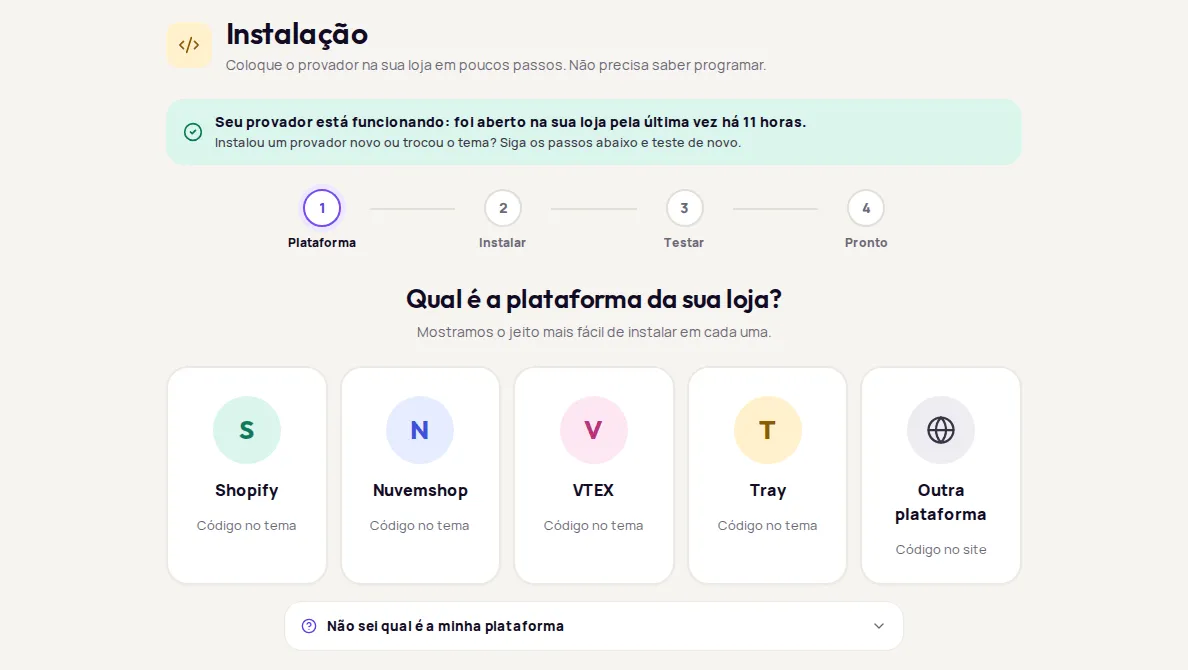
Not sure which one? Open Não sei qual é a minha plataforma (I don’t know my platform). If in doubt, choose Outra plataforma: the code works on any website.
-
On Shopify, enter the address that ends in
.myshopify.comand click Continuar. On other platforms, this step doesn’t appear. -
If your account has more than one try-on, choose one under Qual provador você vai instalar agora? (Which try-on are you installing now?).
-
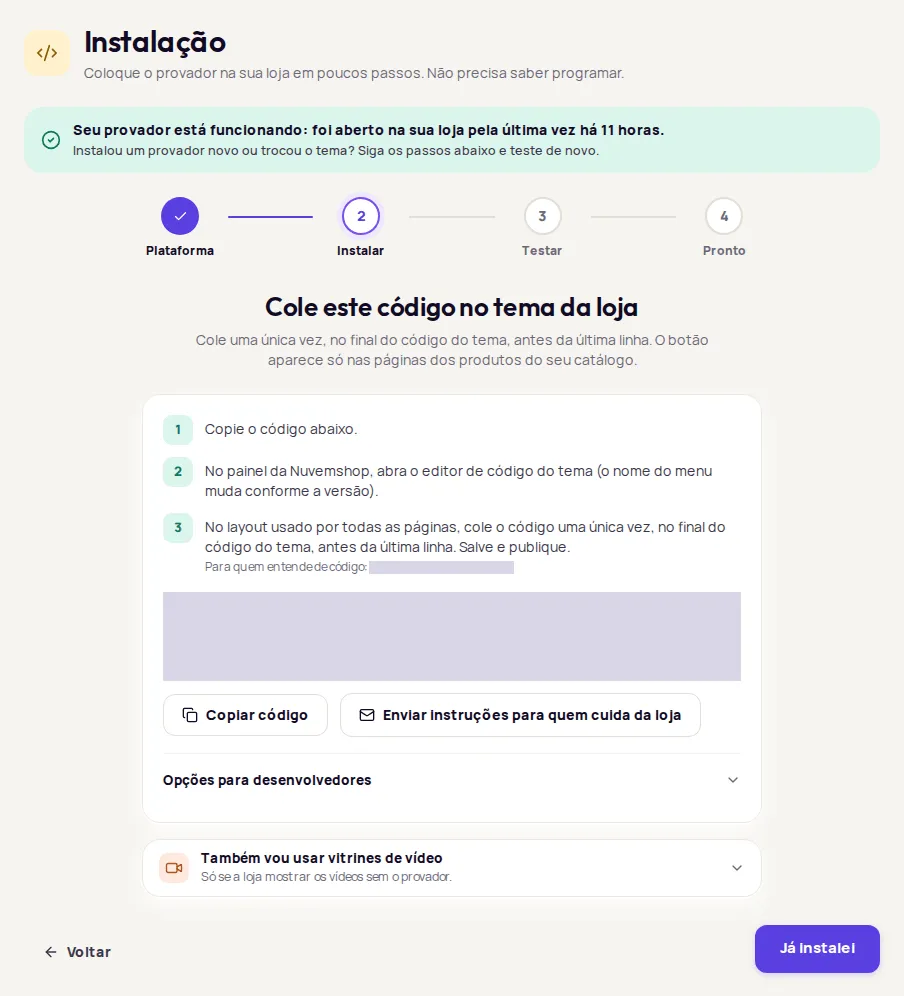
Click Copiar código (Copy code) and paste it into your store theme, following the steps on screen. See the guide for your platform:
-
After you save and publish the theme, click Já instalei (I’ve installed it).
-
Paste the link to a product page and click Testar (Test). See Test the installation.
-
Click Concluir (Finish). The Pronto (Done) screen suggests next steps: Personalizar a experiência (Customize the experience), Adicionar produtos (Add products) and Acompanhar resultados (Track results).
What the code looks like
Section titled “What the code looks like”The code is one line of script with your account’s identifier. Always copy the code from the dashboard: it already has the right identifier. The example below uses a made-up identifier.
<!-- Provei - Provador virtual --><script src="https://app.provei.ai/api/v2/snippet-fashion/00000000-0000-4000-8000-000000000000" async crossorigin="anonymous"></script>The comment on the first line changes with the try-on: Provador virtual (virtual try-on), Provador de óculos (eyewear try-on), Provador de medidas (size tools) or Provador de ambientes (room try-on).
More than one try-on
Section titled “More than one try-on”Each try-on has its own code. If your account has more than one, the screen asks Qual provador você vai instalar agora?. Paste one code at a time, in the same place in the theme.
- Provador virtual: the clothing on the customer’s body.
- Provador de medidas: size guide, Find your size and Compare sizes. It always uses the same code; the links only show on products with a size chart.
- Provador de óculos: the frames on the customer’s face.
- Provador de ambientes: furniture, walls and wall coverings, and flooring, with a single code.
Video Commerce
Section titled “Video Commerce”Video showcases load together with the try-on code. If your store will show videos without the try-on, open Também vou usar vitrines de vídeo (I’ll also use video showcases) and copy the Video Commerce code.
Options for developers
Section titled “Options for developers”Below the code, Opções para desenvolvedores (Options for developers) shows other ways to add the same try-on to your store. Pick only one.
- Botão automático (Automatic button): the button shows up on its own on the pages of products in your catalog.
- Provador dentro da página (Try-on inside the page): instead of opening a window, the try-on shows inside a space on the page.
- Botão próprio da loja (Your store’s own button): a button from your theme opens the try-on, instead of the Provei button.
- Carregador com verificação (Loader with verification, room try-on): checks the account before loading the try-on and warns in the browser console if something goes wrong.
The main code on the screen already follows your settings in In-store experience. For technical details, see Developers.
If someone else manages your theme
Section titled “If someone else manages your theme”Click Enviar instruções para quem cuida da loja (Send instructions to whoever manages the store). Your email app opens a ready-made message with the steps and the code. See Send instructions to whoever manages your store.
Need help? In the test step, use Fale com a gente no WhatsApp (Talk to us on WhatsApp), or email suporte@provei.ai.
Frequently asked questions
Do I need a developer to install it?
No. Copy the code from the dashboard and paste it into your store theme, at the end of the layout used by every page. If someone else manages your theme, use the Enviar instruções para quem cuida da loja (Send instructions to whoever manages the store) button.
I use more than one try-on. Do I need more than one code?
Yes. Each try-on has its own code. Paste them one at a time, in the same place in the theme.
Do I need to paste the code on every product page?
No. Paste it once, in the layout used by every page. The button shows up on its own on the pages of products in your catalog.