Import size charts
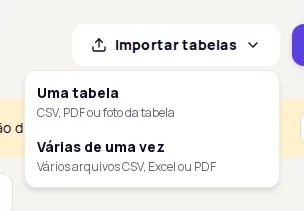
Instead of typing in the grid, you can import ready-made charts. Use Importar tabelas (Import charts) in Produtos › Tabelas de medidas (Products › Size charts) and choose whether to import one chart or many at once.
Choose how to import
Section titled “Choose how to import”Accepts a CSV file, a PDF or a photo of the chart.
- In Produtos › Tabelas de medidas, click Importar tabelas.
- Choose Uma tabela (One chart).
- Select the file. When the import finishes, you’ll see Tabela importada (Chart imported) and the chart shows up in the list.
Accepts several CSV, Excel (.xlsx) or PDF files. Each file becomes one chart.
- In Produtos › Tabelas de medidas, click Importar tabelas.
- Choose Várias de uma vez (Many at once).
- Click the selection area and choose the files.
- Check the file list and click Importar (Import). The button shows the number of files.
- Follow the progress of each file. At the end, the summary shows how many charts were created and how many had errors.
Limits shown on screen: up to 100 files; CSV up to 1 MB, XLSX up to 10 MB, PDF up to 50 MB, and 100 MB in total.
Set up the CSV or Excel file
Section titled “Set up the CSV or Excel file”The safest way to get the format right is to export a chart you already created in the dashboard and use that file as a template.
The file follows this order:
- A first line with the chart name, starting with
#name:. This line is required. - A header row: the first column is the size and the others are the measurements.
- One row per size, with values in centimeters.
#name:Camisetas AdultoTamanho,Tórax,Comprimento,OmbroP,96,68,42M,100,70,44G,106,72,46Rules:
- Comma-separated CSV, saved as UTF-8.
- Use a period for decimals, for example
72.5. - Leave the cell empty when a size doesn’t have that measurement.
- In Excel, use the same layout on the first sheet.
Column headers are read in Portuguese. Headers such as Tórax (Chest), Busto (Bust), Peito (Chest), Cintura (Waist), Quadril (Hips), Ombro (Shoulder), Comprimento (Length), Entrepernas (Inseam), Lateral (Side), Barra (Hem), Bainha (Hem), Gancho frontal (Front rise) and Gancho traseiro (Back rise) are recognized as the matching measurement type. Other headers come in as Personalizada (Custom) and don’t count toward the recommendation. After importing, you can change each column’s type in the chart.
Common errors
Section titled “Common errors”| Message | What to do |
|---|---|
| CSV sem nome (#name) (CSV with no name) | Add the #name: line with the chart name at the top of the file. |
| CSV precisa de cabeçalho e ao menos um tamanho (CSV needs a header and at least one size) | Include the header row and at least one size row. |
| CSV sem colunas de medidas (CSV with no measurement columns) | Include at least one measurement column after the size column. |
| Valor inválido para (measurement) no tamanho (size) (Invalid value for a measurement in a size) | Use numbers only, with a period for decimals. |
| Tamanho sem rótulo no CSV (Size with no label in the CSV) | Fill in the first column of every size row. |
| CSV deve usar codificação UTF-8 (CSV must use UTF-8 encoding) | Save the file again as CSV UTF-8. |
The same messages show XLSX instead of CSV when the file is Excel.
After importing
Section titled “After importing”- Open the imported chart and check the sizes, values and each column’s type.
- Set the Base das medidas and click Salvar (Save).
- Link the chart to products. See Link size charts to products.
Frequently asked questions
Is there a file template for importing charts?
There's no template to download. Create a chart in the dashboard, click Exportar (Export) and use the downloaded CSV as your template.
Once imported, does the chart work with Descubra seu tamanho right away?
Only if the measurement basis is right. Open the imported chart and check the Base das medidas (Measurement basis) field. If it's set to Somente exibição (Display only), change it to body or garment measurements and save.