Connect Google Analytics 4
With Google Analytics 4 connected, Provei shows in Resultados › Receita (Results › Revenue) how much customers who used the try-on spent, according to your store’s Analytics. You connect it in Conta › Integrações › Google Analytics 4 (Account › Integrations › Google Analytics 4), in four stages.
Before you start
Section titled “Before you start”- Access to Resultados (Results) in the dashboard. Without it, the Google Analytics 4 card doesn’t show in Integrações (Integrations).
- A Google Analytics 4 property with a web data stream for your store.
- A Google account that administers that Analytics property.
- Your store and checkout addresses, with
https://. For example,https://www.minhaloja.com.br.
Stage 1: Sign in with Google
Section titled “Stage 1: Sign in with Google”-
In Conta › Integrações, on the Google Analytics 4 card, click Conectar (Connect).
-
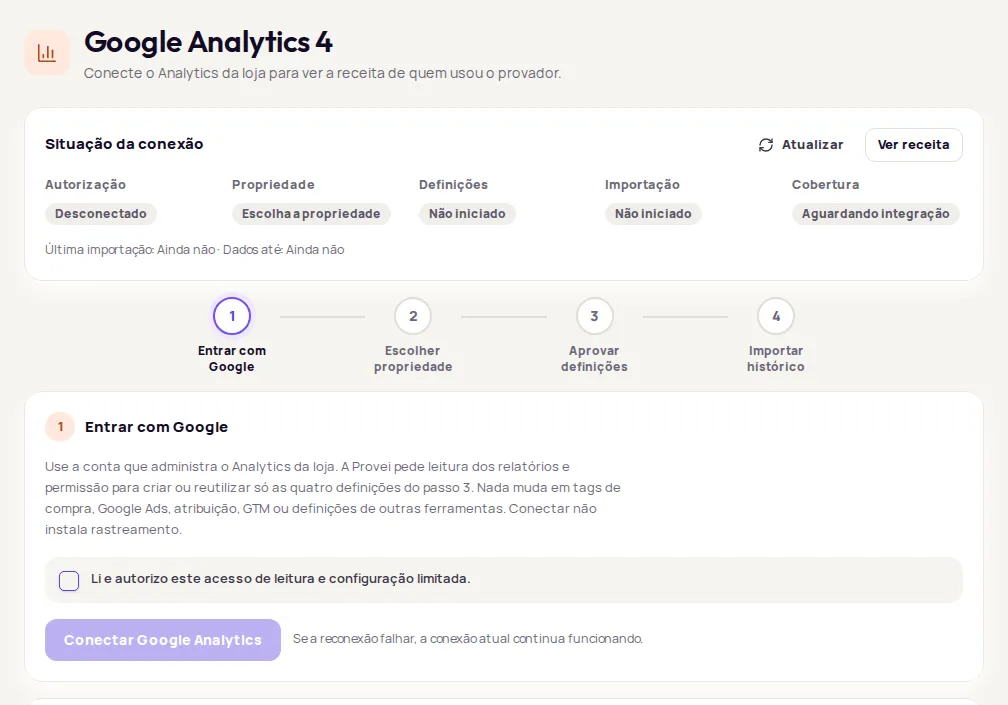
Read the text in the Entrar com Google (Sign in with Google) stage and check Li e autorizo este acesso de leitura e configuração limitada. (I have read and authorize this read access and limited configuration.)
-
Click Conectar Google Analytics (Connect Google Analytics) and sign in with the account that administers your store’s Analytics.
-
Accept the read and configuration permissions. When you come back, the screen shows Google conectado. Agora escolha a propriedade e o fluxo da web. (Google connected. Now choose the property and the web stream.)
Stage 2: Choose the property and web stream
Section titled “Stage 2: Choose the property and web stream”-
Choose the Conta do Google Analytics (Google Analytics account), the Propriedade (Property) and the store’s Fluxo de dados da web (Web data stream). Nothing is chosen automatically.
-
In Endereços da loja e do checkout (Store and checkout addresses), write one address per line, with
https://, with no path and no trailing slash. Include the checkout domain if it’s different. -
Click Verificar e salvar (Check and save).
Switching to another property later starts a new connection, without mixing in old reports.
Stage 3: Accept the definitions
Section titled “Stage 3: Accept the definitions”Provei creates or reuses four user dimensions in your Analytics. The Provei code tags customers when they use a feature, and the purchase inherits the tag even without the code on the checkout. The screen lists the four definitions. Identical definitions are reused without changes; no other definition is renamed or archived.
-
Check Aprovo criar ou reutilizar estas quatro definições. (I agree to the creation or reuse of these four definitions.)
-
Click Configurar definições (Set up definitions).
Google can take a few hours to make the definitions available in reports.
Stage 4: Update or import history
Section titled “Stage 4: Update or import history”-
Choose the dates in De (From) and Até (To). Each import covers up to 366 days, within the last 13 months.
-
Click Importar período (Import period).
The Trabalho pedido (Requested job) card shows progress: Na fila (Queued), Em andamento (In progress) and Concluído (Done).
Keep track of the connection
Section titled “Keep track of the connection”The Situação da conexão (Connection status) card shows Autorização (Authorization), Propriedade (Property), Definições (Definitions), Importação (Import) and Cobertura (Coverage), plus Última importação (Last import) and Dados até (Data up to). Click Ver receita (See revenue) to open the report. See Revenue from GA4.
On the Integrações screen, the card shows:
| Status | What to do |
|---|---|
| Conectado (Connected) | Nothing. |
| Configuração pendente (Setup pending) | Finish stage 2 or stage 3. |
| Autorize de novo (Authorize again) | Google asked for a new authorization. Repeat stage 1. |
| Não conectado (Not connected) | Start with stage 1. |
| Indisponível agora (Unavailable right now) | Try again in a few moments. If it keeps happening, contact Provei. |
Messages when you come back from Google
Section titled “Messages when you come back from Google”- A autorização foi recusada no Google. (Authorization was declined on Google.): you can try again. A connection that already existed stays in place.
- Faltaram permissões na autorização. (Some permissions were missing from the authorization.): authorize again and accept read and configuration access.
- O Google não liberou o acesso contínuo. (Google didn’t grant ongoing access.): authorize again so imports run on their own.
- A autorização expirou ou já foi usada. (The authorization expired or was already used.): start a new connection.
If reconnecting fails, the current connection keeps working.
Disconnect
Section titled “Disconnect”On the Desconectar (Disconnect) card, click Desconectar esta loja (Disconnect this store) and confirm. Revenue stops updating. Reports already imported stay available, and nothing is deleted from Google Analytics.
Frequently asked questions
Does connecting Google Analytics install any tracking?
No. Provei asks to read your reports and for permission to create or reuse only four definitions. Nothing changes in purchase tags, Google Ads, attribution, GTM or definitions from other tools.
How long does it take for revenue to show?
Google can take a few hours to make the definitions available in reports, and revenue arrives 1 to 2 days after the purchases.
Who can connect Google Analytics?
Only the account owner, logged in with their own password. The team can see the connection status and the reports.