Virtual try-on on Nuvemshop: how to install
On Nuvemshop, the Provei code goes in the layout used by every page, right before </body>. There are two ways to do it: edit the layout code, if your Nuvemshop plan allows it, or add the code through Google Tag Manager.
Copy the code in the dashboard
Section titled “Copy the code in the dashboard”-
In the Provei dashboard, open Instalação (Installation).
-
Choose Nuvemshop and click Continuar (Continue).
-
If your account has more than one try-on, choose which one to install now.
-
Click Copiar código (Copy code).
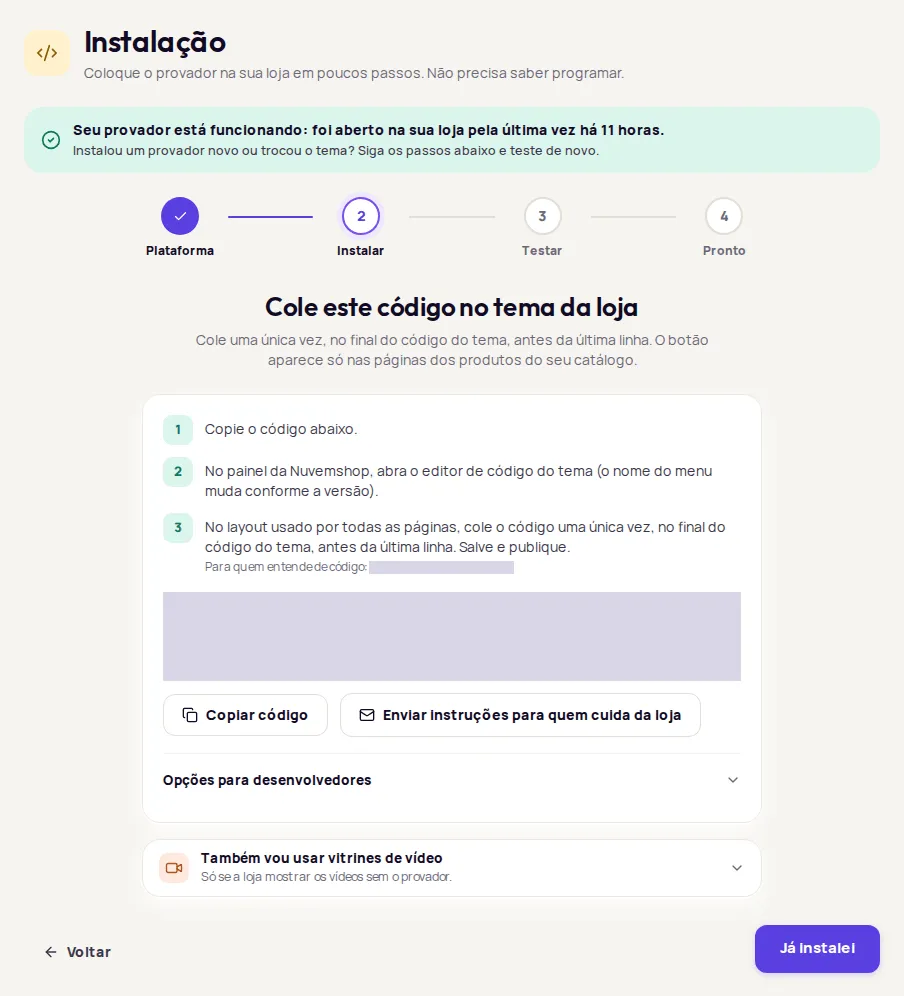
Paste the code into your store
Section titled “Paste the code into your store”This option needs a Nuvemshop plan with access to the layout source code, and some HTML knowledge. If that’s not your case, ask whoever manages your store or use the Google Tag Manager tab.
-
In the Nuvemshop admin, open Loja online › Layout (Online store › Layout).
-
On the layout in use, click Editar o código (Edit code) and follow the Nuvemshop instructions to unlock access to the files.
-
Open the layout file used by every page of the store.
-
Paste the code once, at the end of the file, right before
</body>. -
Save and publish.
Use this option if your store already has Google Tag Manager connected to Nuvemshop.
-
In Google Tag Manager, open the container linked to your store.
-
Create a new tag of type Custom HTML.
-
Paste the Provei code into the HTML field.
-
Under Triggering, choose Page View on all pages.
-
Save and publish the new container version.
Menu names can change depending on the admin version and layout type. If you can’t find the option, check the Nuvemshop help center or ask whoever develops your store.
-
In the Provei dashboard, click Já instalei (I’ve installed it).
-
Paste the link to a product in your catalog, for example
https://minhaloja.com.br/produtos/nome-do-produto/, and click Testar (Test). -
When you see Tudo certo: o código está nesta página. (All set: the code is on this page.), open the page and check the button.
See the possible results in Test the installation.
Common problems
Section titled “Common problems”- Não encontramos o código nesta página. (We didn’t find the code on this page.) after installing through Google Tag Manager: this is expected. Check the button directly on the product page.
- Não encontramos o código nesta página. after editing the layout: check that you saved, published and edited the layout in use. See Code not found.
- Layout change: the code lives in the layout. When you switch layouts, paste it again.
- The button doesn’t show: the product must be in your catalog and active, and your store address must be enabled by Provei. See The button doesn’t show.
Frequently asked questions
My Nuvemshop plan doesn't let me edit the code. Can I still install it?
Yes, through Google Tag Manager, which Nuvemshop recommends for adding scripts from outside tools. In that case the dashboard test won't find the code, so check the button directly on the product page.
Does Nuvemshop still have the tracking codes field?
No. According to the Nuvemshop help center, those fields were retired in March 2024. Use the layout code or Google Tag Manager.