Link size charts to products
A clothing product only shows the size features once it has a linked size chart and its sizes are selected. You can link products one at a time or many at once.
Link a chart to one product
Section titled “Link a chart to one product”- Open the product in Produtos › Catálogo (Products › Catalog).
- In the Tamanhos e medidas (Sizes and measurements) card, pick the chart in the Tabela de medidas (Size chart) field.
- In Tamanhos aplicáveis (Applicable sizes), select the sizes the product is sold in.
- Click Salvar (Save).
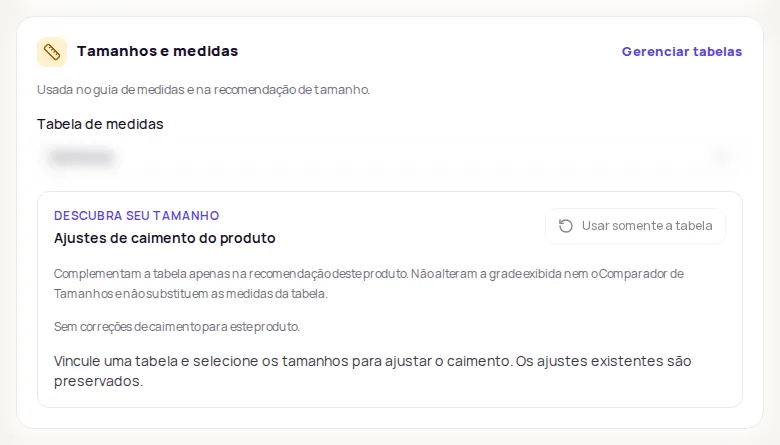
To remove the chart from a product, choose Nenhuma (None) and save. If there are no charts yet, the card shows the Crie uma tabela primeiro (Create a chart first) link.
Link many products at once
Section titled “Link many products at once”You can start from three places:
- In Produtos › Catálogo, select clothing products and click Vincular tabela (Link chart).
- In Produtos › Tabelas de medidas (Products › Size charts), click Vincular produtos (Link products) on the chart’s row.
- In the notice about active products without a chart, in Produtos › Tabelas de medidas, click Vincular agora (Link now).
The Vincular produtos window has three steps: Seleção (Selection), Revisão (Review) and Conclusão (Done).
- Choose the chart, if it isn’t already chosen.
- In Tamanhos aplicáveis, select the sizes. The same set is used for every product.
- Select the products. Search by name, description or link, and filter by status and by link (no chart, this chart or another chart). To include every product in the filters, use the select-all option.
- Click Revisar atribuição (Review assignment). The review shows how many products get a new link, how many already use the chart and how many are on another chart.
- If any product is on another chart, confirm the replacement. Those products lose their link and sizes from their current chart.
- Click Vincular produtos, or Substituir e vincular (Replace and link), and check the final summary.
Adjust a product’s fit
Section titled “Adjust a product’s fit”Some garments run larger or smaller than the chart. In the Tamanhos e medidas card, the Ajustes de caimento do produto (Product fit adjustments) section corrects this only in the Descubra seu tamanho (Find your size) recommendation for that product.
- Elasticidade confortável extra (cm) (Extra comfortable stretch, cm): from 0 to 20 cm. Raises only the maximum comfortable limit for bust/chest, waist and hips. Use it for garments with spandex.
- Correção por região (cm) (Correction by area, cm): from -20 to +20 cm. Positive: fits larger or looser. Negative: fits smaller or tighter. Zero: follows the chart.
- Usar somente a tabela (Use the chart only): removes this product’s corrections.
Only the areas that apply to the product and its selected sizes show up. Click Salvar to apply.
Check which products have no chart
Section titled “Check which products have no chart”In clothing stores, the Sem tabela de medidas (No size chart) card in Produtos › Catálogo shows how many active products still have no chart. Without one, customers don’t see the size guide or the size recommendation on those products.
Frequently asked questions
Why do I need to select sizes?
Not every product is sold in every size on the chart. The selected sizes are the ones the customer sees in the size guide and the ones the recommendation can suggest.
Do fit adjustments change the chart?
No. They only apply to that product's recommendation. The grid shown in the Guia de medidas (Size guide) and Comparar tamanhos (Compare sizes) keep using the chart.