Virtual try-on on Tray: how to install
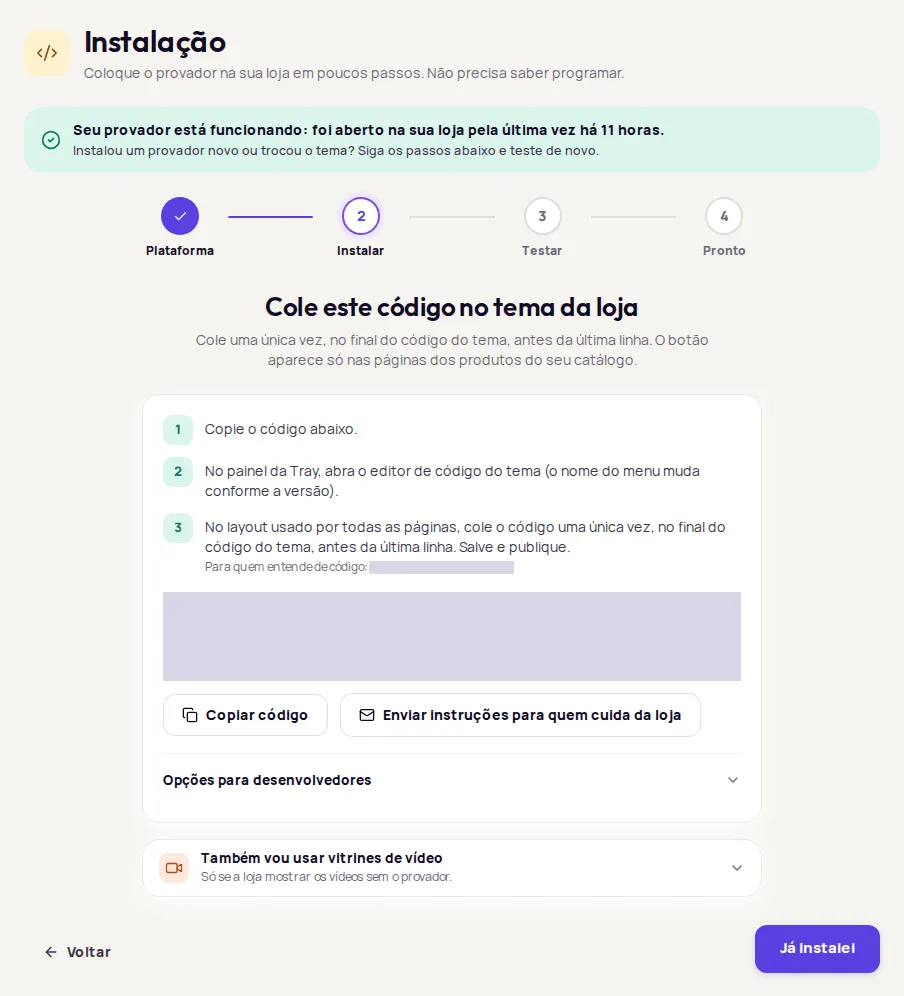
On Tray, the Provei code goes in the theme code editor, in the layout used by every page, right before </body>. You paste it once, and the button shows up on the pages of products in your catalog.
Copy the code in the dashboard
Section titled “Copy the code in the dashboard”-
In the Provei dashboard, open Instalação (Installation).
-
Choose Tray and click Continuar (Continue).
-
If your account has more than one try-on, choose which one to install now.
-
Click Copiar código (Copy code).
Paste the code into your theme
Section titled “Paste the code into your theme”-
In the Tray admin, open your store theme’s code editor.
-
Open the layout file used by every page, usually the one that builds the footer.
-
Paste the code once, at the end of the code, right before
</body>. -
Save and publish the theme.
-
In the Provei dashboard, click Já instalei (I’ve installed it).
-
Paste the link to a product in your catalog and click Testar (Test).
-
When you see Tudo certo: o código está nesta página. (All set: the code is on this page.), open the page and check the button.
See the possible results in Test the installation.
Common problems
Section titled “Common problems”- Não encontramos o código nesta página. (We didn’t find the code on this page.): check that you saved and published the theme and that you pasted the code in the layout used by every page. See Code not found.
- Theme change: the code lives in the theme. When you switch themes, paste it again and test.
- The button doesn’t show: the product must be in your catalog and active, and your store address must be enabled by Provei. See The button doesn’t show.