In-store experience editor
In Experiência na loja (In-store experience) you decide how the virtual try-on looks to people visiting your store: the button on the product page, the try-on window, the size links, the pop-up invite, the access rules and your brand. Every change shows up first in a live preview, and your store only gets it when you click Publicar alterações (Publish changes).
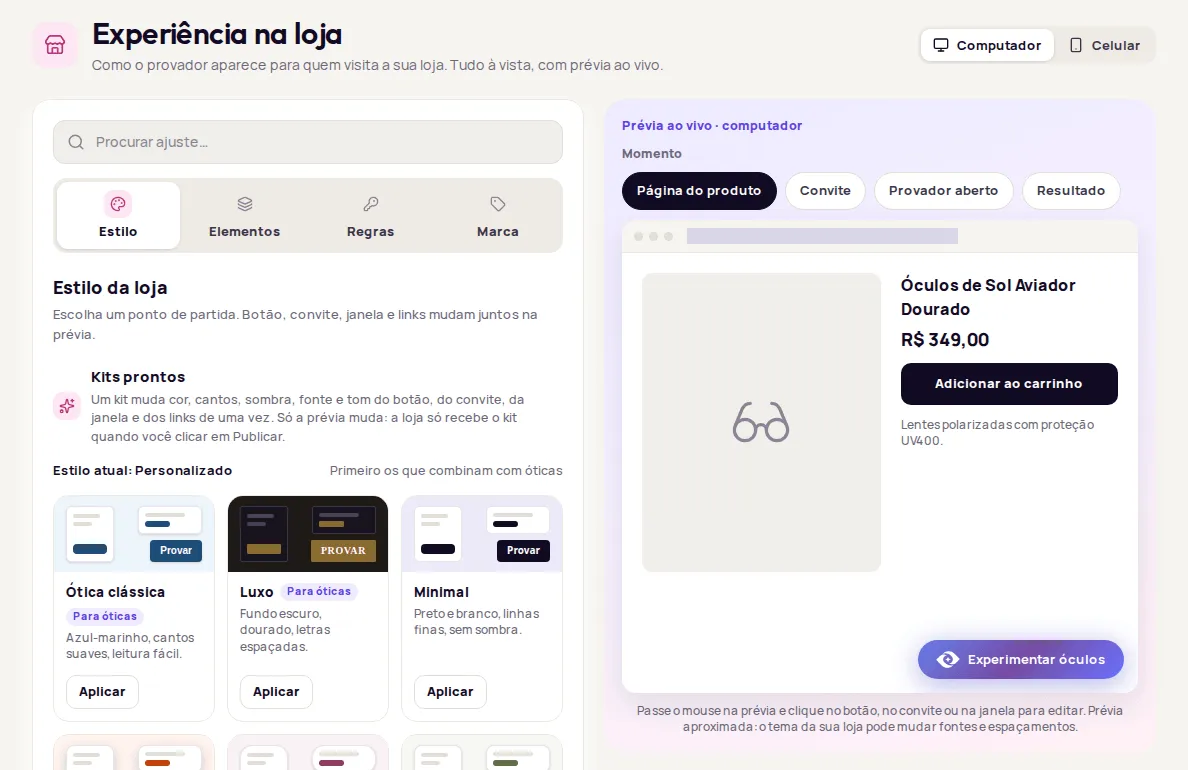
Open the editor
Section titled “Open the editor”In the dashboard side menu, click Experiência na loja. The editor opens on the first area available to your account.
The four areas of the editor
Section titled “The four areas of the editor”The editor has four areas. You only see the areas and elements for the features active on your account.
| Area | What you set |
|---|---|
| Estilo (Style) | A ready-made kit as a starting point, plus the global settings (brand color, corners, button size, shadow, font and tone) that apply to everything at once. See Style. |
| Elementos (Elements) | One tab for each part shoppers see on the page: Botão na página (Button on the page), Janela do provador (Try-on window), Medidas e tamanho (Measurements and size) and Convite (pop-up) (Pop-up invite). |
| Regras (Rules) | Who can use the try-on, how many times, and what happens afterwards: access and contacts, per-customer limits, watermark and result rating. |
| Marca (Brand) | Your logo, the name shown in the try-on and the “Provador por Provei” (Try-on by Provei) badge. See Brand. |
Find a setting
Section titled “Find a setting”At the top of the editor, use the Procurar ajuste… (Find a setting…) search. Type what you are looking for, such as “sombra” (shadow), “canto” (corner) or “WhatsApp”. When you pick a result, the editor opens the right area and highlights the setting.
Use the live preview
Section titled “Use the live preview”The preview shows a sample product page with your changes before you publish them.
- At the top of the editor, pick Computador (Desktop) or Celular (Mobile) to see the preview on each screen size.
- In Momento (Moment), choose what the preview shows: Página do produto (Product page), Convite (Invite), Provador aberto (Try-on open), Resultado (Result) or Tamanho (Size). You only see the moments for the features you have.
- In the Tamanho moment, you can answer the questions as a shopper would. Nothing is saved in the preview.
- On smaller screens the preview is hidden. Click Ver prévia (Show preview) to open it.
Click the preview to edit
Section titled “Click the preview to edit”Hover over the preview. Editable parts get an outline and a label such as Editar botão (Edit button), Editar convite (Edit invite) or Editar janela (Edit window). Click the part and the editor opens the matching setting.
Publish your changes
Section titled “Publish your changes”Each change stays in the editor while you move between areas. The bar at the bottom shows how many changes haven’t been published yet.
-
Make the changes you want in the editor areas and check them in the preview. Areas with pending changes get a colored dot.
-
In the bottom bar, click Publicar alterações.
-
When it finishes, the bar shows Tudo publicado (All published) with the time of the last publish.
To undo everything that hasn’t been published, click Descartar (Discard). If you try to leave the editor with pending changes, the dashboard asks Sair sem publicar? (Leave without publishing?) before discarding them.
When the change shows up in your store
Section titled “When the change shows up in your store”Published changes apply from the next time the product page loads. Reload the page in your store to check. If the change doesn’t show up, see Changes don’t show up in the store.
If a part isn’t published
Section titled “If a part isn’t published”The editor publishes each part separately. If one of them has a problem, the others are still published and you see a notice such as 1 parte não foi publicada (1 part was not published). Your changes stay in the editor. Click Corrigir em … (Fix in …) in the notice to go straight to the field with the problem, fix it and publish again.
Go back to the default value
Section titled “Go back to the default value”Many settings have a Restaurar padrão (Restore default) link next to their name. It sets that setting back to its factory value. Like any other change, it only reaches your store after you publish.
Settings for developers
Section titled “Settings for developers”Some elements have a collapsed section called Para desenvolvedores (For developers), with CSS and technical selectors. It is meant for whoever maintains your store’s code. You don’t need it for everyday use.
Features that depend on your plan
Section titled “Features that depend on your plan”Some settings show a lock and a plan notice:
- Disponível nos planos pagos (Available on paid plans): brand color, the tones of the try-on window and of Descubra seu tamanho (Find your size), among others.
- Disponível no plano Enterprise (Available on the Enterprise plan): logo, the name shown in the try-on, the message shown while the try-on is being generated, and your own watermark.
To see what your plan includes, go to Plan and credits.
Frequently asked questions
Do my changes go straight to my store?
No. Everything you change shows up first in the live preview. Your store only gets the changes when you click Publicar alterações (Publish changes).
Can I undo my changes before publishing?
Yes. Click Descartar (Discard) in the publish bar and the editor goes back to what is published.
I published, but my store looks the same. What should I do?
Reload the product page in your store. If the change still doesn't show up, follow the troubleshooting guide for changes that don't appear in the store.