Export try-on data as CSV
You can download try-on data as CSV files, which open in any spreadsheet app. There are exports in Resultados (Results), in Clientes (Customers) and on the Satisfação (Satisfaction) page.
Export events and images from Resultados
Section titled “Export events and images from Resultados”-
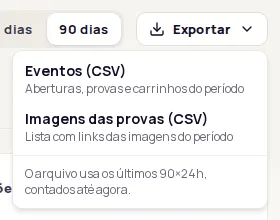
In Resultados, choose the period: 7 dias, 30 dias or 90 dias (7, 30 or 90 days).
-
Click Exportar (Export).
-
Choose the file:
- Eventos (CSV) (Events): try-on opens, try-ons and add-to-carts in the period.
- Imagens das provas (CSV) (Try-on images): a list with links to the period’s images. The images belong to your customers: treat the file as personal data and don’t share the links.
-
Wait for the download to finish and open the file in a spreadsheet.
Export the customer list
Section titled “Export the customer list”In Clientes, choose the period and the list and click Exportar lista (Export list). Leave Origem (Source) set to Todas as origens (All sources), because the export doesn’t use that filter. See Customer list.
Export satisfaction answers
Section titled “Export satisfaction answers”On the Satisfação com o resultado (Satisfaction with the result) page, click Exportar CSV (Export CSV) and choose Respostas (Answers), Resumo (Summary), Evolução (Trend) or Por provador (By try-on). See Satisfaction with the result (CSAT).
Download the images
Section titled “Download the images”To download the images themselves, use the ZIP button in the Imagens das provas (Try-on images) tab. See Try-on images.
Frequently asked questions
Why doesn't the file match the screen exactly?
The file counts the last 7, 30 or 90 periods of 24 hours up to the moment you export. The screen uses calendar days, so the edges may differ slightly.
The export failed. What should I do?
If you see Não foi possível exportar os dados (The data couldn't be exported), try again in a few moments.