Video Commerce: sell with videos in your store
Video Commerce shows videos of your products inside your store pages. The customer watches, sees the products in the video, picks the variant and quantity, and adds to the cart without leaving the player.
Video Commerce doesn’t use AI credits. Once it’s on, it shows up in the Video Commerce menu of the dashboard.
How the dashboard is organized
Section titled “How the dashboard is organized”The video workspace has five steps:
| Step | What it’s for |
|---|---|
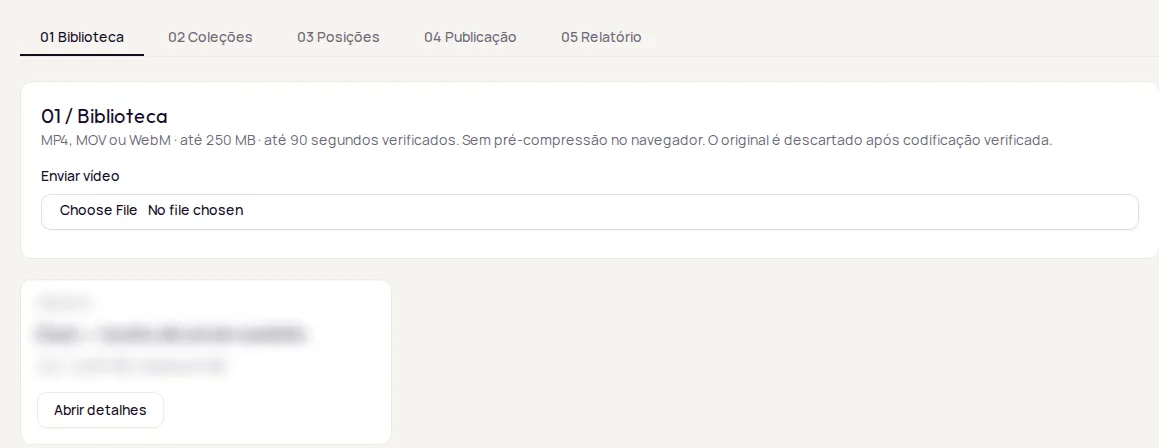
| Biblioteca (Library) | Upload videos and link products to each one. |
| Coleções (Collections) | Group videos in an order. |
| Posições (Placements) | Choose which pages, and where on the page, the collection appears. |
| Publicação (Publishing) | Review the draft, publish and copy the installation script. |
| Relatório (Report) | Track video starts, clicks and carts. |
Publish videos in your store
Section titled “Publish videos in your store”-
In Biblioteca, tap Enviar vídeo (Upload video) and choose an MP4, MOV or WebM file. The screen shows the upload and processing progress.
-
Open the video and link products: paste the product link in URL para buscar metadados públicos (URL to fetch public metadata) and tap Buscar e revisar produto (Fetch and review product). Check the title and image and tap Salvar metadados de rascunho (Save draft metadata).
-
In Coleções, tap Nova coleção (New collection), choose the videos and their order, and tap Salvar coleção (Save collection).
-
In Posições, create a Nova posição (New placement):
- enter the Páginas exatas (uma URL por linha) (Exact pages, one URL per line) where the collection should appear;
- use Selecionar elemento (Select element) to point to the insertion spot on your page, and choose whether the player goes before, after or inside that element;
- choose the Layout: Carrossel (Carousel) or Stories;
- adjust colors, font and the Mostrar títulos (Show titles), Prévia silenciosa (Muted preview) and Avançar ao concluir vídeo (Advance when the video ends) options.
-
In Publicação, use Prévia completa do rascunho (Full draft preview) to check everything. When it’s all set, tap Publicar atomicamente (Publish all at once): the whole draft goes live at the same time. Saving the library, a collection or a placement never changes the live version.
-
Still in Publicação, tap Copiar script (Copy script) and paste the code once into your store’s HTML. See Installation if you need help editing your theme.
To take everything down, use Retirar publicação (Unpublish) in Publicação.
What the customer sees
Section titled “What the customer sees”On the store page, the collection appears in the spot you chose. When they tap a video, the customer opens the player and sees Produtos do vídeo (Products in this video). For each product, they choose the Variação (Variant) and the Quantidade (Quantity) and tap Adicionar ao carrinho (Add to cart). Then they can Ver carrinho (View cart) or Continuar assistindo (Keep watching).
Track results
Section titled “Track results”In Relatório, choose the period and see video starts, clicks and confirmed carts.
Frequently asked questions
Does Video Commerce use credits?
No. Video Commerce is a separate product and doesn't use AI credits.
How do I turn on Video Commerce?
This feature is turned on by Provei. Contact support to turn it on.
Does the Video Commerce script replace the try-on code?
No. Video Commerce has its own installation, done once in your store's HTML. It doesn't replace or turn on the virtual try-on.