Test the try-on installation
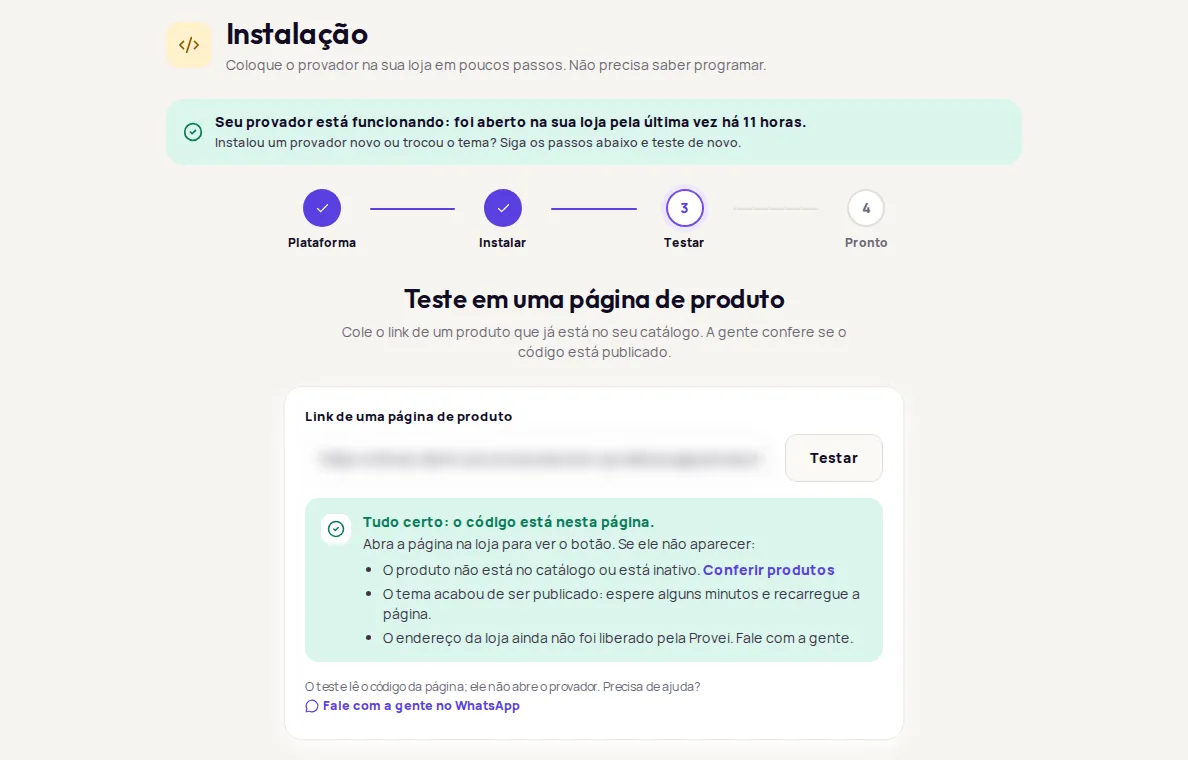
The test on the Instalação (Installation) screen opens the link to a product page and checks that the Provei code is published on it. It reads the page’s code; it doesn’t open the try-on.
Run the test
Section titled “Run the test”-
In Instalação, follow the steps until you’ve pasted the code into your theme, then click Já instalei (I’ve installed it).
-
In Link de uma página de produto (Link to a product page), paste the address of a product that is already in your catalog. Copy it straight from the browser’s address bar, for example
https://www.minhaloja.com.br/produto. -
Click Testar (Test). The screen shows Abrindo a página e procurando o código. Isso leva alguns segundos. (Opening the page and looking for the code. This takes a few seconds.)
-
Check the result and click Concluir (Finish).
Results
Section titled “Results”Code found
Section titled “Code found”The screen shows Tudo certo: o código está nesta página. (All set: the code is on this page.)
The code is published. Open the page in your store to see the button. If it doesn’t show:
- The product isn’t in your catalog or is inactive. Click Conferir produtos (Check products).
- The theme was just published: wait a few minutes and reload the page.
- Provei hasn’t enabled your store address yet. Contact support. See Store not enabled.
See more causes in The button doesn’t show.
Code not found
Section titled “Code not found”The screen shows Não encontramos o código nesta página. (We didn’t find the code on this page.)
- Check that you saved and published the theme after pasting the code.
- The code must be in the layout used by every page, at the end of the theme code, before the last line.
- If your store uses a cache, wait a few minutes and test again.
- Use the link to a page of your store, not of the admin panel.
- If you installed through a tag manager, such as Google Tag Manager, the test won’t find the code. Check the button directly on the page.
See Code not found.
The test couldn’t run
Section titled “The test couldn’t run”The screen shows Não foi possível testar agora. (We couldn’t run the test right now.)
The test couldn’t open the page. Check that the link is to a public page of your store, starts with https:// and opens in a private window. If it keeps happening, contact support. In the meantime, check the button directly on the product page. See Code not found.
Link field messages
Section titled “Link field messages”- Use um link que comece com https://. Links com http:// não podem ser testados. (Use a link that starts with https://. Links with http:// can’t be tested.): the test only accepts pages with
https://. - Esse link não parece válido. (This link doesn’t look valid.): copy the address straight from the browser’s address bar.
- Cole o link de uma página de produto. (Paste the link to a product page.): the field is empty.
Notices at the top of the Installation screen
Section titled “Notices at the top of the Installation screen”Above the wizard, a notice tells you whether the try-on has been seen in your store.
| Notice | What it means |
|---|---|
| Seu provador está funcionando: foi aberto na sua loja pela última vez… (Your try-on is working: it was last opened in your store…) | Someone opened the try-on in the last 7 days. If you installed a new try-on or changed themes, test again. |
| O código está na sua loja, mas ninguém abriu o provador nos últimos 7 dias. (The code is in your store, but nobody opened the try-on in the last 7 days.) | The code loads, but nobody opened the try-on. Check that the button shows on your product pages. |
| Não vemos o provador na sua loja há N dias (We haven’t seen the try-on in your store for N days) | The code may have been removed from the theme during a change or update. Paste it again and test. |
| Ainda não vimos o provador na sua loja. (We haven’t seen the try-on in your store yet.) | Follow the steps: choose your platform, paste the code and test. |
| Indisponível agora: não conseguimos verificar se o provador está funcionando. (Unavailable right now: we couldn’t check whether the try-on is working.) | Only the check failed. Click Tentar de novo (Try again). |
Need help? In the test step, click Fale com a gente no WhatsApp (Talk to us on WhatsApp), or email suporte@provei.ai.
Frequently asked questions
The test passed, but the button doesn't show. Why?
The test only checks that the code is on the page. The button also needs the product to be in your catalog and active, your store address to be enabled by Provei, and credits in your balance. See The button doesn't show.
I installed through Google Tag Manager and the test doesn't find the code. Is something wrong?
Not necessarily. The test reads the page's HTML without running scripts, so it doesn't see code added by tag managers. Check the button directly on the product page.