Try-on on WordPress and other platforms
If your store doesn’t use Shopify, Nuvemshop, VTEX or Tray, choose Outra plataforma (Other platform) in the wizard. The code works on any website: paste it once in the file that builds every page (the global layout or footer), right before </body>.
Copy the code in the dashboard
Section titled “Copy the code in the dashboard”-
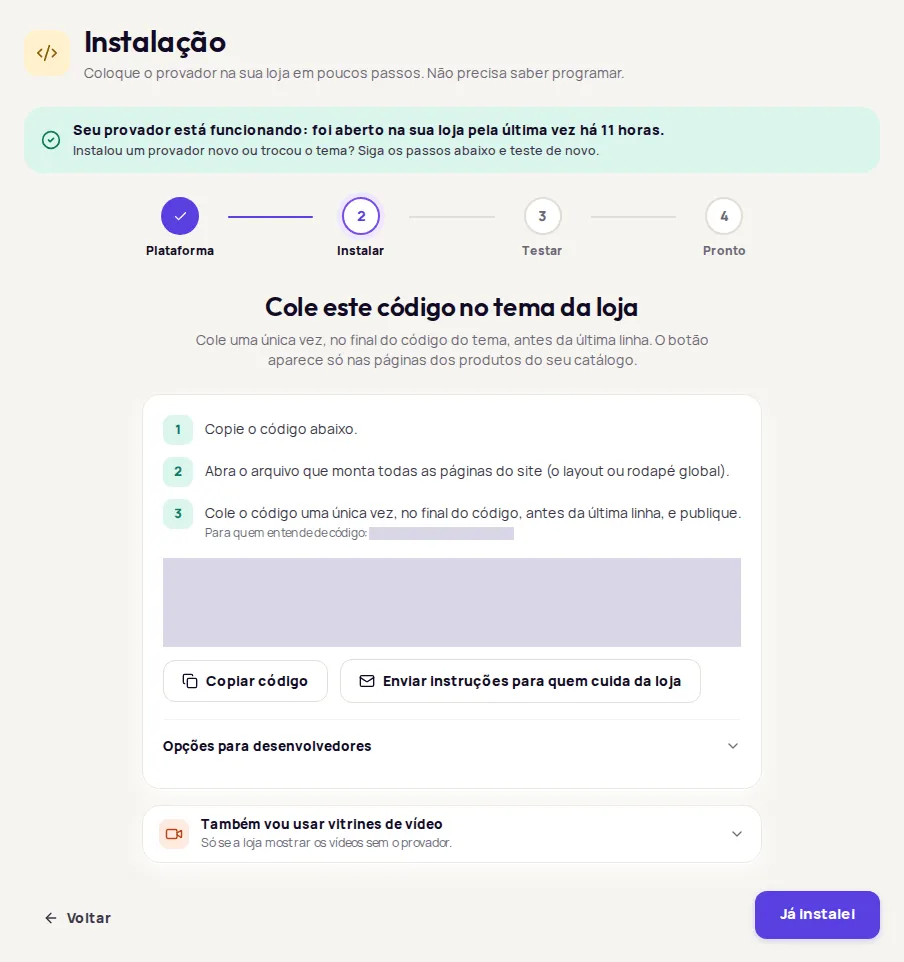
In the Provei dashboard, open Instalação (Installation).
-
Choose Outra plataforma and click Continuar (Continue).
-
If your account has more than one try-on, choose which one to install now.
-
Click Copiar código (Copy code).
Paste the code into your store
Section titled “Paste the code into your store”-
Use a plugin that adds code to the footer of every page, or ask whoever develops the site to paste it into the theme footer.
-
Paste the code once, in the footer, right before
</body>. -
Save. If the site uses a cache plugin, clear the cache.
-
In the platform admin, open the area for editing the theme or adding scripts to every page.
-
Paste the code once, at the end, right before
</body>. -
Save and publish.
The Provei code already recognizes the product page and the cart on these platforms. If you can’t find where to paste it, ask the platform’s support or whoever manages your store.
-
Open the global HTML template that wraps your product pages.
-
Paste the code once, right before
</body>. -
Publish.
If your site changes pages without reloading (a single-page app), see the guidance in Developers.
Platforms with a ready-made integration
Section titled “Platforms with a ready-made integration”The code recognizes the product page and the cart on Shopify, Nuvemshop, VTEX, Tray, Magazord and Dooca. On other platforms, the try-on works as usual. If you want customers to add to cart directly from the try-on, contact support before you install.
-
In the Provei dashboard, click Já instalei (I’ve installed it).
-
Paste the link to a product in your catalog, including
https://, and click Testar (Test). -
When you see Tudo certo: o código está nesta página. (All set: the code is on this page.), open the page and check the button.
See the possible results in Test the installation.
Common problems
Section titled “Common problems”- Não encontramos o código nesta página. (We didn’t find the code on this page.): check that you published, cleared the cache and put the code in the layout used by the product page.
- Code added by a tag manager: the test only reads the page’s HTML and doesn’t find code added by scripts. Check the button directly on the product page.
- The site blocks outside scripts: if your store uses a content security policy, whoever manages the site needs to allow the Provei addresses. See Developers.
- The button doesn’t show: the product must be in your catalog and active, and your store address must be enabled by Provei. See The button doesn’t show.
Frequently asked questions
Does Provei work on a custom-built store?
Yes. The code works on any website. Paste it once in the global layout or footer, at the end of the code, and publish.
My platform isn't in the wizard's list. Which one do I choose?
Choose Outra plataforma (Other platform). The code is the same; only the explanation of where to paste it changes.