Virtual try-on on VTEX: how to install
On VTEX, the Provei code goes in the template used by every page of the store, right before </body>. Where that template lives depends on your store’s version, so many VTEX stores do this installation with whoever develops the theme.
Copy the code in the dashboard
Section titled “Copy the code in the dashboard”-
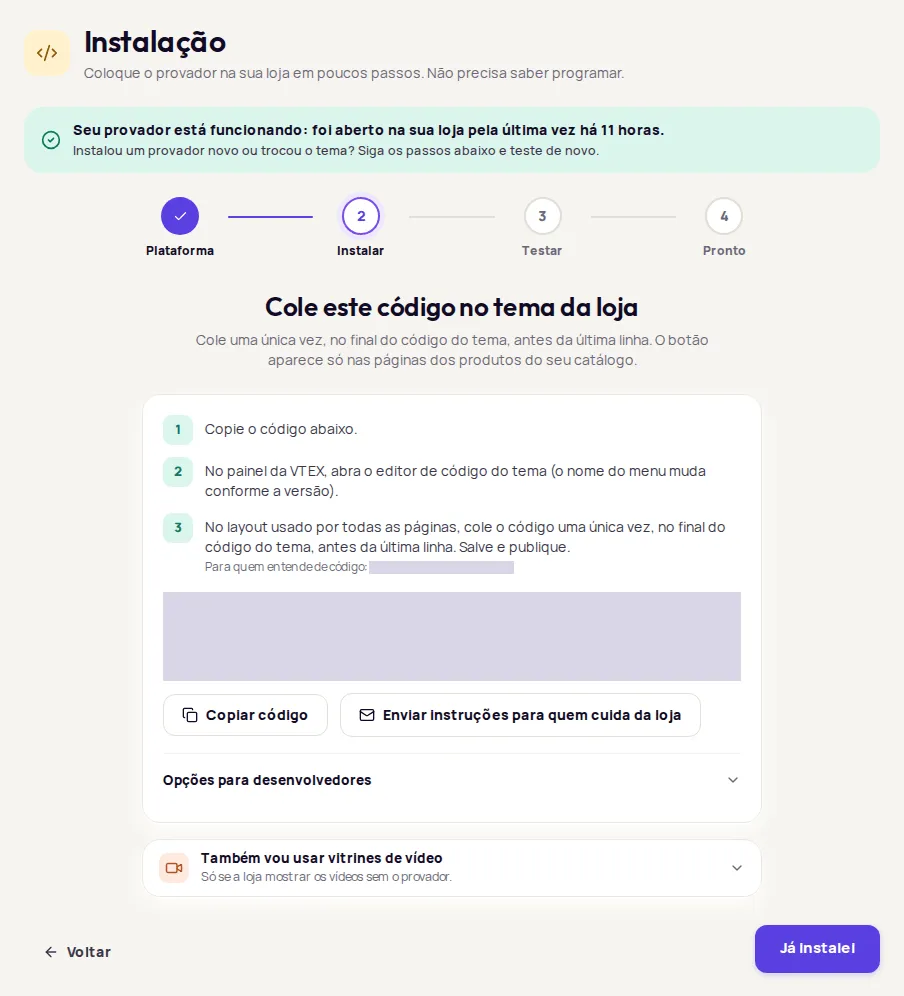
In the Provei dashboard, open Instalação (Installation).
-
Choose VTEX and click Continuar (Continue).
-
If your account has more than one try-on, choose which one to install now.
-
Click Copiar código (Copy code). If someone else manages the theme, click Enviar instruções para quem cuida da loja (Send instructions to whoever manages the store).
Paste the code into your store
Section titled “Paste the code into your store”Stores with HTML templates in the CMS
Section titled “Stores with HTML templates in the CMS”-
In the VTEX admin, open the CMS Layout area.
-
Open the HTML Templates folder and choose the template used by your store pages. If your pages use different templates, do this in each one used on product pages.
-
Paste the code once in each template, at the end, right before
</body>. -
Save and publish.
Stores with a theme built by developers
Section titled “Stores with a theme built by developers”In these stores, the theme lives in code maintained by whoever develops the store, and there is no template editor in the admin. Send the instructions with the Enviar instruções para quem cuida da loja button and ask them to add the code to every page, right before </body>.
-
In the Provei dashboard, click Já instalei (I’ve installed it).
-
Paste the link to a product in your catalog, for example
https://www.minhaloja.com.br/nome-do-produto/p, and click Testar (Test). -
When you see Tudo certo: o código está nesta página. (All set: the code is on this page.), open the page and check the button.
See the possible results in Test the installation.
Common problems
Section titled “Common problems”- Não encontramos o código nesta página. (We didn’t find the code on this page.): the code must be in the template used by the product page. Check that you saved and published. If your store uses a cache, wait a few minutes and test again. See Code not found.
- Code added by a tag manager: the test only reads the page’s HTML and doesn’t find code added by scripts. Check the button directly on the product page.
- The button doesn’t show: the product must be in your catalog and active, and your store address must be enabled by Provei. See The button doesn’t show.
Frequently asked questions
Can I install it myself on VTEX?
It depends on your store's version. In stores with the HTML templates CMS, anyone with admin access can paste the code. In stores with a theme built by developers, ask whoever manages the store.