Add products by store link
With the Vários por link (Many by link) option, you paste the links to your store’s product pages and Provei pulls the name, price and photos from each page.
Before you start
Section titled “Before you start”- Your store needs an access key. Create one in Conta › Desenvolvedor (Account › Developer). See API keys.
- Use the full link to each product page, starting with
https://. Links to the home page or to category pages won’t work. - The pages must be public, with no password.
Import by link
Section titled “Import by link”- Open Produtos › Adicionar produtos (Products › Add products).
- If your store has more than one product line, pick the line (for example, Roupas (Clothing) or Móveis (Furniture)) and click Continuar (Continue).
- Choose Vários por link and click Continuar.
- Paste the links into the Um link por linha (One link per line) field. Up to 500 at a time. Below the field, the panel shows how many links are ready, repeated or invalid.
- If you want, turn on Escolher as melhores fotos com IA (Pick the best photos with AI). This option favors good photos and angles and avoids repeats when it can.
- Click Buscar produtos (Fetch products).
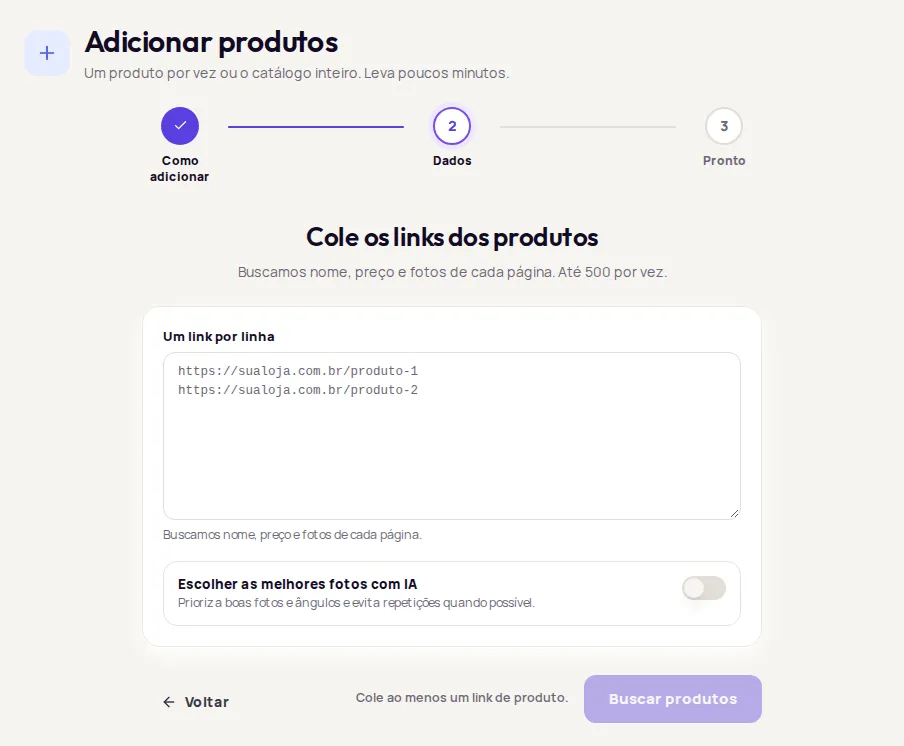
Before importing, Provei checks which links are already in the catalog and skips them. If all of them are, you’ll see Todos esses produtos já estão no seu catálogo. Nada para importar. (All these products are already in your catalog. Nothing to import.)
Track the import
Section titled “Track the import”After you submit, the screen shows the progress. You can leave the page and the import keeps going.
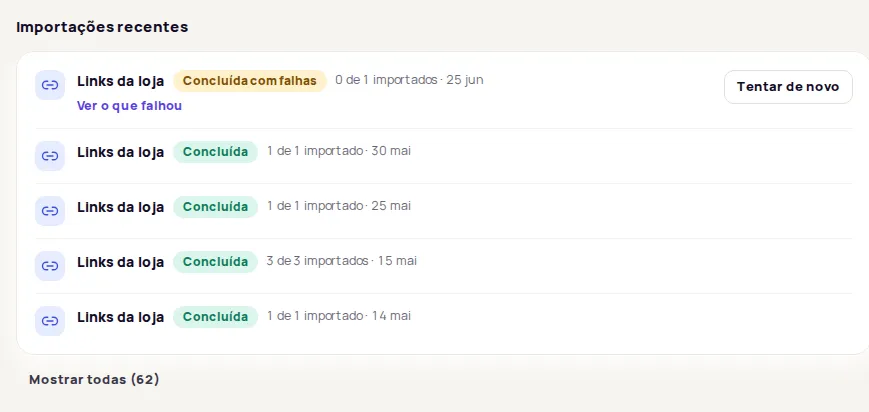
To check on it later, open Produtos › Adicionar produtos. The Importações recentes (Recent imports) list sits below the options and shows the status of each import:
- Na fila (Queued) or Em andamento (In progress): still processing. Use Cancelar (Cancel) to stop it.
- Concluída (Completed): every product made it into the catalog.
- Concluída com falhas (Completed with failures): some pages weren’t imported. Click Ver o que falhou (See what failed).
- Falhou (Failed): the import stopped. Use Tentar de novo (Try again).
- Cancelada (Canceled): products imported before you canceled stay in the catalog.
Fix pages that failed
Section titled “Fix pages that failed”In Ver o que falhou, pages are grouped by reason:
| Message | What to do |
|---|---|
| A página não parece ser de um produto. (This page doesn’t look like a product page.) | Check that the link opens a product page, not a category or the home page. |
| Não conseguimos abrir a página. Confira se ela está pública. (We couldn’t open the page. Check that it’s public.) | Open the link in a private window. If it asks for a login or password, make the page public. |
| The address doesn’t open. | Check the link, fix it and import again. |
| A página não tem fotos em um formato que aceitamos. (The page has no photos in a format we accept.) | Use JPG, PNG or WebP photos on the product page, or add the product with Um produto (One product) and upload the photos. |
Once you’ve fixed them, click Tentar de novo on the import. Only the pages that failed are processed again.
After the import
Section titled “After the import”Open Produtos › Catálogo (Products › Catalog) and check the imported products. Review each one’s photos and description and use Testar no provador (Test in the try-on). For clothing, link a size chart if you use the size features: see Link size charts to products.
Frequently asked questions
How many links can I paste at once?
Up to 500 at a time. For more products, use a spreadsheet.
What happens to links that are already in the catalog?
Provei checks before importing. Links to products already in the catalog are skipped, and the summary shows how many were skipped.
Can I leave the page while the import runs?
Yes. The import keeps going, and you can follow its progress in Importações recentes (Recent imports).