Try-on revenue in Google Analytics
The Receita (Revenue) tab shows how much the people who used the try-on spend. Provei doesn’t receive your store’s orders: the numbers come from the Google Analytics connected to your account, with a delay of 1 to 2 days. To open it, go to Resultados › Receita (Results › Revenue).
Connect Google Analytics
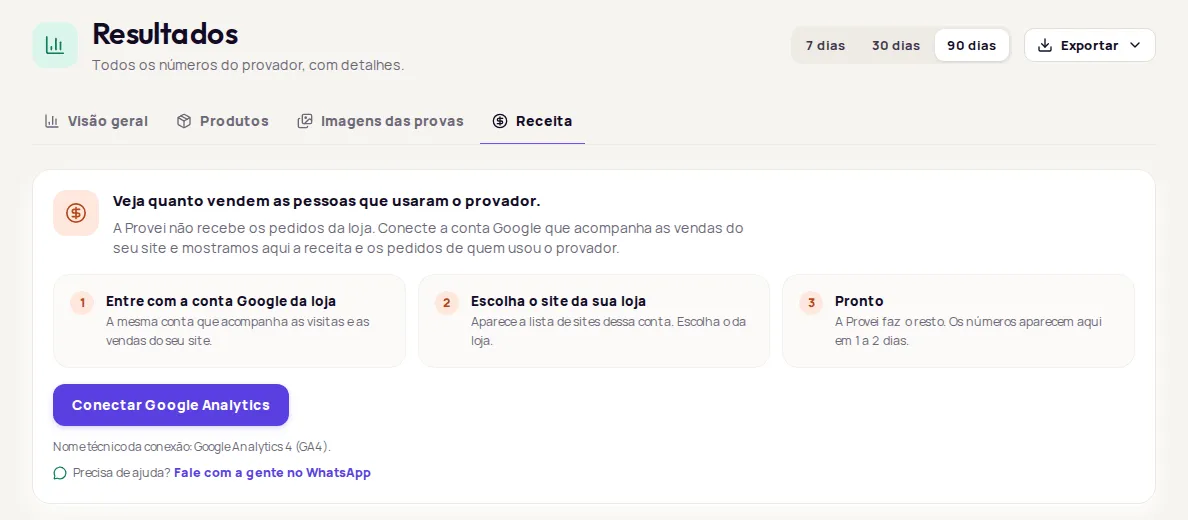
Section titled “Connect Google Analytics”When it isn’t connected, the tab shows the steps to connect:
-
Click Conectar Google Analytics (Connect Google Analytics).
-
Sign in with your store’s Google account, the same one that tracks your site’s visits and sales.
-
Pick your store’s site from the list of sites in that account.
-
Done. Provei takes care of the rest, and the numbers show up in 1 to 2 days.
The full walkthrough is in Google Analytics integration. Only the account owner can connect it. If you aren’t the owner, the tab shows Ver conexão (View connection) and asks the owner to follow the steps.
Read the numbers
Section titled “Read the numbers”| Number | What it means |
|---|---|
| Receita de quem usou o provador (Revenue from try-on users) | How much customers who used the try-on up to 30 days before buying spent, after returns. |
| Pedidos de quem usou (Orders from try-on users) | How many orders customers who used the try-on up to 30 days before buying placed. |
| Receita total da loja (Total store revenue) | Everything your store sold in the period, with or without the try-on, after returns. |
| Parte da receita (Share of revenue) | How much of the store’s total revenue came from customers who used the try-on. |
Below the numbers:
- Receita por dia (Revenue per day): compares, day by day, Loja inteira (Whole store) with De quem usou o provador (From try-on users).
- Por recurso usado (By feature used): revenue and orders for each feature, such as Provador virtual (Virtual try-on), Descubra seu tamanho (Find your size), Comparar com uma peça (Compare with a garment) or Guia de medidas (Size guide). An order may have used more than one feature and shows up under each of them, so the values don’t add up.
To change or review the connection, use Gerenciar conexão (Manage connection) at the bottom of the tab.
Notices you may see
Section titled “Notices you may see”| Notice | What to do |
|---|---|
| Ainda não encontramos pedidos de clientes que usaram o provador neste período. (We haven’t found orders from customers who used the try-on in this period yet.) | Check that Google Analytics and the try-on are both installed on your site. Google takes 1 to 2 days to process purchases. |
| O Google ainda está processando (Google is still processing) | Wait: revenue from try-on users shows up in 1 to 2 days. |
| Falta aprovar a configuração da Provei no Google Analytics (Provei’s setup still needs your OK in Google Analytics) | Click Concluir configuração (Finish setup) and complete the connection. |
| O Google ainda está trazendo as vendas deste período. (Google is still bringing in this period’s sales.) | Check back in a few hours, or import the period in the connection settings. |
| O Google não liberou os dados de receita para esta conta. (Google hasn’t released revenue data for this account.) | Ask whoever manages your store’s Google Analytics to grant access to revenue data. |
Frequently asked questions
Why does revenue take a while to show up?
The numbers come from your store's Google Analytics, which takes 1 to 2 days to process purchases.
Does Provei receive my store's orders?
No. Provei reads revenue from the Google Analytics connected to your store and shows the share that came from people who used the try-on.
Why doesn't revenue by feature add up to the total?
An order may have used more than one feature and shows up under each of them, so the values don't add up.