Manage your product catalog
In Produtos › Catálogo (Products › Catalog) you see every product added to Provei, turn each one on or off in the try-on, and open each product’s page to edit it.
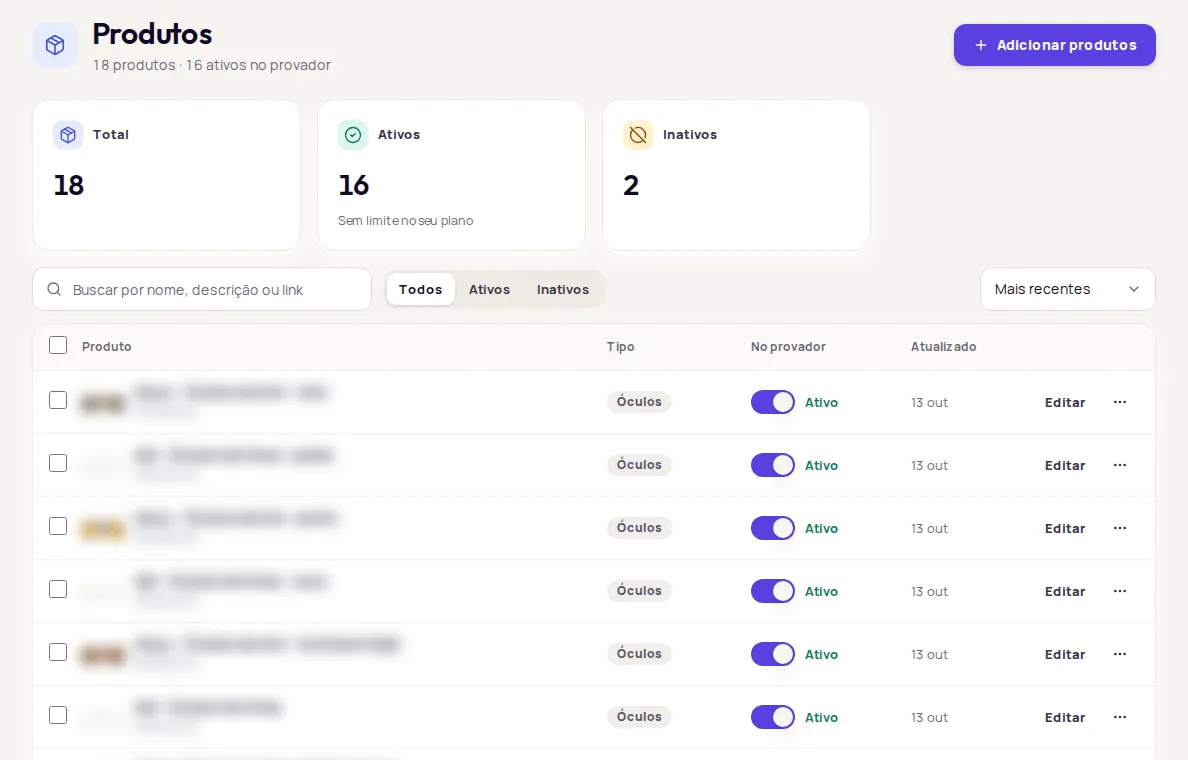
Catalog summary
Section titled “Catalog summary”Cards at the top of the screen show your catalog numbers. Click a card to filter the list.
- Total: every product.
- Ativos (Active): products that show up in the try-on. Below the number, the card shows your plan’s limit or Sem limite no seu plano (No limit on your plan).
- Inativos (Inactive): added products that don’t show up in the try-on.
- Sem tabela de medidas (No size chart), clothing stores only: active products without a size chart. Use Vincular tabelas (Link charts) to fix it.
Furniture, flooring and wall covering stores see one card per product line.
Search and filter
Section titled “Search and filter”- Busca (Search): type part of the product’s name, description or link.
- Status: Todos (All), Ativos (Active) or Inativos (Inactive).
- Tipo de produto (Product type): appears when your store has more than one line (Roupas, Móveis, Pisos, Revestimentos, Óculos: clothing, furniture, flooring, wall coverings, eyewear).
- Ordenar (Sort): Mais recentes (Newest), Mais antigos (Oldest), Nome A–Z (Name A–Z) or Nome Z–A (Name Z–A).
At the bottom, choose how many products to show per page and move between pages with Anterior (Previous) and Próxima (Next). If nothing shows up, click Limpar filtros (Clear filters).
Use bulk actions
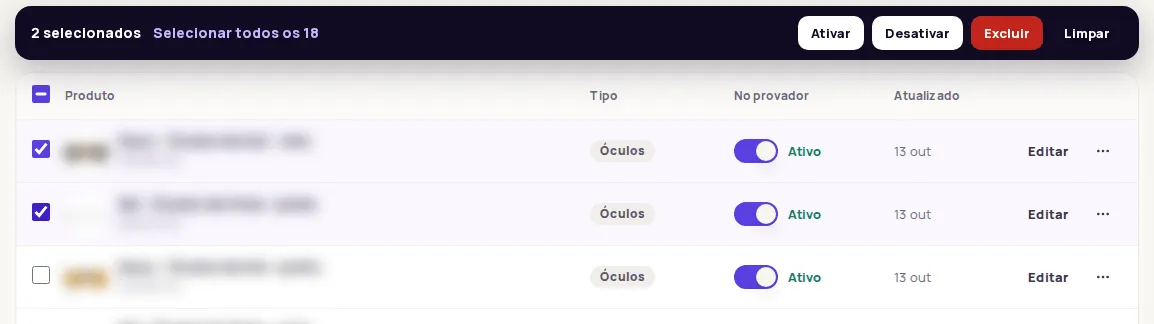
Section titled “Use bulk actions”- Select products in the list. To select the whole page, use the checkbox in the header.
- To include every product in the current search and filters, click Selecionar todos os (Select all), which shows the total.
- In the bar that appears, choose Ativar (Activate), Desativar (Deactivate), Vincular tabela (Link chart) or Excluir (Delete). Limpar (Clear) undoes the selection.
Edit a product
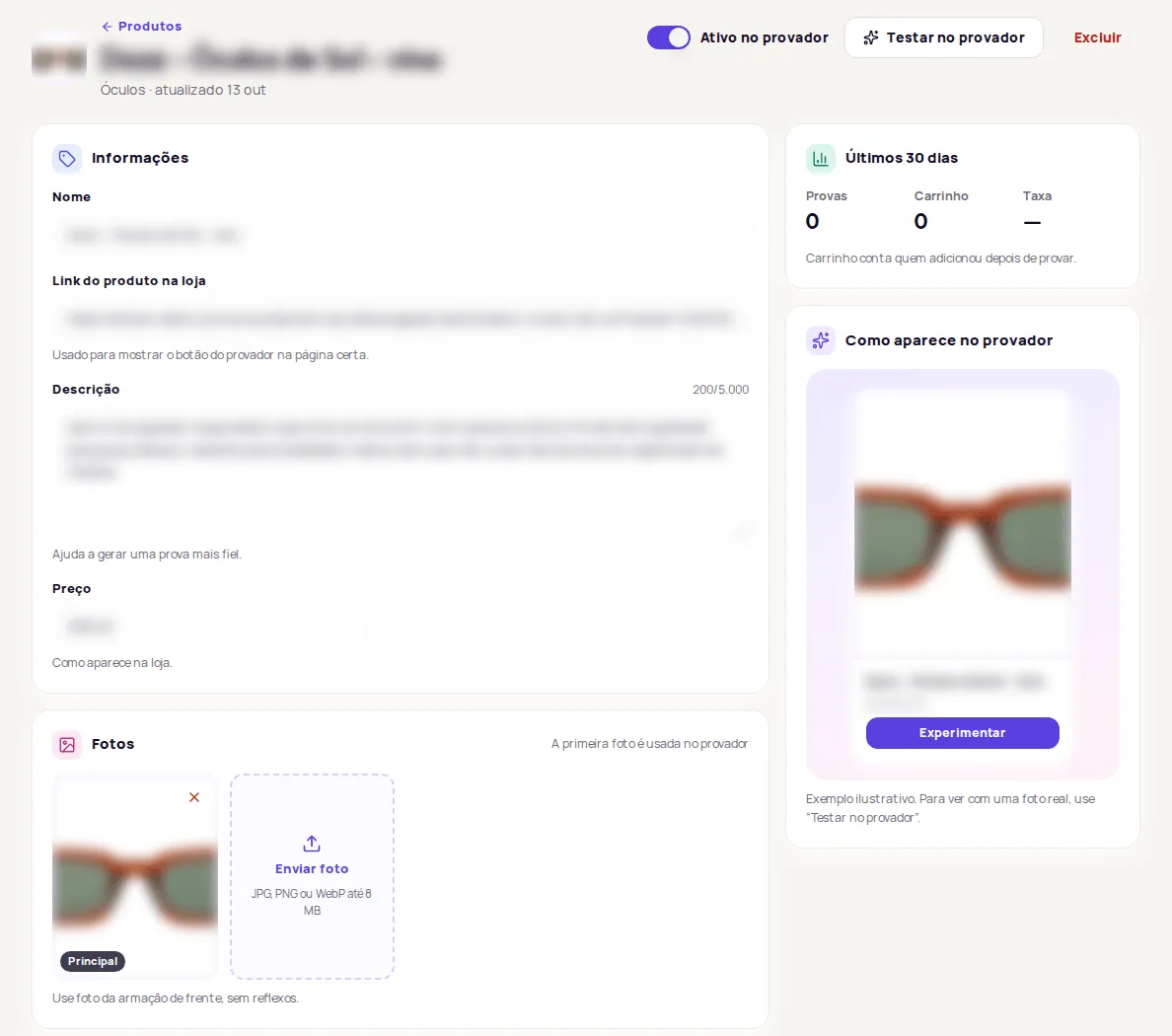
Section titled “Edit a product”Click Editar (Edit) on the product’s row. The product page has:
- Informações (Details): Nome (Name), Link do produto na loja (Product link in the store), Descrição (Description) and Preço (Price).
- Fotos (Photos): upload, remove and choose the Principal (Main) photo. See Product photo requirements.
- Tamanhos e medidas (Sizes and measurements), for clothing: the product’s size chart. See Link size charts to products.
- Especificações da armação (Frame specifications), for eyewear: optional frame measurements. See Eyewear try-on.
Your changes stay pending until you click Salvar (Save) in the bottom bar. Descartar (Discard) goes back to what was saved. If you try to leave with unsaved changes, the dashboard asks first.
Test in the try-on
Section titled “Test in the try-on”At the top of the product page, click Testar no provador (Test in the try-on). The try-on opens in the dashboard the way your customer sees it in the store. Use it to check photos and details before you promote the product.
If the catalog doesn’t load
Section titled “If the catalog doesn’t load”If you see Não conseguimos carregar seus produtos (We couldn’t load your products), your products are still saved. Click Tentar de novo (Try again) in a few moments. If it keeps happening, contact support at suporte@provei.ai or on WhatsApp at +55 11 5296-0168.
Frequently asked questions
How many products can I change at once?
Up to 100 when you select them one by one. To change more, use Selecionar todos (Select all), which picks up every product in the current search and filters.
Can I test a product without going to my store?
Yes. Open the product and click Testar no provador (Test in the try-on). The try-on opens in the dashboard the way your customer sees it.