Measurements and size on the product page
The Medidas e tamanho (Measurements and size) tab controls the links that help shoppers pick the right size on the product page. You turn each link on, choose where the links appear and adjust their look.
To open it, go to Experiência na loja › Elementos › Medidas e tamanho (In-store experience › Elements › Measurements and size).
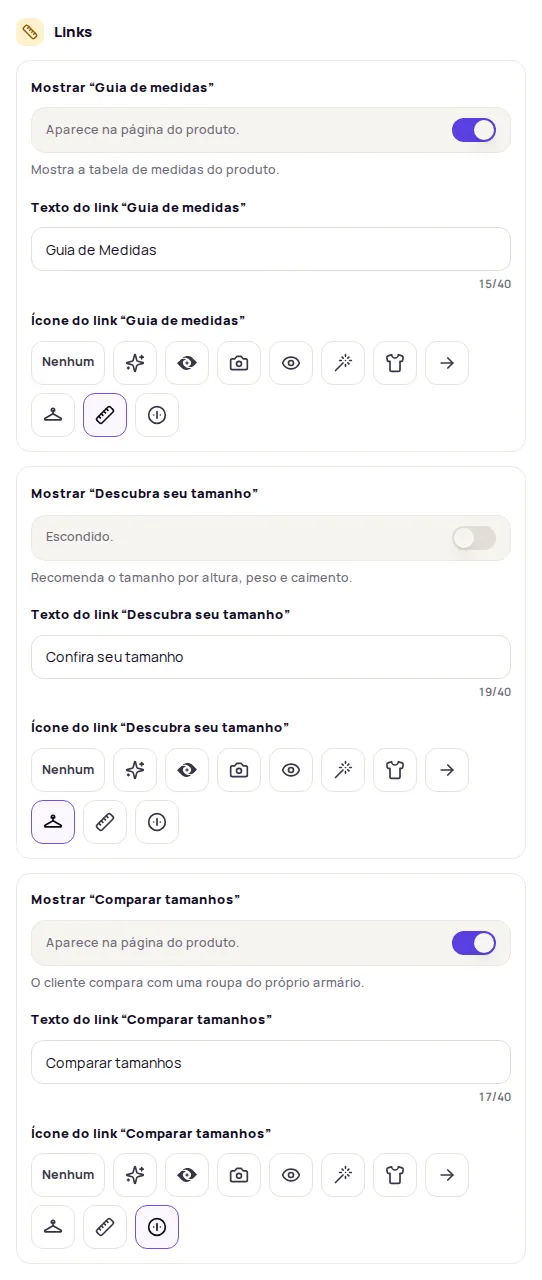
Turn the links on
Section titled “Turn the links on”In the Links section, each link has a Mostrar (Show) switch, its text and its icon:
| Link | What it does |
|---|---|
| Guia de medidas (Size guide) | Shows the product’s size chart. |
| Descubra seu tamanho (Find your size) | Recommends a size based on height, weight and fit. |
| Comparar tamanhos (Compare sizes) | The shopper compares the product with a piece of clothing they already own. |
You only see the links for the features active on your account. For them to work, your products need a size chart. See Measurements and sizes and Ideal size.
Choose where the links appear
Section titled “Choose where the links appear”In Onde aparece (Where it appears), choose:
- Junto ao produto (Next to the product): near the sizes or the buy button.
- Flutuante no canto (Floating in the corner): always visible while the shopper scrolls. Pick the corner in Canto dos links (Links corner).
For Junto ao produto, mark the spot on a real page of your store:
-
Click Escolher na minha página (Pick on my page).
-
Paste the address of a product page, click Carregar (Load) and then Selecionar Elemento (Select element).
-
Click the spot on the page where the links should go and confirm with Usar esta posição (Use this position).
-
In Em relação a esse lugar (Relative to this spot), choose Logo abaixo (Right below) or Logo acima (Right above).
-
Click Publicar alterações (Publish changes).
Set the position, box and mobile layout
Section titled “Set the position, box and mobile layout”- Posição e caixa (Position and box): Alinhamento (Alignment: Esquerda, Centro or Direita, that is left, center or right), the space between links and the margin. With floating links, you also set the background, border, corners and shadow of the box.
- Layout no celular (Mobile layout): Em linha (In a row), Quebrar linha (Wrap) or Um embaixo do outro (Stacked).
Change the link style
Section titled “Change the link style”The Estilo dos links (Link style) section applies to all three links: variant, colors, shape, size, text, icon and states. At the end of the section, each link can have a style of its own in Estilo só de “…” (Style for “…” only). Without its own setting, the link shows Usando o estilo geral (Using the general style).
The text color and font of the links follow the global Style settings until you change them here.
Size comparison
Section titled “Size comparison”With Comparar tamanhos on, the Comparador de tamanhos (Size comparison) section unlocks:
- Tema do comparador (Comparison theme): Padrão (Default), Claro (Light), Escuro (Dark) or Minimalista (Minimalist).
- Comparador abre como (Comparison opens as): Janela no centro (Centered window) or Painel lateral (Side panel).
Descubra seu tamanho theme
Section titled “Descubra seu tamanho theme”In the Descubra seu tamanho section, choose the Tema do Descubra seu tamanho (Find your size theme): Padrão, Claro, Escuro or Minimalista. This setting is available on paid plans.
Test it in the preview
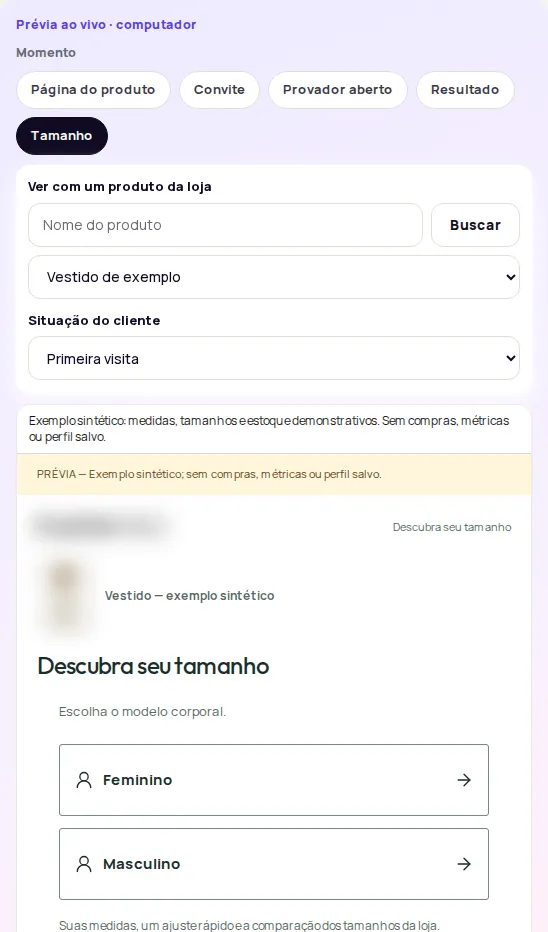
Section titled “Test it in the preview”In the preview, pick the Tamanho (Size) moment to use Descubra seu tamanho as a shopper would. You can switch the preview product by searching for its name. Nothing is saved in the preview.
For developers
Section titled “For developers”In Para desenvolvedores (For developers), whoever maintains your store’s code will find the CSS selector for the links’ spot, a reference page, and custom CSS fields for the links and for Descubra seu tamanho.
Frequently asked questions
Why do I only see one or two links?
The tab only shows the links for the measurement features active on your account.
Can I test Descubra seu tamanho without affecting my data?
Yes. In the Tamanho (Size) moment of the preview, answer as a shopper would. Nothing is saved in the preview.