Button on the product page
The Botão na página (Button on the page) is the invitation to try on that appears on every product page. You choose where it goes, its text, its look and whether it has an animation.
To open it, go to Experiência na loja › Elementos › Botão na página (In-store experience › Elements › Button on the page).
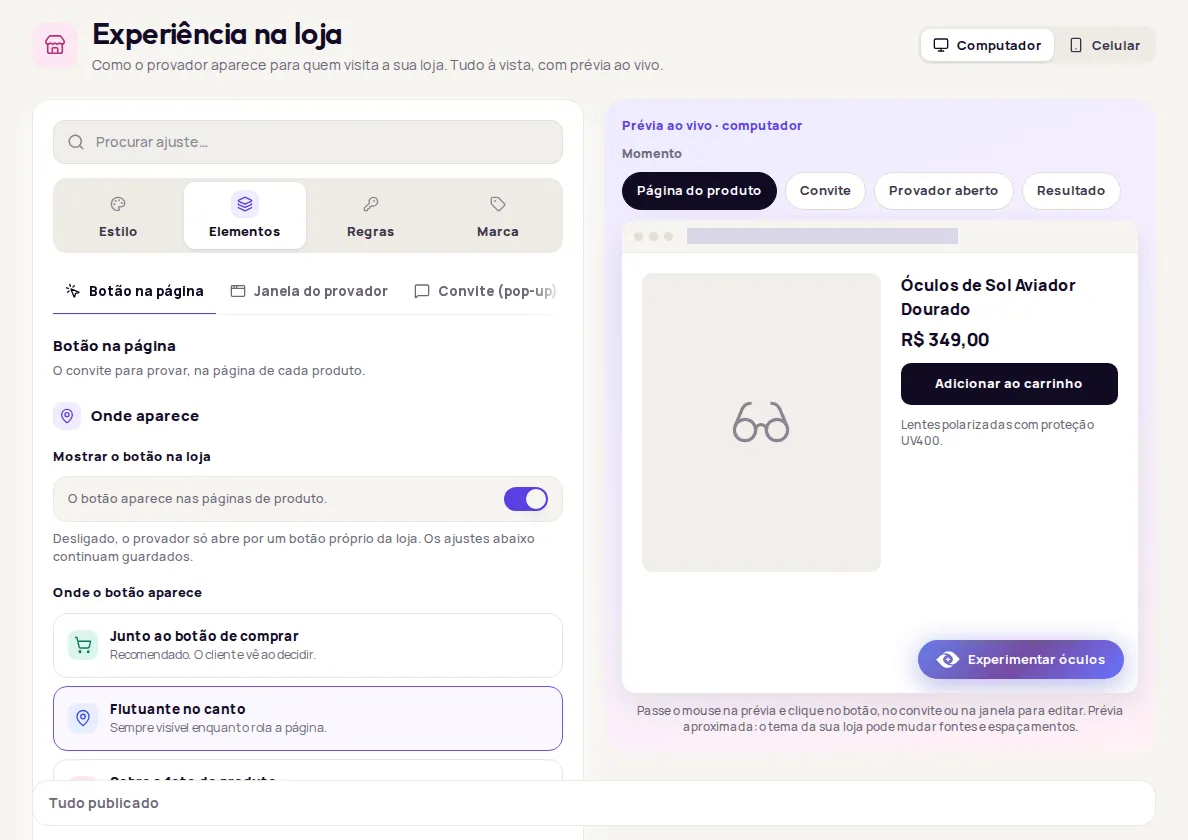
Show or hide the button
Section titled “Show or hide the button”In Onde aparece (Where it appears), use Mostrar o botão na loja (Show the button in the store). When it is off, the try-on only opens from your store’s own button. Your other settings are kept.
Choose where the button appears
Section titled “Choose where the button appears”There are three positions:
| Position | When to use it |
|---|---|
| Junto ao botão de comprar (Next to the buy button) | Recommended. Shoppers see it while they decide. |
| Flutuante no canto (Floating in the corner) | Always visible while the shopper scrolls. Pick the corner in Canto da tela (Screen corner). |
| Sobre a foto do produto (Over the product photo) | Low-key, next to the image. A round badge in the corner of the photo that shows its text when tapped. |
Mark the spot on your page
Section titled “Mark the spot on your page”For Junto ao botão de comprar and Sobre a foto do produto, you point to the spot on a real page of your store.
-
Click Escolher na minha página (Pick on my page).
-
In URL da Página do Produto (Product page URL), paste the address of a product page from your store and click Carregar (Load).
-
Click Selecionar Elemento (Select element), then click the spot on the page. For Junto ao botão de comprar, click the buy button or the area near it. For Sobre a foto do produto, click the area that contains the photo, not the image itself.
-
Check the spot you picked and click Usar esta posição (Use this position).
-
In Em relação a esse lugar (Relative to this spot), choose Logo abaixo (Right below) or Logo acima (Right above). This setting only applies to Junto ao botão de comprar.
-
Click Publicar alterações (Publish changes).
The position you pick applies to every product page. Until a spot is chosen, the editor shows Falta escolher o lugar na página (You still need to pick the spot on the page).
Adjust the button over the photo
Section titled “Adjust the button over the photo”With Sobre a foto do produto, the section of the same name unlocks the badge settings: Texto sobre a foto (Text over the photo), Ícone sobre a foto (Icon over the photo), Canto da foto (Photo corner), colors, Diâmetro no computador (px) (Desktop diameter), Diâmetro no celular (px) (Mobile diameter), Distância da borda (px) (Distance from the edge) and Espera do texto no celular (ms) (Text delay on mobile). For the delay, 0 shows the text right away and 5000 means 5 seconds.
In this position, the look comes only from this section. The appearance settings of the regular button (colors, shape, size, font and states) are turned off.
Change the text and icon
Section titled “Change the text and icon”In Conteúdo (Content), edit Texto do botão (Button text) and pick the Ícone (Icon). Keep the text short and direct.
Change the look
Section titled “Change the look”In Aparência (Appearance), choose the Estilo (Style):
- Padrão (Default): uses the try-on theme’s icon and colors, with no text of its own.
- Personalizado (Custom): uses your text, your colors and the settings below.
If you are on Padrão and change any appearance setting, the button switches to Personalizado and the editor tells you.
With the Personalizado style, you can set:
- Variante (Variant): Preenchido (Filled), Contorno (Outline) or Link. Switching variants keeps the color, font, corners, shadow and spacing.
- Cor de fundo (Background color) and Cor do texto (Text color). The color starts out the same as your brand color; changing it here only affects this button.
- Forma e sombra (Shape and shadow): shadow, border and Cantos (Corners), which can be Quadrado (Square), Arredondado (Rounded), Pílula (Pill) or Círculo (Circle).
- Tamanho e largura (Size and width): font size, inner spacing, icon size and Largura (Width), which can be Ajustar ao conteúdo (Fit content) or Ocupar toda a largura (Full width).
- Texto (Text): font, weight, italic, capitals and spacing.
- Estados (States): hover colors and the focus outline for people who navigate with the keyboard.
Turn on an animation
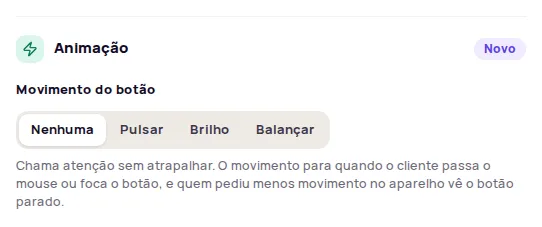
Section titled “Turn on an animation”In the Animação (Animation) section, choose the Movimento do botão (Button motion):
| Option | Effect |
|---|---|
| Nenhuma (None) | The button stays still. |
| Pulsar (Pulse) | The button grows slightly and shrinks back, over and over. |
| Brilho (Shine) | A light reflection sweeps across the button every so often. |
| Balançar (Wiggle) | The button gives a quick wiggle every so often. |
The motion stops when the shopper hovers over or focuses the button, and people who asked their device for reduced motion see the button standing still. With the button set to Sobre a foto do produto, animation is turned off.
For developers
Section titled “For developers”In the Para desenvolvedores (For developers) section, whoever maintains your store’s code can enter the CSS selector for the spot, a reference page and custom CSS for the button. Only use the selector if the spot picked on the page doesn’t work.
Frequently asked questions
Can I hide the button and open the try-on from a button in my own store?
Yes. Turn off Mostrar o botão na loja (Show the button in the store). The try-on then opens only from your store's own button, set under Para desenvolvedores (For developers) in the Janela do provador (Try-on window) tab.
Does the animation get in the shopper's way?
The motion stops when the shopper hovers over or focuses the button. People who asked their device for reduced motion see the button standing still.
Why can't I pick an animation?
With the button over the product photo, animation is turned off. The button over the photo doesn't move.