Virtual try-on on Shopify: how to install
On Shopify, the Provei code goes at the end of the theme.liquid file of your published theme, right before </body>. You do this once, and the button shows up on the pages of products in your catalog.
Before you start
Section titled “Before you start”- Access to the Shopify admin with permission to edit themes.
- Your store address that ends in
.myshopify.com. You’ll find it in the Shopify admin under Settings › Domains. - Products added to your Provei catalog.
Copy the code in the dashboard
Section titled “Copy the code in the dashboard”-
In the Provei dashboard, open Instalação (Installation).
-
Choose Shopify and click Continuar (Continue).
-
Under Qual é o endereço da sua loja na Shopify? (What is your store’s address on Shopify?), enter your
.myshopify.comaddress, for exampleminhaloja.myshopify.com, and click Continuar.You can paste the full address, such as
https://minhaloja.myshopify.com/admin, or just the store name. The dashboard adjusts it.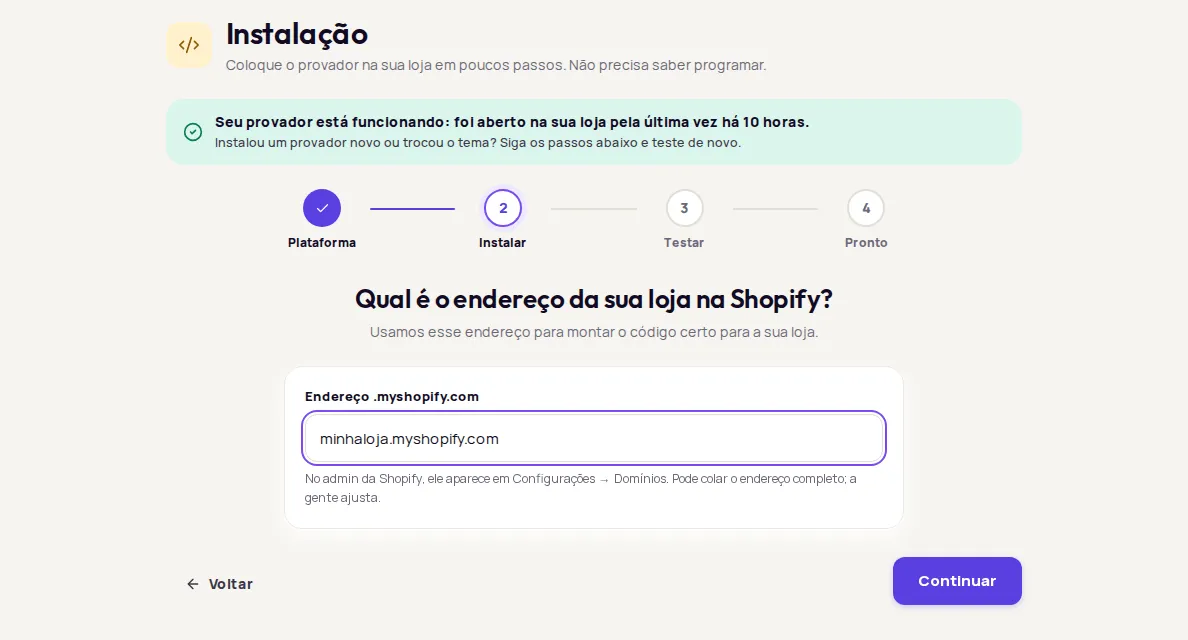
-
If your account has more than one try-on, choose which one to install now.
-
Click Copiar código (Copy code).
Paste the code into your theme
Section titled “Paste the code into your theme”-
In the Shopify admin, open Online Store › Themes.
-
On the published theme (your current theme), click the ⋯ menu and choose Edit code.
-
In the Layout folder, open the
theme.liquidfile. -
Scroll to the end of the file and paste the code right before the
</body>line. -
Click Save.
The result looks like this, with your account’s identifier instead of the example:
<!-- Provei - Provador virtual --> <script src="https://app.provei.ai/api/v2/snippet-fashion/00000000-0000-4000-8000-000000000000" async crossorigin="anonymous"></script> </body></html>If your store is connected to Provei through the Shopify app, the dashboard tells you under Opções para desenvolvedores (Options for developers), and the code may look a little different from the example. Use exactly the code the Instalação screen shows.
-
In the Provei dashboard, click Já instalei (I’ve installed it).
-
Paste the link to a product in your catalog, for example
https://minhaloja.myshopify.com/products/nome-do-produto, and click Testar (Test). -
When you see Tudo certo: o código está nesta página. (All set: the code is on this page.), open the page in your store and check the button.
See the possible results in Test the installation.
Common problems
Section titled “Common problems”- Não encontramos o código nesta página. (We didn’t find the code on this page.): check that you edited the published theme, not a copy, and that you saved the file. See Code not found.
- Password-protected store: while your store is locked with a password, the test can’t open the product page. Test again after you remove the store password.
- Theme change: the code lives in the theme. When you publish another theme, paste the code again.
- Use the .myshopify.com address: if you see Use o endereço que termina em .myshopify.com (por exemplo, minha-loja.myshopify.com). (Use the address that ends in .myshopify.com, for example minha-loja.myshopify.com.), enter your Shopify address, not your store’s custom domain.
- The button doesn’t show: the product must be in your catalog and active. See The button doesn’t show.
Frequently asked questions
Do I need the Provei app on Shopify to install it?
No. The code you copy from the dashboard works in your Shopify theme even without the app. Use exactly the code the Instalação (Installation) screen shows.
Where do I find my .myshopify.com address?
In the Shopify admin, under Settings › Domains. You can paste the full address into the Provei dashboard; it is adjusted automatically.
I changed themes. Do I need to install it again?
Yes. The code lives in the theme. When you publish another theme, paste the code into the new theme's theme.liquid and test again.