Try-on images
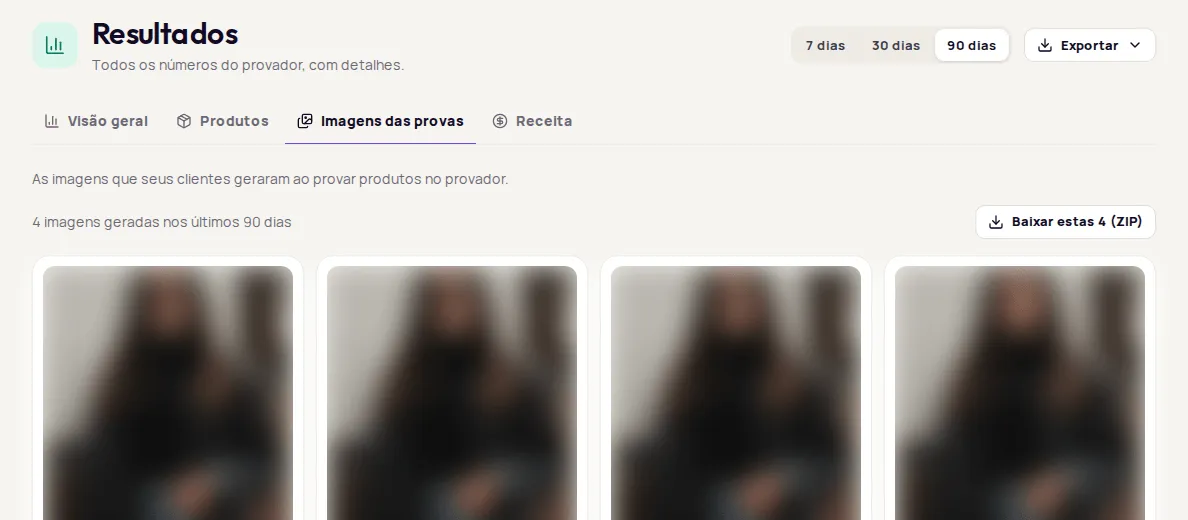
The Imagens das provas (Try-on images) tab shows the images your customers generated when trying on products. To open it, go to Resultados › Imagens das provas (Results › Try-on images).
View the images
Section titled “View the images”The gallery shows 24 images per page and the total number of images generated in the period. Use Anterior (Previous) and Próxima (Next) to move between pages.
Click an image to open it in a larger view. With the image open, you see the product that was tried on and can click Ver produto (View product). Use Anterior and Próxima, or the arrow keys, to move from one image to the next.
Download the images as a ZIP
Section titled “Download the images as a ZIP”-
Choose the period and go to the page of images you want to download.
-
Click Baixar estas 24 (ZIP) (Download these 24). The button text shows how many images are on the page.
-
Wait for the completion notice. The ZIP file is saved with the name
imagens-geradas_followed by the date and time.
If some images can’t be downloaded, the notice says how many were downloaded and how many were left out.
When there are no images
Section titled “When there are no images”- Nenhuma imagem gerada neste período (No images generated in this period): choose a longer period to see older images.
- Histórico em preparação (History being prepared): Provei is still preparing your store’s image history. Check back in a few hours. In the meantime, click Ver produtos mais provados (See most tried-on products).
Frequently asked questions
How do I download all the images for the period?
The ZIP button downloads the images on the page you have open. Go through the pages and download each one. For a list with links to every image in the period, use Exportar › Imagens das provas (CSV) (Export › Try-on images). Treat the ZIP and the CSV as your customers' personal data.
I see Histórico em preparação. What does it mean?
Histórico em preparação (History being prepared) means Provei is still preparing your store's image history. Check back in a few hours.