Studio for creating product photos with AI
Studio creates new photos of your fashion products to use in your store, in ads and on social media. You choose the type of photo, the product, the model, the background and the style, and Studio generates the image from the product photo.
Studio is in Beta and lives in the Studio menu of the dashboard.
Create an image
Section titled “Create an image”-
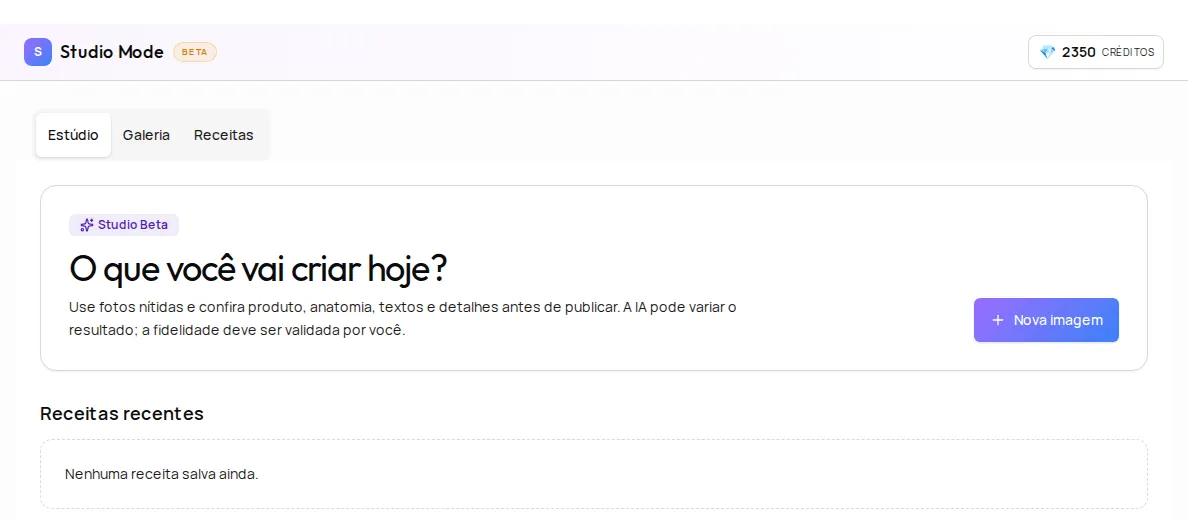
Open Studio and tap Nova imagem (New image).
-
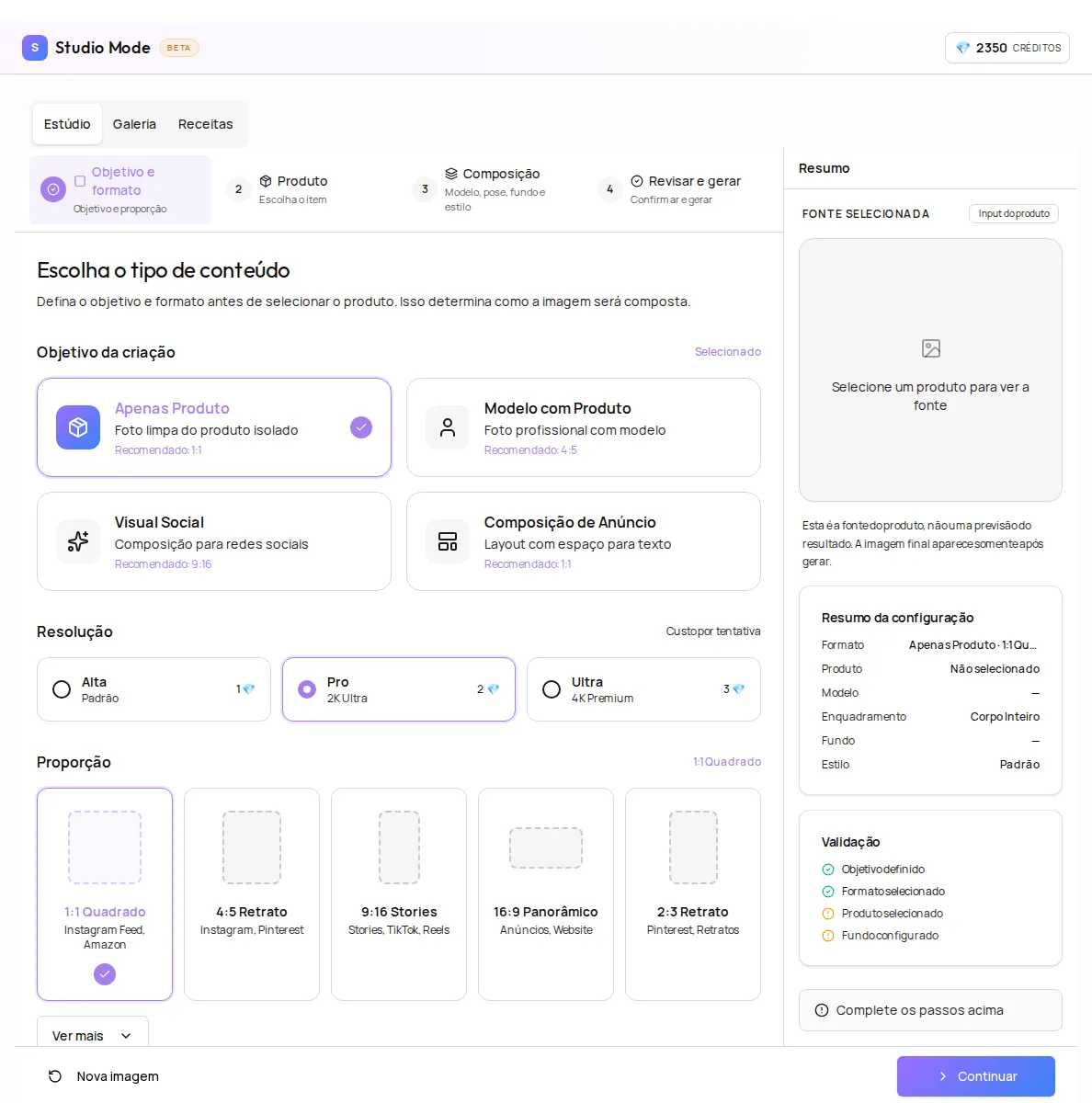
In Objetivo e formato (Goal and format), choose the type of photo:
- Apenas Produto (Product only): a clean photo of the product on its own.
- Modelo com Produto (Model with product): a professional photo with a model.
- Visual Social (Social visual): a composition for social media.
- Composição de Anúncio (Ad composition): a layout with room for text.
Also choose the image’s aspect ratio and the Resolução (Resolution): Alta (High), Pro or Ultra. The credit cost of each resolution shows in Custo por tentativa (Cost per attempt).
-
In Produto (Product), choose an active fashion product from the catalog. To create without adding a product, use Enviar uma imagem (Upload an image) with a standalone photo of the product, sharp and with no model or objects on top.
-
In Composição (Composition), set the model, pose, background and style:
- Modelo (Model): choose a saved model or create one in Novo Perfil (New profile), by describing how they look or uploading a photo.
- Pose: describe the pose in text, if you want.
- Fundo (Background): use a clean background, describe the setting or upload a background image.
- Estilo (Style): choose a visual direction and say what the image should avoid.
-
In Revisar e gerar (Review and generate), check the summary and tap Confirmar e gerar (Confirm and generate).
Use the result
Section titled “Use the result”Results are kept in the Studio gallery. On each image, you can:
- Baixar (Download) the image;
- Obter link (Get link) for the image and then Copiar link (Copy link);
- Refinar imagem (Refine image) with a text instruction, such as “deixe o fundo mais escuro” (make the background darker).
Save recipes
Section titled “Save recipes”A recipe stores the choices from one creation so you can repeat the same look on other products. In Receitas recentes (Recent recipes), tap Aplicar receita (Apply recipe) and choose the product.
Care with photos of people
Section titled “Care with photos of people”If you upload a photo of a person to create a model, only use images of people who have authorized the use of their image. The same goes for backgrounds with people or third-party brands.
Frequently asked questions
Does Studio use credits?
Yes. Each generation attempt uses credits from your account. The cost of each resolution shows on screen before you generate.
Can I use Studio with furniture or eyewear?
For now, Studio works with fashion products. You pick an active product from the catalog or upload a standalone photo of the product.