Virtual try-on results
The Resultados (Results) screen brings together the try-on numbers: how many people tried on, how many added to cart, which products convert and, with Google Analytics connected, how much the people who used the try-on spend. To open it, click Resultados in the dashboard side menu.
The Resultados tabs
Section titled “The Resultados tabs”| Tab | What it shows | Guide |
|---|---|---|
| Visão geral (Overview) | The numbers for the period, highlights, daily trend, funnel and peak hours. | On this page |
| Produtos (Products) | Cart champions, products tried on a lot with few add-to-carts, a map and the full table. | Products |
| Tamanho e medidas (Size and measurements) | Guia de medidas (Size guide), Descubra seu tamanho (Find your size) and Comparar com uma peça (Compare with a garment). Only in stores with these features. | Size and measurements |
| Imagens das provas (Try-on images) | The images customers generated, with a ZIP download. | Try-on images |
| Receita (Revenue) | Revenue and orders from people who used the try-on, from Google Analytics. Shows up when it is available for your account. | Revenue with Google Analytics |
| Satisfação (Satisfaction) | A shortcut to the satisfaction survey answers. Only in stores with a home try-on. | Satisfaction (CSAT) |
Choose the period
Section titled “Choose the period”At the top of the screen, in Período (Period), choose 7 dias, 30 dias or 90 dias (7, 30 or 90 days). The default is 7 days. The period applies to every tab and stays the same when you switch tabs.
Try-ons, add-to-carts and opens show the change compared with the previous period of the same length. With 90 days there is no comparison, and the card shows Nos últimos 90 dias (In the last 90 days).
To download the period’s data as a spreadsheet, use Exportar (Export). See Export data as CSV.
Overview
Section titled “Overview”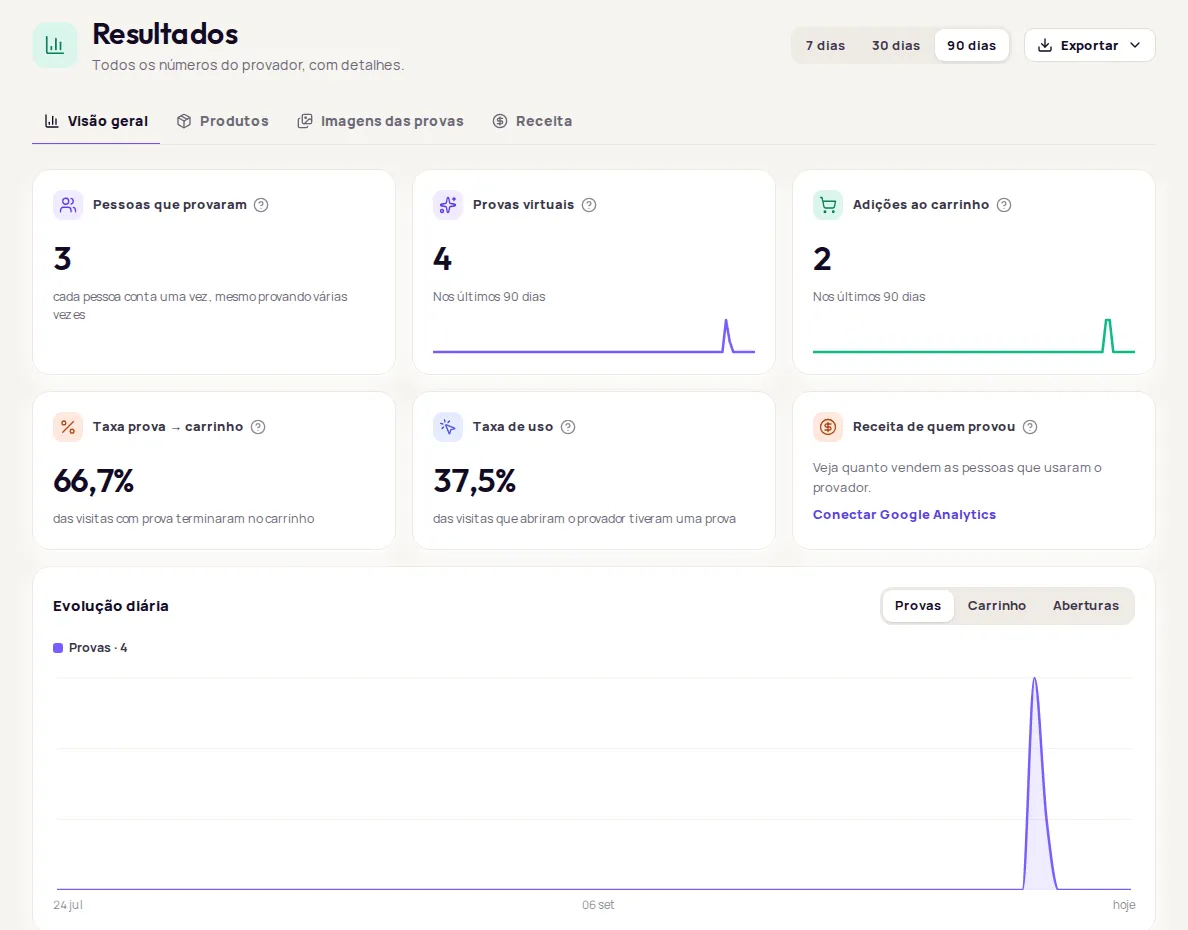
Numbers for the period
Section titled “Numbers for the period”The Visão geral starts with six numbers. Hover over the ? on each card to see its definition.
- Pessoas que provaram (People who tried on)
- Provas virtuais (Virtual try-ons)
- Adições ao carrinho (Add-to-carts)
- Taxa prova → carrinho (Try-on → cart rate)
- Taxa de uso (Usage rate)
- Receita de quem provou (Revenue from people who tried on), when the Receita tab is available. Without it, the sixth card shows Aberturas do provador (Try-on opens).
Each number counts something different: people, try-ons, visits. See the definitions in Try-on metrics explained.
Highlights for the period
Section titled “Highlights for the period”Up to three highlights worked out from your data:
- Melhor dia (Best day): the day with the most try-ons and how far above the period average it was.
- Maior conversão (Top conversion): the product where the most try-ons turned into add-to-carts, compared with the store average.
- Oportunidade (Opportunity): a product that is tried on a lot but rarely added to cart. Review its photo, price or sizes.
A highlight disappears when there isn’t enough data.
Daily trend
Section titled “Daily trend”The chart shows the period day by day, along with the previous period for comparison. Switch between Provas (Try-ons), Carrinho (Cart) and Aberturas (Opens).
From interest to cart
Section titled “From interest to cart”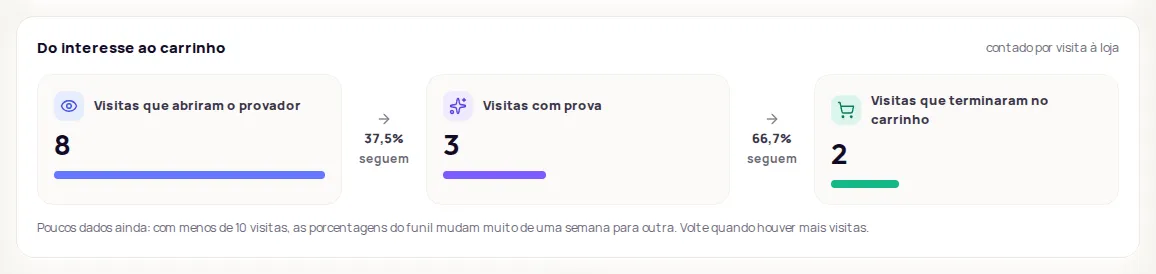
The Do interesse ao carrinho (From interest to cart) funnel counts store visits in three stages: Visitas que abriram o provador (Visits that opened the try-on), Visitas com prova (Visits with a try-on) and Visitas que terminaram no carrinho (Visits that ended in the cart). Between stages, “→ X% seguem” (→ X% continue) shows how many visits moved on to the next one. A tip points to the stage with the biggest drop.
Usage by feature
Section titled “Usage by feature”Shows how much each feature was used in the period, for example the try-on (in try-ons), the Guia de medidas (in opens) or Descubra seu tamanho (in recommendations).
Satisfaction or recommendations
Section titled “Satisfaction or recommendations”- In stores with a home try-on, the Satisfação com o resultado (Satisfaction with the result) card shows how many people liked the result and the total number of answers, with a Ver respostas e motivos (See answers and reasons) link.
- In other stores, the Recomendações de produtos (Product recommendations) card shows how many suggestions were Exibidas (Shown), the Cliques (Clicks) and the Taxa de clique (Click rate).
Peak hours
Section titled “Peak hours”Shows try-ons by day of the week and 2-hour slot, in Brasília time, so you can plan campaigns and pop-ups. With the 90-day period, it uses the last 30 days. With fewer than 10 try-ons in the period, the card asks for more data.
When a card has no numbers
Section titled “When a card has no numbers”Frequently asked questions
What period does the screen show?
The last 7 days by default. You can switch to 30 or 90 days, and the period applies to every tab.
Why does a number show Poucos dados ainda?
With fewer than 10 events in the period, percentages swing a lot from one week to the next. The screen shows Poucos dados ainda (Not enough data yet) instead of a misleading change.
A card shows Indisponível agora. Did I lose my data?
No. Indisponível agora (Unavailable right now) means the lookup failed at that moment. Click Tentar de novo (Try again). A period with no usage shows as empty, not as Indisponível agora.