Video Commerce appearance per showcase
Where in the dashboard: Video Commerce › Vitrines
Every showcase follows your store theme, which you build in Video Commerce › Aparência. When a showcase needs to be different, for example with another accent color, you change only that setting in the showcase editor. Everything else keeps following the theme.
From the theme or only this showcase
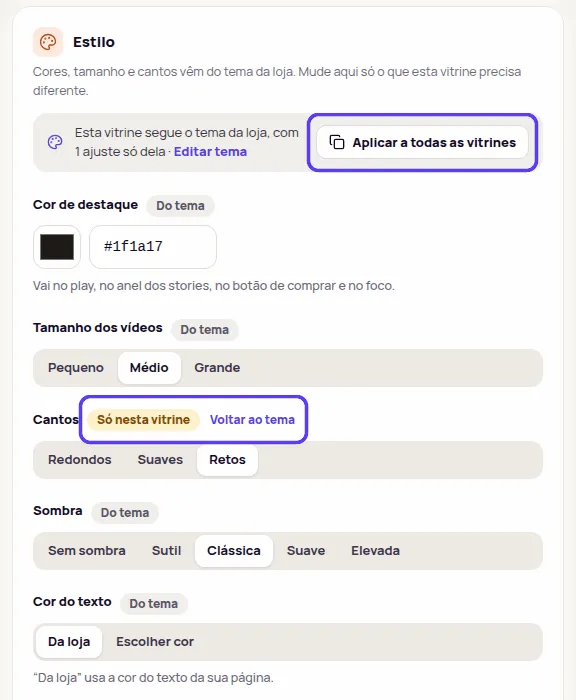
Section titled “From the theme or only this showcase”Open the showcase in Vitrines › Editar (Showcases › Edit) and scroll to the Estilo (Style) section: “Cores, tamanho e cantos vêm do tema da loja. Mude aqui só o que esta vitrine precisa diferente.” (Colors, size and corners come from the store theme. Change here only what this showcase needs to be different.)
Each field shows a tag:
- Do tema (From the theme): the field follows the store theme. If you change the theme, the showcase changes with it.
- Só nesta vitrine (Only this showcase): the showcase has its own value for this field. Theme changes don’t touch it.
The top of the section sums it up, for example: “Esta vitrine segue o tema da loja, com 1 ajuste só dela” (This showcase follows the store theme, with 1 setting of its own). The Editar tema (Edit theme) link opens Aparência › Estilo.
Change a setting on one showcase only
Section titled “Change a setting on one showcase only”-
In Vitrines, click Editar on the showcase.
-
In the Estilo section, change the field, for example Cantos (Corners) to Retos (Square). The tag turns into Só nesta vitrine.
-
Check the Prévia ao vivo (Live preview).
-
Click Publicar (Publish) in the bar at the bottom of the screen.
The fields in the Estilo section depend on the format. All of them have Cor de destaque (Accent color), Tamanho dos vídeos (Video size), Cantos and Sombra (Shadow). Carousel, stories, grid and highlight also have text color, background, heading, play icon, space above and below and the player theme. The bubble has the label, the ring, the corner distances and the player theme. All of them also have the Estilo do player (Player style) and the Ajuste do vídeo (Video fit). For everything outside this section, such as texts and the logo, the showcase uses the theme.
Back to the theme
Section titled “Back to the theme”To make the showcase follow the theme again on a field, click Voltar ao tema (Back to the theme), next to the Só nesta vitrine tag. The field shows Do tema again. Publish for it to apply in your store.
Apply to every showcase
Section titled “Apply to every showcase”Like a setting and want it on every showcase? Use Aplicar a todas as vitrines (Apply to all showcases), at the top of the Estilo section. The button shows when the showcase has a setting of its own and there is another showcase.
-
Click Aplicar a todas as vitrines.
-
The dashboard asks Aplicar estes ajustes a todas as vitrines? (Apply these settings to all showcases?) and says how many settings go to how many showcases. Settings the others already had and this one doesn’t touch stay as they are.
-
Click Aplicar a todas (Apply to all). The notice confirms, for example Aplicado às outras 13 vitrines (Applied to the other 13 showcases).
-
Click Publicar.
A setting is left out on a showcase when its format doesn’t have that field, such as the bubble label on a carousel, or when it is part of the Enterprise plan. The dashboard lists those settings before you confirm.
Other showcase settings
Section titled “Other showcase settings”The showcase editor also has:
- Formato (Format): in carousel, stories and grid, the Estilo dos cards (Card style), Clássico (Classic) or Comprável (Shoppable). See Shoppable cards.
- Títulos (Titles): Título acima dos vídeos (Title above the videos), Texto do título (Title text), Subtítulo (opcional) (Subtitle, optional) and Nome do produto em cada vídeo (Product name on each video).
- Reprodução (Playback): Modo do player (Player mode), Prévia silenciosa (Silent preview), Avançar automático (Auto-advance), Botão de WhatsApp no player (WhatsApp button in the player) and Compre junto (Buy together). Sound when the player opens and starting over at the end apply to every showcase, in Aparência › Comportamento.
- Onde aparece (Where it shows): No celular (On phones) and No computador (On computers). Switch a device off so the showcase doesn’t show on it.
Logo, brand name and the “Tecnologia por Provei.AI” badge are in Aparência › Marca. See Create and edit showcases.
Frequently asked questions
I changed the color in the theme and one showcase didn't change. Why?
That showcase has its own color, marked Só nesta vitrine (Only this showcase). Click Voltar ao tema (Back to the theme) on the field so it follows the theme again.
Does Aplicar a todas change showcases I already adjusted?
Only for the settings this showcase changed. The other settings each showcase already had stay as they are, and nothing changes in your store before you publish.