Video Commerce: installation and cart
Video Commerce uses the same PROVEI.AI code as the try-on. If that code is already in your store, you don’t need to install anything for the videos: just publish a showcase.
Install the code
Section titled “Install the code”- Your store already has the try-on: the code in your theme already brings the video showcases. Don’t paste another code.
- Your store will use only the videos: open Instalação (Installation) in the dashboard menu and follow the steps for your platform. The screen shows Video Commerce and the Código da Provei (Provei code), the same one the try-ons use. See Install Provei in your store.
Paste the code once, in the layout used by every page. Showcases show only on the pages you chose for each one.
Check that it’s installed
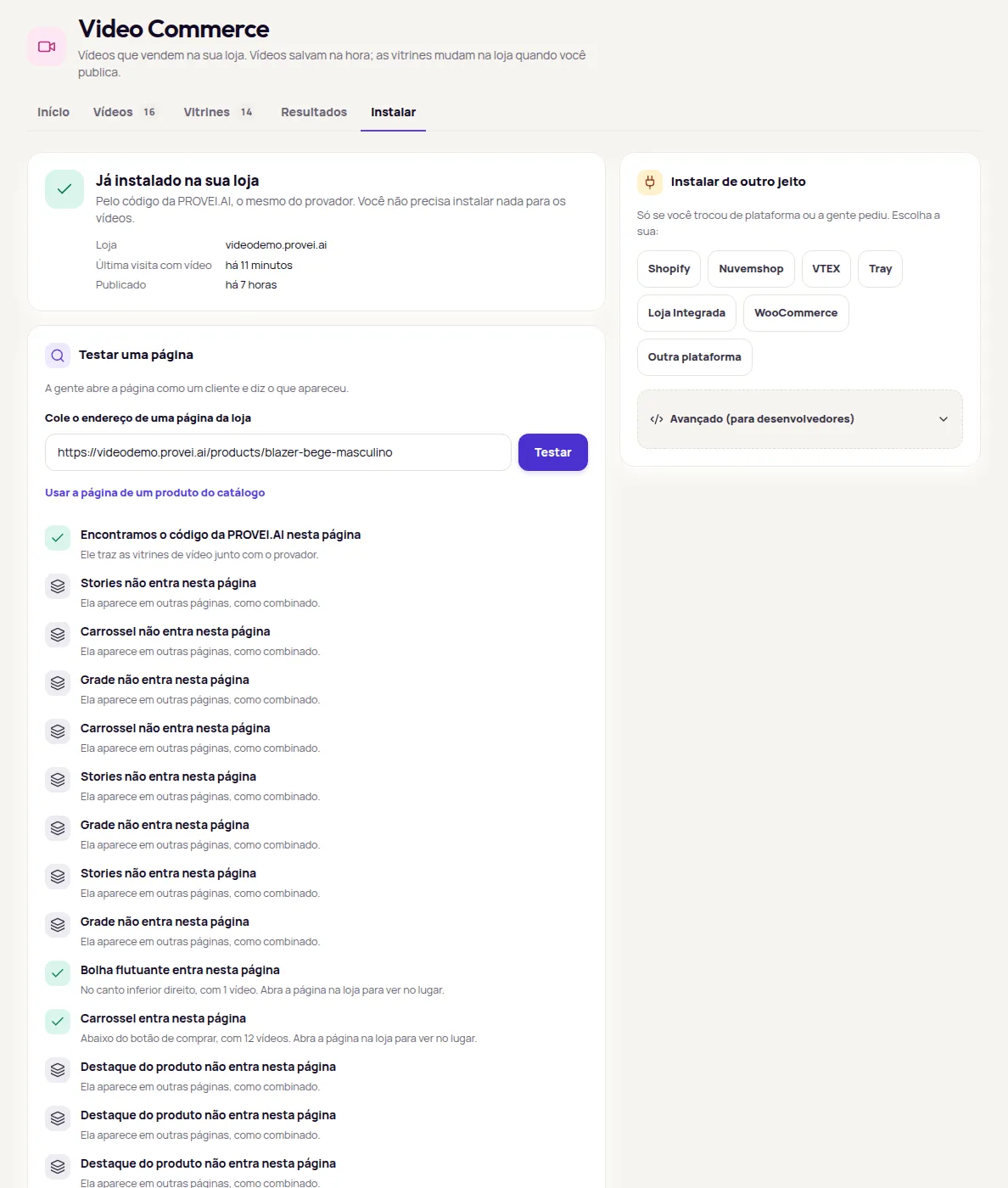
Section titled “Check that it’s installed”In Video Commerce › Instalar (Install), the first card tells you whether Provei has already seen showcases in your store:
- Já instalado na sua loja (Already installed in your store): the PROVEI.AI code is in your store and has already brought videos.
- Ainda não vimos vitrines na sua loja (We haven’t seen showcases in your store yet): install the code, publish a showcase and test a page.
The card also shows Loja (Store), Última visita com vídeo (Last visit with video) and Publicado (Published), with the date of the last publish.
Test a page
Section titled “Test a page”-
In Video Commerce › Instalar, paste the address of a store page in Cole o endereço de uma página da loja (Paste the address of a store page). To use a product from your catalog, click Usar a página de um produto do catálogo (Use a catalog product’s page).
-
Click Testar (Test). Provei opens the page as a customer would and looks for the showcases. It takes a few seconds.
-
Read the result. First about the code, then one line per published showcase.
| Result | What to do |
|---|---|
| Encontramos o código da PROVEI.AI nesta página (We found the PROVEI.AI code on this page) | The installation is fine. Check the showcase lines. |
| Não encontramos o código da PROVEI.AI nesta página (We didn’t find the PROVEI.AI code on this page) | Without the code, no showcase shows. Install it with the steps in Instalação (Installation). |
| O código da PROVEI.AI está na página, mas não traz os vídeos (The PROVEI.AI code is on the page, but doesn’t bring the videos) | Contact support to check the installation. |
| A showcase entra nesta página (goes on this page) | The line tells you the spot and how many videos. Open the page in your store to see it in place. |
| A showcase ficaria vazia aqui (would be empty here) | No video is tagged with this page’s product. Tag the product in the videos. |
| A showcase não entra nesta página (doesn’t go on this page) | It shows on other pages, as you chose. |
| Nenhuma vitrine publicada ainda (No showcase published yet) | Create and publish a showcase. |
The test checks the page’s HTML. To see a showcase’s exact spot, use Conferir na minha loja (Check in my store) in the showcase editor. See Check in my store.
Install another way
Section titled “Install another way”The Instalar de outro jeito (Install another way) card is only for when you changed platforms or support asked you to. Choose your store’s platform. For Shopify, Nuvemshop, VTEX, Tray, Loja Integrada or WooCommerce, click Abrir Instalação (Open Installation) and follow the steps: the code is the same as the try-on’s. For Outra plataforma (Other platform), ask whoever runs the site to paste the code under Avançado (Advanced).
Under Avançado there are two codes:
- Código da PROVEI.AI (recomendado) (PROVEI.AI code, recommended): the same as the try-on’s, which brings the videos along. Paste it before the end of
<body>on every page. - Só o Video Commerce (Video Commerce only): for stores that use only the videos and can’t have the full code. See Video Commerce for developers.
Add to cart from the video
Section titled “Add to cart from the video”The player shows Adicionar ao carrinho (Add to cart) when the customer watches on the product’s own page, on one of the platforms below. The player starts on the variant selected on the page and doesn’t ask for a choice when the product has a single variant.
| Platform | What the customer picks in the player |
|---|---|
| Shopify and VTEX | Size, color or another option, and the quantity. |
| Nuvemshop, Tray and Magazord | The size and the quantity. Color and other options follow what’s selected on the product page. |
| Dooca | The size and the quantity, when the product has sizes. Color and other options follow what’s selected on the product page. On products that have only a color or another option, with no size, the player doesn’t show Adicionar ao carrinho (Add to cart): the customer goes to the product page. |
On other pages, such as the home page and category pages, and on other platforms, the player shows each product’s name. The customer taps it and goes to the product page, where they buy as usual.
The player only shows Adicionado ao carrinho (Added to cart) when your store confirms it. If the store doesn’t confirm, it asks the customer to check their cart before adding again. In Resultados (Results), Adicionados ao carrinho counts only confirmed adds.
Stores with a security policy
Section titled “Stores with a security policy”If your store uses a Content Security Policy (CSP), whoever runs the site needs to allow the Provei addresses and the video addresses. See CSP and domains.
Frequently asked questions
I already have the try-on installed. Do I need to do anything for the videos?
No. The PROVEI.AI code, the same one the try-on uses, already brings the video showcases. Create and publish a showcase and test a page in Video Commerce › Instalar (Install).
My store will use only the videos. Which code do I install?
The same PROVEI.AI code, from the Instalação (Installation) screen. It loads only Video Commerce when the store has no try-on.
Why doesn't the Adicionar ao carrinho (Add to cart) button show in the player?
The player adds to the cart when the customer is on the product's own page, on a supported platform. On other pages, the product name takes them to its page, where they buy as usual.