Video Commerce: sell with videos in your store
Video Commerce shows videos of your products on your store pages. The customer watches, sees the products in the video and adds to the cart without leaving the player. You set it all up in the dashboard, without touching your theme’s code.
Once it’s on, it shows up in the Video Commerce menu of the dashboard. If the menu doesn’t show, the feature isn’t active on your account yet. Video Commerce usage is counted in video views, not in AI credits.
Who it’s for
Section titled “Who it’s for”Video Commerce is for stores that already film their products, for social media, for ads or in the store itself, and want those videos to sell on the website. The videos you already post on Instagram work.
It works with or without the virtual try-on. If your store already has the PROVEI.AI code, the video showcases come through the same code. See Installation and cart.
Videos and showcases
Section titled “Videos and showcases”In Video Commerce you manage two things:
- Vídeos (Videos): the files you upload, each one tagged with the products that appear in it. Tagging is what makes a video sell: with no product tagged, viewers have nothing to buy.
- Vitrines (Showcases): where and how the videos show in your store. Each showcase has a format (floating bubble, carousel, stories, grid or product highlight), the videos it includes and the pages where it shows.
Uploading a video doesn’t put it in your store. Provei doesn’t create any showcase on its own: the video only shows after you create a showcase in Vitrines (Showcases) and click Publicar (Publish).
For example: a floating bubble on every product page, in automatic mode, shows on each product the videos tagged with it. A carousel on the home page shows the videos you picked, in the order you want.
What the customer sees
Section titled “What the customer sees”In your store, the showcase shows in the format and spot you chose. When they tap a video, the player opens full screen, with Pausar (Pause), Silenciar (Mute), arrows for the next video and, below, under Produtos do vídeo (Products in the video), a card for each tagged product, with its photo and name.
On the home page, category pages and other pages, tapping the card opens the product page, where the customer buys as usual. On the product’s own page, on a supported platform, the player shows Adicionar ao carrinho (Add to cart) with the size or variant choice. Then the customer can Ver carrinho (View cart) or Continuar assistindo (Keep watching). See Add to cart from the video.
The Video Commerce screens
Section titled “The Video Commerce screens”| Screen | What it’s for |
|---|---|
| Início (Home) | What’s left to set up, showcase health, the numbers for the period and the monthly usage. |
| Vídeos (Videos) | Upload videos, pick the title and cover, and tag products. See Upload videos. |
| Vitrines (Showcases) | Create, edit, pause and delete showcases. See Create and edit showcases. |
| Resultados (Results) | Views, plays, clicks and carts, per video and per showcase. See Video results. |
| Instalar (Install) | Check that the code is in your store and test a page. See Installation and cart. |
Videos also show on the Produtos (Products) screens: the Vídeos (Videos) column and the Sem vídeo (No video) filter in the catalog, and the Vídeos deste produto (This product’s videos) card on each product page. See Videos on products.
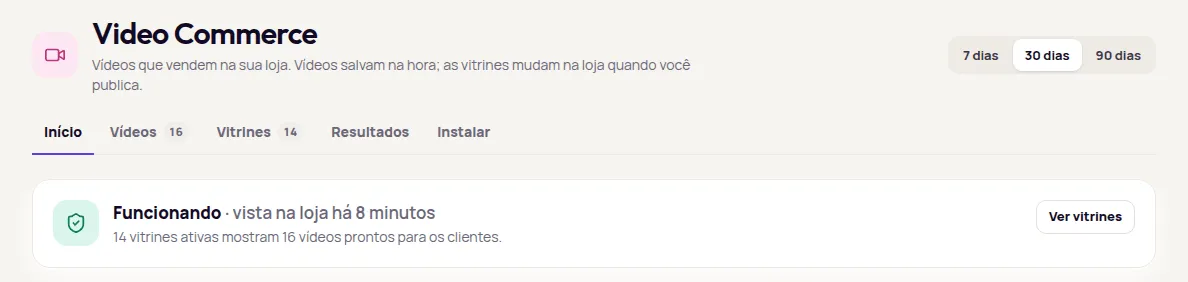
Start here
Section titled “Start here”The first time, the Início (Home) screen shows the Coloque seus vídeos para vender (Put your videos to work) list, with five steps: Envie um vídeo (Upload a video), Marque produtos (Tag products), Escolha onde aparece (Choose where it shows), Confira na loja (Check your store) and Publique (Publish). Each finished step gets the Feito (Done) mark.
To do it all in one go, with what to check at each step, follow the Publish your first video showcase tutorial. Then use the guides in the order of the work:
- Upload videos: from your computer or your phone, with title, cover and filters.
- Videos on products: tag each video’s products and upload videos straight from the Produtos (Products) screen.
- Showcase formats: bubble, carousel, stories, grid and highlight, and when to use each one.
- Create and edit showcases: the Nova vitrine (New showcase) steps and the editor with the preview.
- Where the showcase shows: the pages, the ready-made spots and each product’s automatic videos.
- Publish and check your store: what saves right away, the Publicar (Publish) bar and Conferir na minha loja (Check in my store).
- Video results and Monthly usage: what customers do with your videos and how much of the month you’ve used.
To get more out of your videos, see the best practices. Showcase not showing in your store? See Troubleshooting. Another question? See the Video Commerce FAQ. Whoever runs your site will find the code and technical details in Video Commerce for developers.
Coming soon
Section titled “Coming soon”Three options already show in the dashboard marked Em breve (Coming soon). They aren’t available yet:
- Importar do Instagram (Import from Instagram), in Vídeos: bring videos straight from Instagram. For now, upload the videos from your computer or your phone.
- Gerar com IA a partir das fotos (Generate with AI from photos), in Vídeos, marked Em breve · usa créditos (Coming soon · uses credits): create a video from the product photos.
- Por etiqueta (By tag), in a showcase’s Conteúdo (Content) step: show every video with a tag, for example “Verão” (Summer).
Frequently asked questions
Does Video Commerce use credits?
Video Commerce usage is counted in video views, not in AI credits. You follow the month's usage in the Uso do mês (Monthly usage) card on the Video Commerce Início (Home) screen.
How do I turn on Video Commerce?
This feature is turned on by Provei. Contact support to turn it on.
Do I need to install another code for the videos?
No. The PROVEI.AI code, the same one the try-on uses, already loads Video Commerce. If your store will use only the videos, install that same code from the Instalação (Installation) screen.