Video Commerce: upload videos
In Video Commerce › Vídeos (Videos) you upload your store’s videos, from your computer or your phone, and pick each one’s title and cover. Everything on this screen saves right away, with no publishing.
What videos to upload
Section titled “What videos to upload”- Formats: MP4, MOV or WebM. From your phone, the upload page lists MP4 and MOV.
- Length: up to 90 seconds.
- File size: up to 250 MB.
- Orientation: vertical works best. The videos you already post on Instagram work.
The upload area on the Vídeos screen reminds you of these rules. To choose which videos to upload, see the best practices.
Uploading a video doesn’t put it in your store. Provei doesn’t create any showcase on its own: the video only shows after you create a showcase in Vitrines (Showcases) and click Publicar (Publish).
Upload from your computer
Section titled “Upload from your computer”-
In Vídeos, click Enviar vídeos (Upload videos), or drag the files onto the Arraste vídeos ou clique para escolher (Drag videos or click to choose) area. You can pick several at once.
-
Follow the upload on each video’s card. While it shows Enviando (Uploading), don’t close the page.
-
After the upload, the video shows Processando (Processing) and turns Pronto (Ready) on its own. Meanwhile, you can already tag the products.
If an upload stops halfway, because the page closed or the connection dropped, the screen shows Um envio ficou pela metade (An upload stopped halfway). Click Continuar envio (Resume upload) and choose the same file to pick up where it stopped, or Descartar (Discard) to give up.
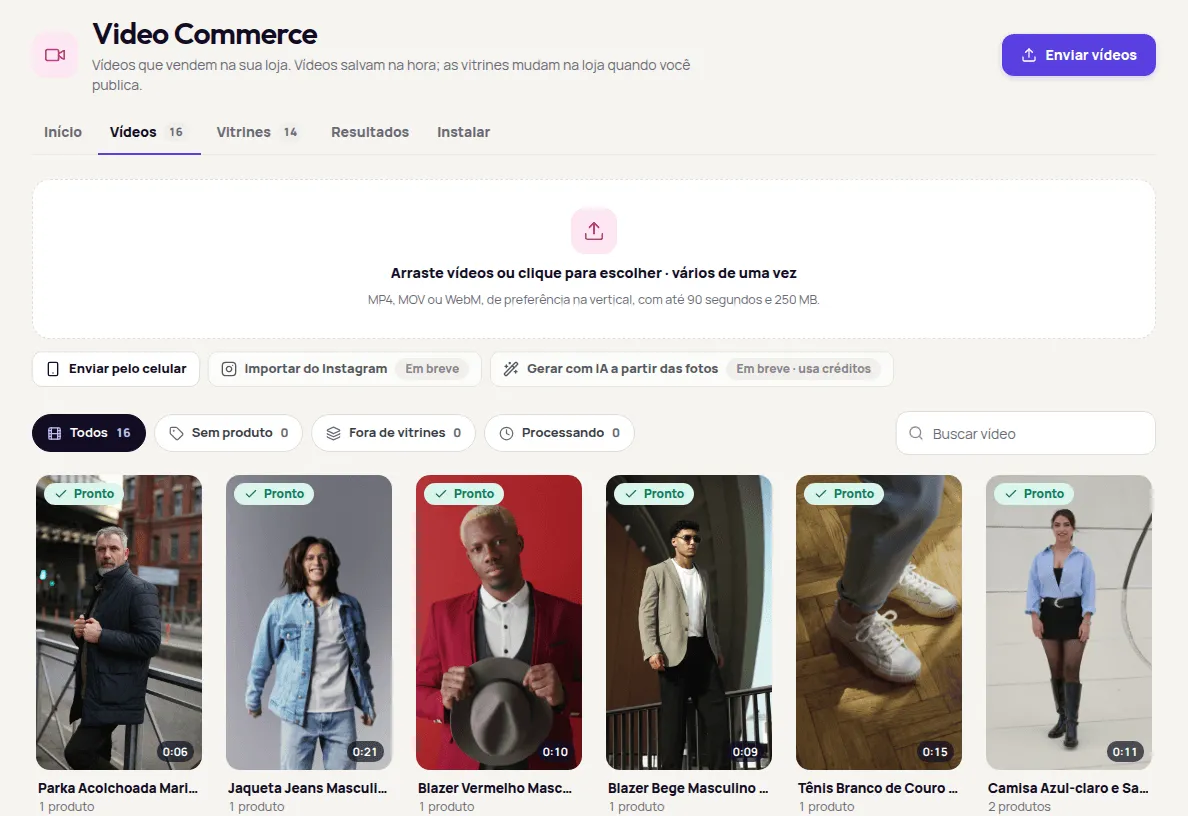
The Importar do Instagram (Import from Instagram) and Gerar com IA a partir das fotos (Generate with AI from photos) buttons show as Em breve (Coming soon): they aren’t available yet. See Coming soon.
Upload from your phone
Section titled “Upload from your phone”-
In Vídeos, click Enviar pelo celular (Send from phone). The dashboard shows a QR code.
-
Point your phone’s camera at the code.
-
On your phone, tap Escolher vídeos (Choose videos) and pick the videos from the gallery. You can pick several.
-
The videos show up in the dashboard on their own, with no page refresh.
The phone upload page lists MP4 or MOV, up to 90 seconds and 250 MB each. The code is valid for 15 minutes and only works for your store. If it expires, create a new one in Vídeos › Enviar pelo celular. You don’t need to log in to the dashboard on your phone.
On a product page, under Produtos (Products), the Enviar pelo celular button creates a code whose videos are already tagged with that product. See Videos on products.
Title and cover
Section titled “Title and cover”Click a video to open its details.
- Título (Title): shown to the customer in the player. It saves when you leave the field.
- Capa (Cover): the image the customer sees before pressing play. Pick one of the moments of the video. Your store shows the new cover within 1 minute.
The details also show the Duração (Length), the date it was Enviado (Uploaded) and the Formato (Format).
Filter and search
Section titled “Filter and search”Above the list, the filters show how many videos fall in each case:
- Todos (All): every video.
- Sem produto (No product): videos with no product tagged. Viewers can’t buy from them.
- Fora de vitrines (Not in showcases): ready videos that no active showcase shows, plus videos with a problem.
- Processando (Processing): videos being uploaded or processed.
To find a video by its title, use Buscar vídeo (Search video).
Where the video shows
Section titled “Where the video shows”In the video’s details, Onde aparece (Where it shows) lists the showcases that show this video, marked Ativa (Active) or Pausada (Paused):
- Automático: aparece na página dos produtos marcados (Automatic: shows on the tagged products’ pages): automatic showcases, which show the video on the pages of the products tagged in it.
- Escolhido por você (Chosen by you): showcases where you picked the videos by hand.
To add the video to a showcase of chosen videos, open Colocar em outra vitrine (Add to another showcase) and switch the showcase on. This is a showcase change: it only reaches your store after Publicar (Publish).
If you see Este vídeo ainda não aparece na loja. (This video doesn’t show in the store yet.), tag a product in it (for automatic showcases) and create and publish a showcase, or add it to a showcase of chosen videos.
For ready videos, Resultados (Results) shows the Reproduções (Plays), Carrinhos (Carts) and Taxa (Rate) for the last 30 days.
When a video has a problem
Section titled “When a video has a problem”A video with a problem shows Problema (Problem) on its card and the reason in its details.
| What you see | What to do |
|---|---|
| O vídeo passa de 90 segundos (The video is longer than 90 seconds) | Trim the video to 90 seconds or less and upload it again. |
| Não conseguimos ler este arquivo (We couldn’t read this file) | Export it again as MP4 or MOV and upload it again. |
| O envio parou no meio (The upload stopped halfway) or O envio não começou direito (The upload didn’t start properly) | Upload the file again. |
| O vídeo não terminou de processar (The video didn’t finish processing) | Upload the file again. If it keeps happening, contact support. |
Delete a video
Section titled “Delete a video”-
Open the video and click Excluir vídeo (Delete video).
-
Read what changes: the showcases it leaves and on how many product pages it stops showing.
-
Confirm with Excluir vídeo.
The video leaves your store right away, without publishing. It can’t be undone. The earlier numbers stay in Resultados (Results).
Only want to take the video off a product, without deleting it? Untag the product in the video, or use Tirar deste produto (Remove from this product) on the product page. The video stays in your library.
Frequently asked questions
What videos can I upload?
MP4, MOV or WebM files up to 90 seconds and 250 MB. Vertical videos work best, like the ones you already post on Instagram.
Do I need to log in on my phone to upload with the QR code?
No. The QR code opens an upload page for your store that's valid for 15 minutes. The videos show up in the dashboard on their own.
Does deleting a video need Publicar (Publish)?
No. The video leaves your store right away, without publishing. It can't be undone, and the earlier numbers stay in Resultados (Results).