Video Commerce showcase formats
The format is how the showcase shows videos in your store. There are five: Bolha flutuante (Floating bubble), Carrossel (Carousel), Stories, Grade (Grid) and Destaque do produto (Product highlight). You pick the format in the first step of Nova vitrine (New showcase) and can change it later.
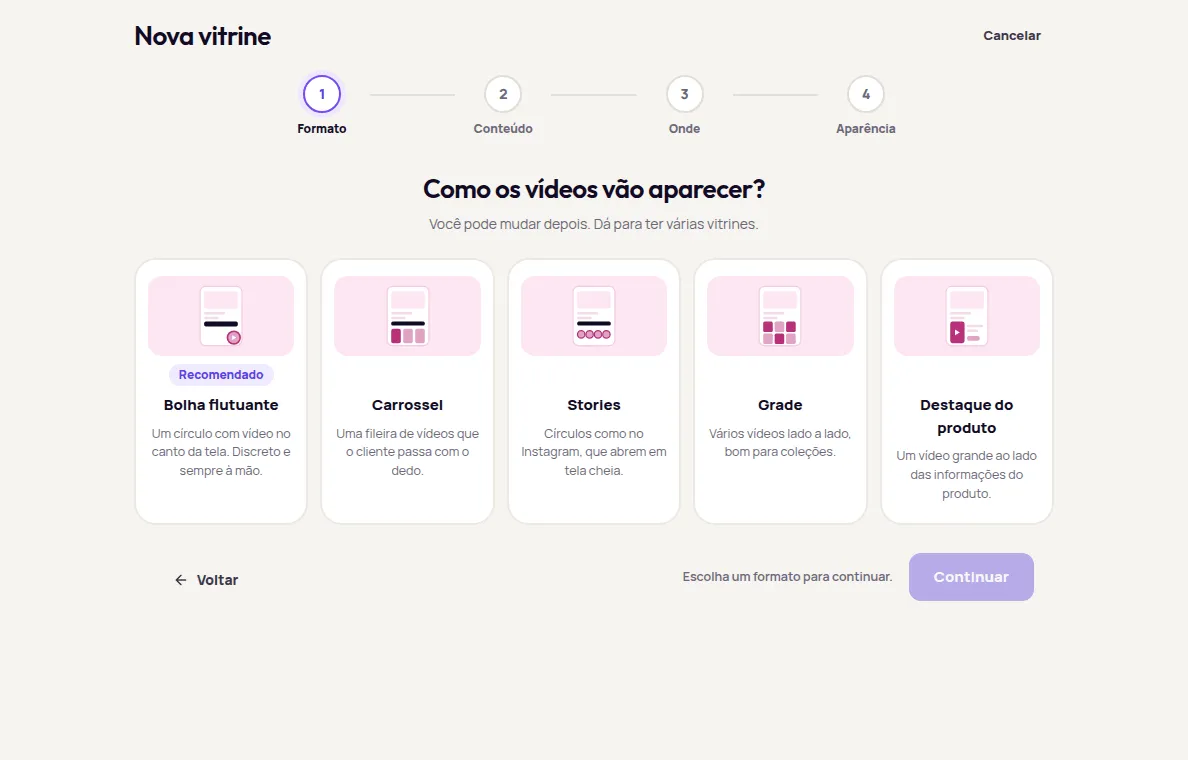
In every format, tapping a video opens the player full screen, with the products tagged in the video. What changes is how the videos show on the page before the tap.
| Format | How it shows | Where it sits |
|---|---|---|
| Bolha flutuante (Floating bubble) | A circle with a video in the corner of the screen. Discreet and always at hand. | In a corner of the screen, over the page |
| Carrossel (Carousel) | A row of videos the customer swipes through. | In a spot on the page |
| Stories | Circles like on Instagram, which open full screen. | In a spot on the page |
| Grade (Grid) | Several videos side by side, good for collections. | In a spot on the page |
| Destaque do produto (Product highlight) | A large video next to the product information. | In a spot on the page |
The descriptions in the table are the same as on the Nova vitrine screen.
Floating bubble
Section titled “Floating bubble”A circle with a video that stays in the corner of the screen while the customer scrolls. It’s the format marked Recomendado (Recommended) in Nova vitrine, and the one the Publish your first video showcase tutorial uses.
- Where it sits: in one of the four corners of the screen. There’s no spot on the page to choose, so it works with any theme. See Where the showcase shows.
- Content: in automatic mode, it shows only the videos tagged with the page’s product, with no fill-in from other videos. With no video tagged with the product, the bubble doesn’t show. Outside product pages, use Vídeos escolhidos (Chosen videos).
- For the customer: they can close the bubble. It doesn’t come back in that browser tab. If you publish the showcase again, it shows up again.
- Look: the bubble shows only the video, with no title or product name.
Two bubbles can’t take the same corner on the same pages.
Carousel
Section titled “Carousel”A row of videos the customer swipes through, inside the page. It shows several videos without taking much height.
- Where it sits: in a ready-made spot on the page, such as Abaixo do botão de comprar (Below the buy button) or Abaixo do banner (Below the banner).
- Content: in automatic mode, it shows the page product’s videos and, if there are few, fills in with the best-selling ones. Only videos tagged with a product enter, and new ones with no data yet come after. With Vídeos escolhidos (Chosen videos), it shows the videos you picked, in your order.
- Look: it can have a Título acima dos vídeos (Title above the videos) and the Nome do produto em cada vídeo (Product name on each video).
Stories
Section titled “Stories”Circles like on Instagram, which open full screen. It takes little height and looks like social media stories.
- Where it sits: in a ready-made spot on the page, such as Abaixo do banner (Below the banner) on the home page.
- Content: the same options as the carousel.
Several videos side by side, good for collections. It shows many videos at once and takes more room on the page.
- Where it sits: in a ready-made spot on the page, such as Acima do rodapé (Above the footer) on a category or collection page.
- Content: the same options as the carousel. For a collection, use Vídeos escolhidos (Chosen videos) or Páginas específicas (Specific pages) with the collection’s address. See Where the showcase shows.
Product highlight
Section titled “Product highlight”A large video next to the product information. It’s the format that gives a single video the most room.
- Where it sits: in a ready-made spot on the page. Since it sits next to the product information, use it on product pages, Abaixo do botão de comprar (Below the buy button) or Abaixo das fotos (Below the photos).
- Content: the same options as the carousel.
Which format to choose
Section titled “Which format to choose”These are suggestions. You can try different formats and compare them in Resultados (Results), under Por vitrine (By showcase). See Video results.
| You want to… | Try |
|---|---|
| Start fast, on every product page, without touching the theme | Bolha flutuante (Floating bubble) with automatic content |
| Show several videos on the home page | Carrossel (Carousel) or Stories with Vídeos escolhidos (Chosen videos), Abaixo do banner (Below the banner) |
| Show a collection or a campaign | Grade (Grid) on Páginas específicas (Specific pages) or Páginas de categoria (Category pages) |
| Feature the video on the product page | Destaque do produto (Product highlight) or Carrossel, Abaixo do botão de comprar (Below the buy button) |
For more tips, see the best practices.
Change the format
Section titled “Change the format”In Vitrines (Showcases), click Editar (Edit) on the showcase and change the format in the Formato (Format) section. The content and the pages stay the same. Between carousel, stories, grid and highlight, the spot on the page stays the same. When you switch to the bubble, the showcase moves to the Canto inferior direito (Bottom right corner) of the screen; when you switch away from the bubble, it moves to the first ready-made spot for the chosen pages. Check it with Conferir na minha loja (Check in my store) and publish. See Publish and check your store.
Frequently asked questions
Can I change a showcase's format later?
Yes. In the showcase editor, change the format in the Formato (Format) section and publish. The content and the pages stay the same. When you switch from the bubble to another format, or the other way round, check the spot again, because the bubble sits in a corner of the screen and the other formats sit in a spot on the page.
Can I use more than one format in my store?
Yes. Each showcase has one format, and you can have several showcases, for example a bubble on product pages and a carousel on the home page.