Video Commerce: create and edit showcases
A showcase is where and how videos show in your store: the format, the videos it includes, the pages and the spot on the page. You create showcases in Video Commerce › Vitrines (Showcases), in four steps: Formato (Format), Conteúdo (Content), Onde (Where) and Aparência (Look). Then you check them in your store and publish.
Create a showcase
Section titled “Create a showcase”-
In Vitrines, click Nova vitrine (New showcase).
-
Formato (Format, Como os vídeos vão aparecer?): choose Bolha flutuante (Floating bubble), Carrossel (Carousel), Stories, Grade (Grid) or Destaque do produto (Product highlight) and click Continuar (Continue). See Showcase formats.
-
Conteúdo (Content, Quais vídeos entram?): choose Automático: vídeos do produto da página (Automatic: the page product’s videos) or Vídeos escolhidos (Chosen videos) and click Continuar. See Content.
-
Onde (Where, Em quais páginas?): choose the pages and the spot, or the screen corner for the bubble. Before moving on, use Conferir na minha loja (Check in my store). See Where the showcase shows and Check in my store.
-
Aparência (Look, Agora, o visual): the screen shows a summary of the showcase. Click Abrir o editor visual (Open the visual editor) to adjust colors, size and corners with the preview alongside, or Usar o visual padrão (Use the default look), which suits most stores.
-
The showcase joins the list with a Vitrine criada (Showcase created) notice. Click Publicar (Publish) in the bar at the bottom of the screen. The showcase only shows in your store after you publish.
The browser tab shows which step you’re on, for example Conteúdo (etapa 2 de 4) · Nova vitrine (Content, step 2 of 4). To give up, click Cancelar (Cancel): nothing is created.
A new showcase starts with automatic content on Todas as páginas de produto (All product pages). The bubble starts in the Canto inferior direito (Bottom right corner); the other formats, Abaixo do botão de comprar (Below the buy button). You can change everything in the steps or later, in the editor.
Content: automatic or chosen
Section titled “Content: automatic or chosen”- Automático: vídeos do produto da página (Automatic: the page product’s videos): on each product page, the showcase shows the videos tagged with that product. If the product has few videos, Provei fills in with the best-selling ones. The bubble has no fill-in: it shows only the videos tagged with the page’s product. On category pages, the home page and specific pages, carousel, stories, grid and highlight show the best-selling videos. An automatic bubble doesn’t show on those pages: to use the bubble outside product pages, choose Vídeos escolhidos (Chosen videos).
- Vídeos escolhidos (Chosen videos): you pick which videos go in and in what order. Good for the home page. Click the videos under Adicionar (Add) and use the arrows in Ordem dos vídeos (Video order). A video still processing shows entra quando ficar pronto (joins once it’s ready).
- Por etiqueta · Em breve (By tag · Coming soon): show every video with a tag, for example “Verão” (Summer). It isn’t available yet.
In automatic showcases, a new video joins on its own as soon as it’s ready and has a product tagged, without publishing again. In showcases of chosen videos, adding or removing a video is a showcase change and needs Publicar (Publish).
The best-selling videos are picked by each video’s recent performance in your store. Only videos tagged with a product enter, and new videos with no data yet come after. See Automatic videos on each product page.
Edit the look
Section titled “Edit the look”In Vitrines, click Editar (Edit) on the showcase. The editor shows every option, with the Prévia ao vivo (Live preview) alongside. In the preview, choose Celular (Phone) or Computador (Computer), the moment (Na página (On the page), Player aberto (Player open) or Adicionado ao carrinho (Added to cart)) and the Produto da prévia (Preview product). Click the showcase in the preview to jump straight to its setting. On a phone, use Ver prévia (See preview).
| Section | What you set |
|---|---|
| Nome e status (Name and status) | Nome (só para você) (Name, just for you), which customers don’t see, and Vitrine ativa na loja (Showcase active in the store). |
| Formato, Conteúdo and Onde | The same choices as when you created it. |
| Tamanho (Size) | P · pequeno (small), M · médio (medium) or G · grande (large). |
| Cores (Colors) | The Cor de destaque (Accent color), used on the outline, the play button and the player’s buy button. Pick a ready-made color or Outra cor (Other color). |
| Cantos e sombra (Corners and shadow) | Cantos (Corners) Arredondado (Rounded), Suave (Soft) or Reto (Square), and Sombra (Shadow). |
| Títulos (Titles) | Título acima dos vídeos (Title above the videos) with the Texto do título (Title text), and Nome do produto em cada vídeo (Product name on each video). The bubble shows only the video. |
| Reprodução (Playback) | Prévia silenciosa (Silent preview): videos move without sound on the page. Avançar automático (Auto-advance): in the player, moves to the next video when one ends. |
The player shows a small Tecnologia por PROVEI.AI (Powered by PROVEI.AI) badge in its footer. To remove the badge, contact support.
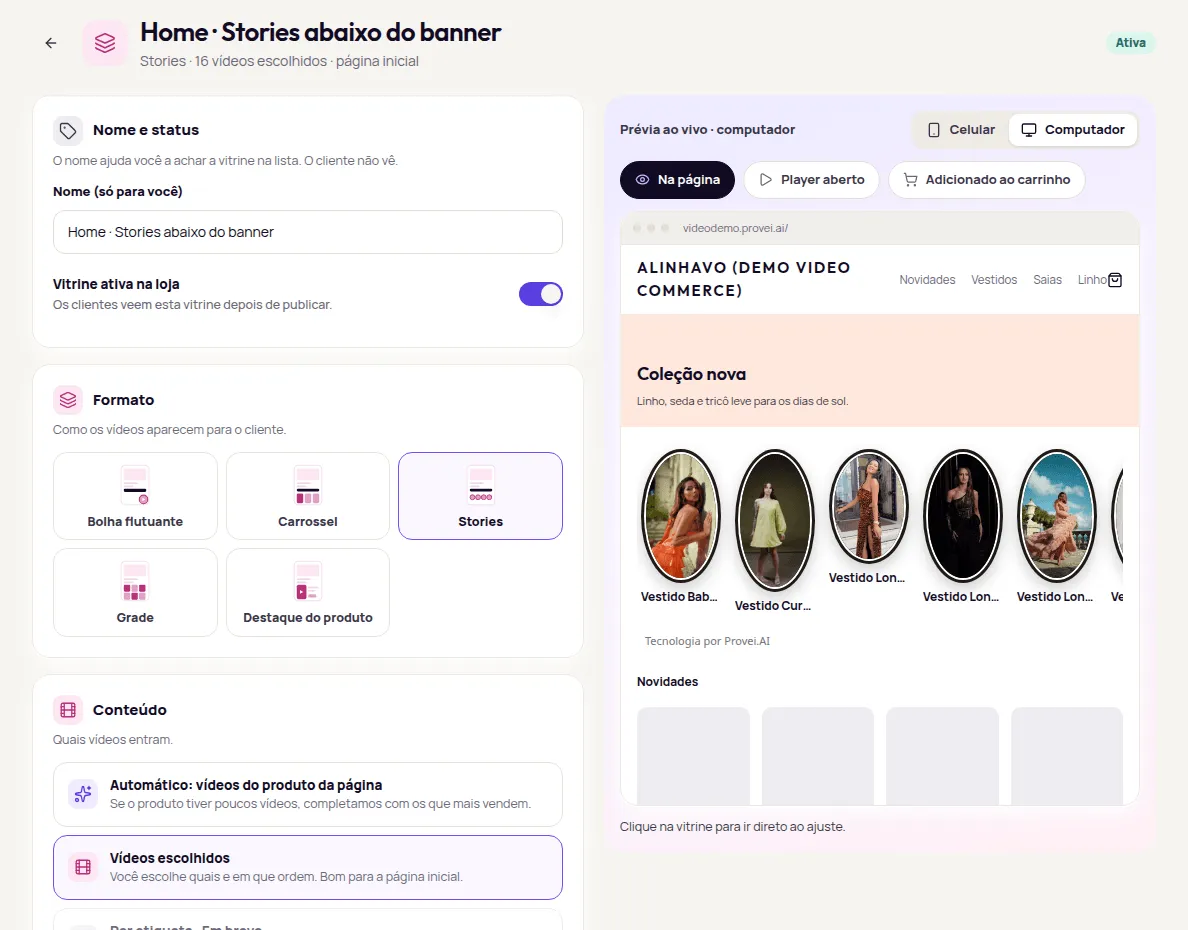
Changes in the editor stay as a draft until you publish. To place the showcase with a CSS selector or apply CSS to it only, see Advanced (for developers).
Pause, duplicate or delete
Section titled “Pause, duplicate or delete”- Pause: switch off Ativa (Active) in the list, or Vitrine ativa na loja in the editor, and publish. While paused, the showcase shows Pausada (Paused) in the list and customers don’t see it. Nothing is deleted. To bring it back, switch it on and publish.
- Duplicate: in the showcase’s ⋯ menu, click Duplicar (Duplicate). The Vitrine duplicada (Showcase duplicated) notice confirms it. Adjust the copy and publish whenever you want.
- Delete: in the ⋯ menu, click Excluir vitrine (Delete showcase) and confirm. It leaves your store when you publish. The videos stay in your library and the earlier numbers stay in Resultados (Results). If the showcase was never published, nothing changes in your store.
You can have up to 20 showcases. Once you reach that number, delete one you no longer use to create another.
Frequently asked questions
Can I have more than one showcase?
Yes. You can have up to 20 showcases, for example a bubble on product pages and a carousel on the home page. Two bubbles can't take the same corner on the same pages.
Does pausing a showcase delete anything?
No. Once paused, it leaves your store after you publish, but the showcase and the videos stay saved. Switch it back on and publish to bring it back.
Does the showcase show in my store as soon as I finish creating it?
No. The new showcase stays as a draft, marked Nova · ainda não publicada (New · not published yet). It only reaches your store after Publicar (Publish).