Video Commerce: videos on products
Tagging the products that appear in each video is what makes the video sell: the customer sees the product in the player and buys without leaving the video. You tag products in the video’s details or straight from the product page, in Produtos (Products). Tagging saves right away.
Tag products in a video
Section titled “Tag products in a video”-
In Video Commerce › Vídeos (Videos), click the video.
-
Under Produtos (Products), type the name in Buscar no seu catálogo (Search your catalog) and click Marcar (Tag) on the product.
-
If the product isn’t in the Provei catalog, paste the link to the product page in ou cole o link do produto (or paste the product link) and click Adicionar (Add). It shows in the list as Link colado (Pasted link).
To untag, click the × next to the product. The message that shows up has Desfazer (Undo), in case you untag by mistake.
Each video can have up to 12 products. For inactive products and variants, see Variants and inactive products.
When the video shows on the product page
Section titled “When the video shows on the product page”After you tag, the dashboard tells you what happens:
- Salvo. Aparece na página do produto em até 1 minuto. (Saved. Shows on the product page within 1 minute.): an active automatic showcase on product pages already exists. No need to publish.
- Salvo. O vídeo entra sozinho na página do produto quando ficar pronto. (Saved. The video joins the product page on its own once it’s ready.): the video is still processing.
- If no showcase shows videos on product pages, the message asks you to create and publish one. See Create and edit showcases and Where the showcase shows.
Add videos from the Products screen
Section titled “Add videos from the Products screen”In stores with Video Commerce, the Produtos (Products) screens show the videos too. It’s the fastest way to give each product a video, without going through the Vídeos (Videos) screen.
-
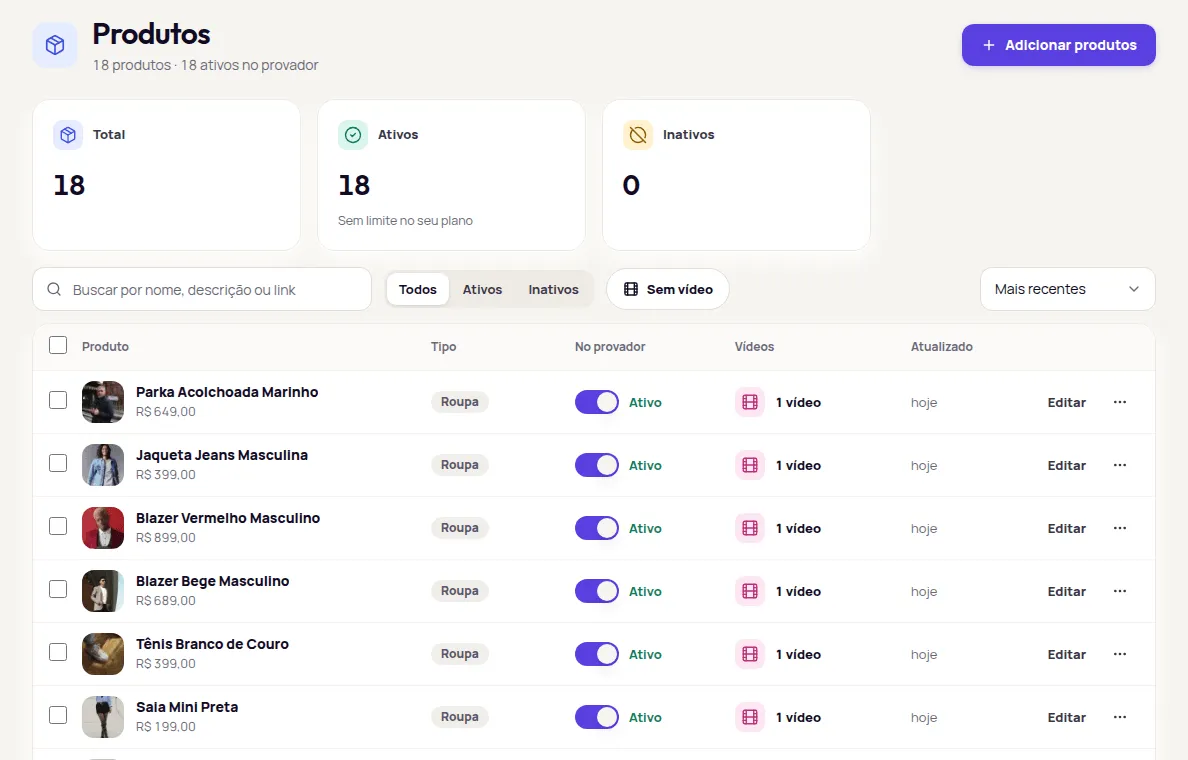
In Produtos › Catálogo (Products › Catalog), click the Sem vídeo (No video) filter to see the active products that don’t have a video yet.
-
On a product’s row, click Adicionar vídeo (Add video). The Vídeos deste produto (This product’s videos) card opens.
-
Choose how to bring in the video:
- Enviar vídeos deste produto (Upload videos for this product): drag the file or click to choose.
- Escolher da biblioteca (Choose from library): tag a video that’s already in Vídeos.
- Enviar pelo celular (Send from phone): point your phone’s camera at the QR code and pick videos from the gallery.
-
Wait for the video to be Pronto (Ready). It comes in already tagged with this product. No need to publish.
-
Check under Onde aparece (Where it shows) whether a showcase shows videos on the product page. If the card says none does, click Criar vitrine (Create showcase). See Publish your first video showcase.
In the catalog
Section titled “In the catalog”In Produtos › Catálogo (Products › Catalog):
- The Vídeos (Videos) column shows how many videos each product has. A variant with no videos of its own counts the main product’s videos, and the number opens that product’s card. Click the number, or Adicionar vídeo (Add video) on products with no video, to open the Vídeos deste produto (This product’s videos) card.
- The Sem vídeo (No video) filter, next to the status, shows only the products with no video.
- When there are active products with no video, a notice at the top shows how many. Click Ver produtos (See products) to see the list.
On the product page
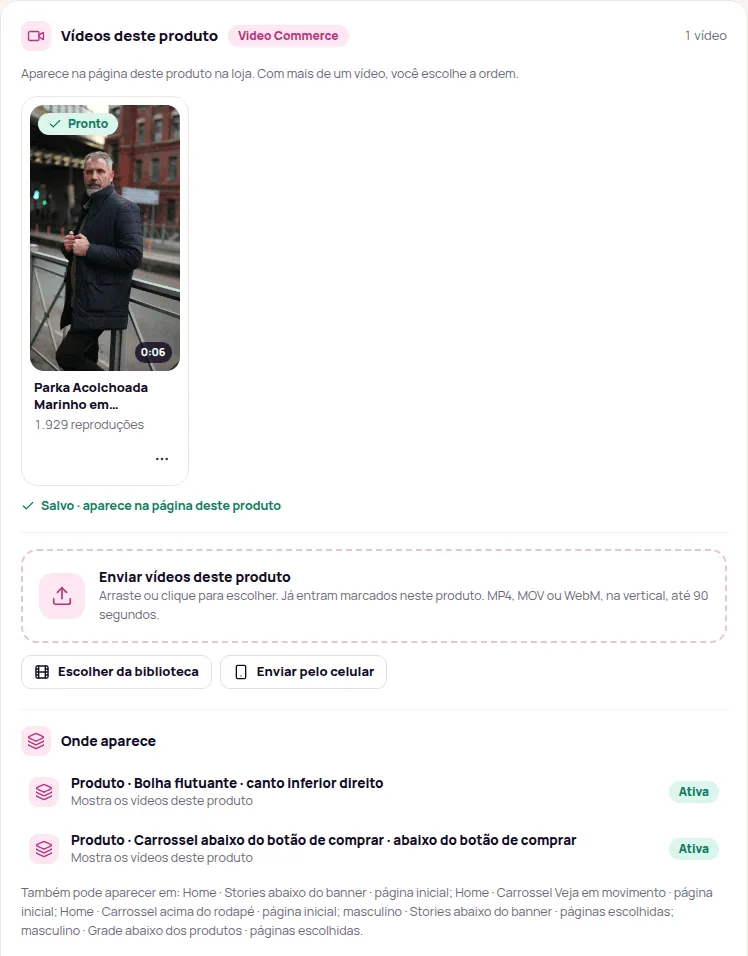
Section titled “On the product page”In Produtos › Catálogo, click Editar (Edit) on the product’s row. The Vídeos deste produto (This product’s videos) card brings together everything this product has in video:
- Enviar vídeos deste produto (Upload videos for this product): drag or click to choose. The videos come in already tagged with this product.
- Escolher da biblioteca (Choose from library): tag videos that are already in Vídeos with this product.
- Enviar pelo celular (Send from phone): the QR code to upload from your phone. Videos sent through it come in already tagged with this product.
- When Provei finds a video in your library that looks like it belongs to this product, the card suggests it. Click Marcar neste produto (Tag on this product) to accept.
With more than one video, drag or use the arrows to change the order. The order is the same as on the product page in your store, and it saves right away. In each video’s ⋯ menu, Ver detalhes do vídeo (See video details) opens the video and Tirar deste produto (Remove from this product) untags the product without deleting the video.
Each product can have up to 30 videos.
Example account; the numbers are illustrative.
Where it shows and results
Section titled “Where it shows and results”Below the videos, Onde aparece (Where it shows) lists the showcases that show this product’s videos. If no showcase shows videos on the product page, if it isn’t published yet or if it’s paused, the card tells you and links to Criar vitrine (Create showcase) or Ver vitrines (See showcases). Videos still processing join on their own once they’re ready.
Resultados dos vídeos (Video results) shows the Reproduções (Plays) on this product’s page, the Carrinhos (Carts) for this product that came from videos, and the Taxa (Rate).
Variants and inactive products
Section titled “Variants and inactive products”- Variants: a variant with no videos of its own uses the main product’s videos, if the main product is active. In the catalog, the variant’s Vídeos (Videos) column shows that number, and it opens the main product’s Vídeos deste produto (This product’s videos) card.
- Inactive products: in the Marcar (Tag) search, inactive products come last, with the notice Inativo no catálogo: não aparece na loja (Inactive in the catalog: doesn’t show in the store). Prefer the active product. If you need the inactive one, activate it in Produtos › Catálogo (Products › Catalog) so it shows in your store. See Activate and deactivate products.
- Products without video notice: at the top of the catalog and on the Início (Home) screen, it counts only active products.
Frequently asked questions
How many products can I tag in a video?
Up to 12 products per video.
My product isn't in the Provei catalog. Can I still tag it?
Yes. Paste the link to the product page in your store under "ou cole o link do produto" (or paste the product link) and click Adicionar (Add). The product shows as Link colado (Pasted link).
Do I need to publish after tagging a product?
No. Tagging saves right away. If an automatic showcase on product pages is already published, the video shows on the product page within 1 minute.