Import a size chart
In this tutorial you turn the size chart you already have, in a photo, a PDF, a spreadsheet or a text, into a Provei size chart. You check how each column was read before creating it and, at the end, link the chart to your products. Nothing is saved until you click Criar tabela (Create chart).
Before you start
Section titled “Before you start”- The Produtos › Tabelas de medidas (Products › Size charts) menu must be in your dashboard. Size features are for clothing stores. This feature is turned on by Provei. Contact support to turn it on: suporte@provei.ai or WhatsApp +55 11 5296-0168.
- Have the chart at hand: a sharp photo or a screenshot (PNG, JPG or WEBP), a PDF, an Excel sheet (XLSX), a CSV or TXT file, or the chart’s text to paste. Photos, PDF and Excel files can be up to 10 MB; CSV and TXT, up to 1 MB.
- Import one chart at a time. If the file has several grids, for example women’s and men’s, import each one separately.
1. Send the chart
Section titled “1. Send the chart”-
Open Produtos › Tabelas de medidas.
-
Click Importar tabelas (Import charts) and choose Ler e revisar uma tabela (Read and review a chart).
-
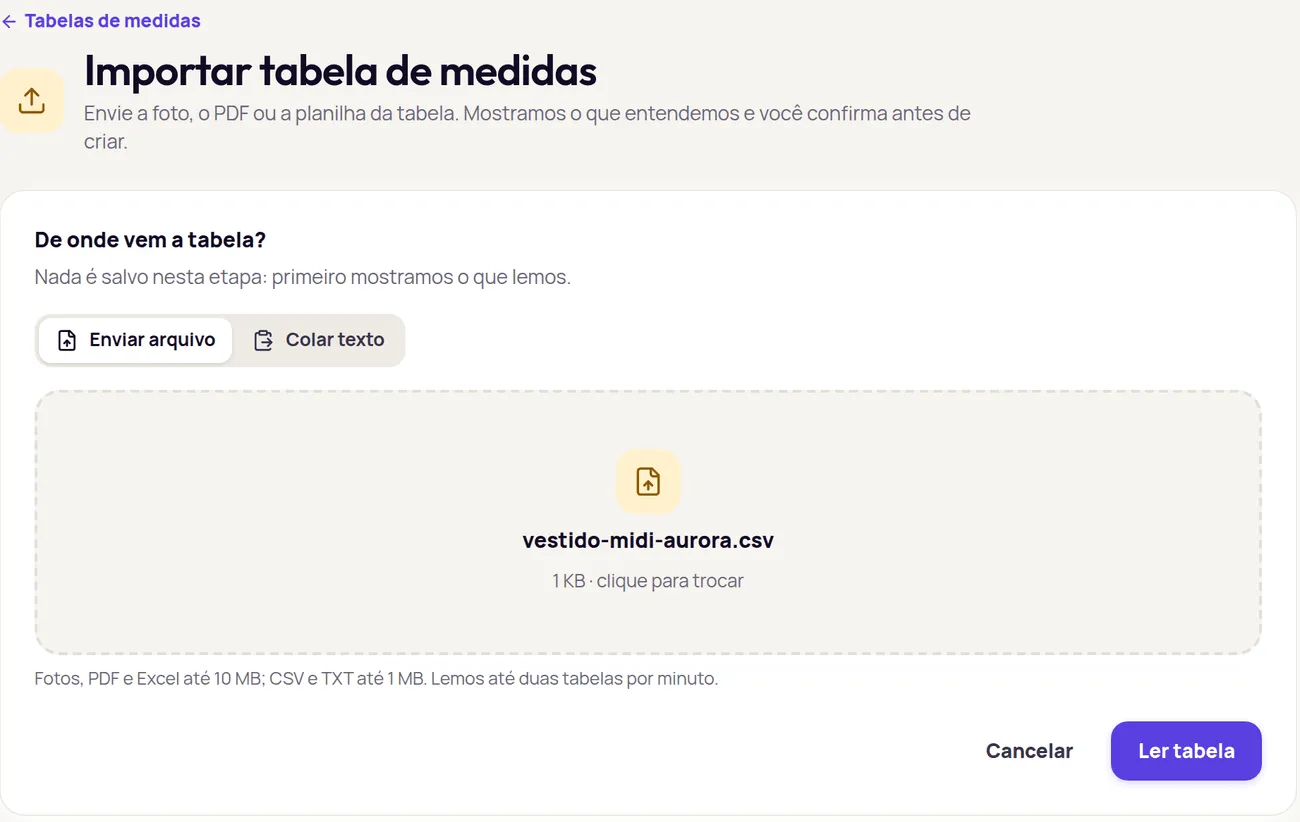
Under De onde vem a tabela? (Where does the chart come from?), choose:
- Enviar arquivo (Upload file): click Escolha ou arraste o arquivo (Choose or drag the file), or drag the photo, PDF or spreadsheet into the area.
- Colar texto (Paste text): paste the chart in Cole a tabela (Paste the chart), one line per size. Measurements can be separated by semicolons, tabs or spaces, and ranges such as 88-92 are accepted.
-
Click Ler tabela (Read chart). Photos and PDFs take a few seconds.
2. Read the summary
Section titled “2. Read the summary”At the top of the review, Provei says what it understood, for example Entendemos 3 medidas e 6 tamanhos (We understood 3 measurements and 6 sizes), and how many columns need your confirmation. Click Conferir agora (Check now) to jump to the first column that needs attention.
The Nome e origem (Name and source) card shows where the chart was read from. Give it a clear name in Nome da tabela (Chart name), such as “Vestidos Feminino”. That’s how you’ll find the chart in the list.
3. Check how each column was read
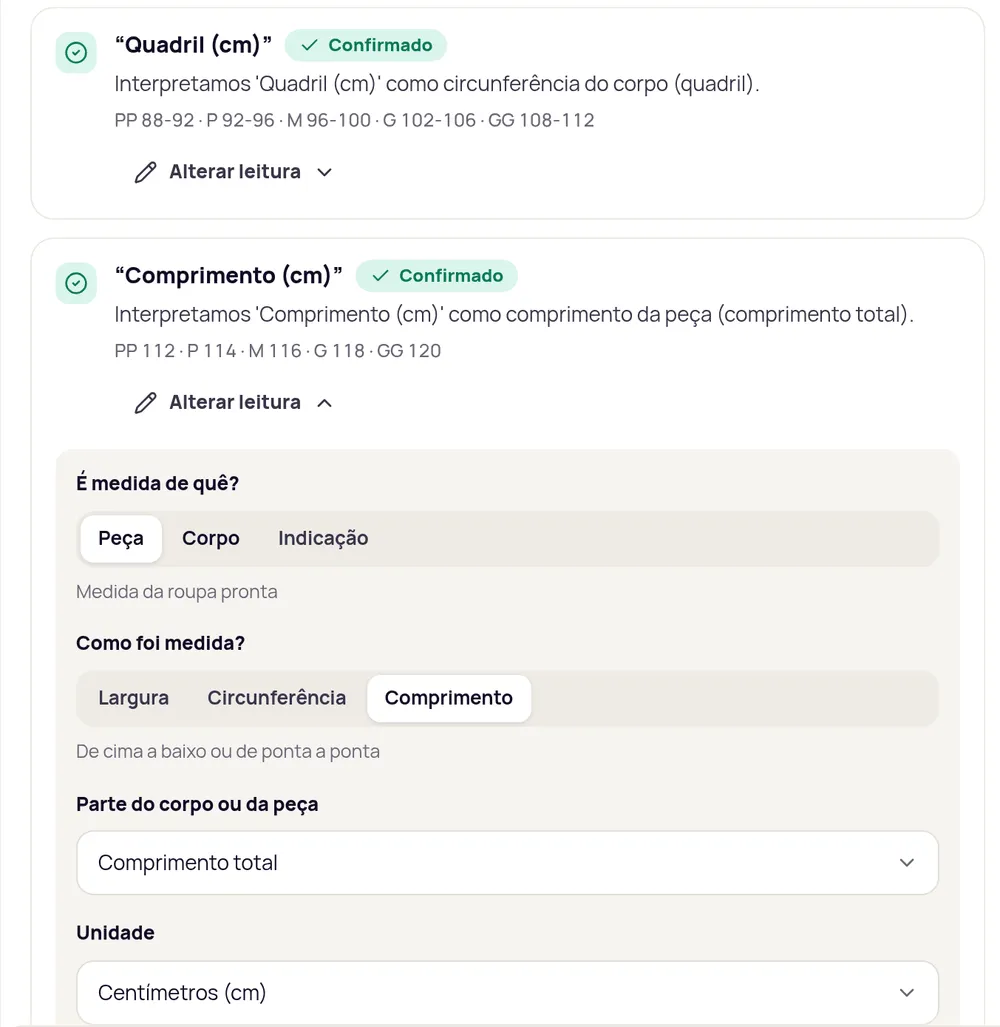
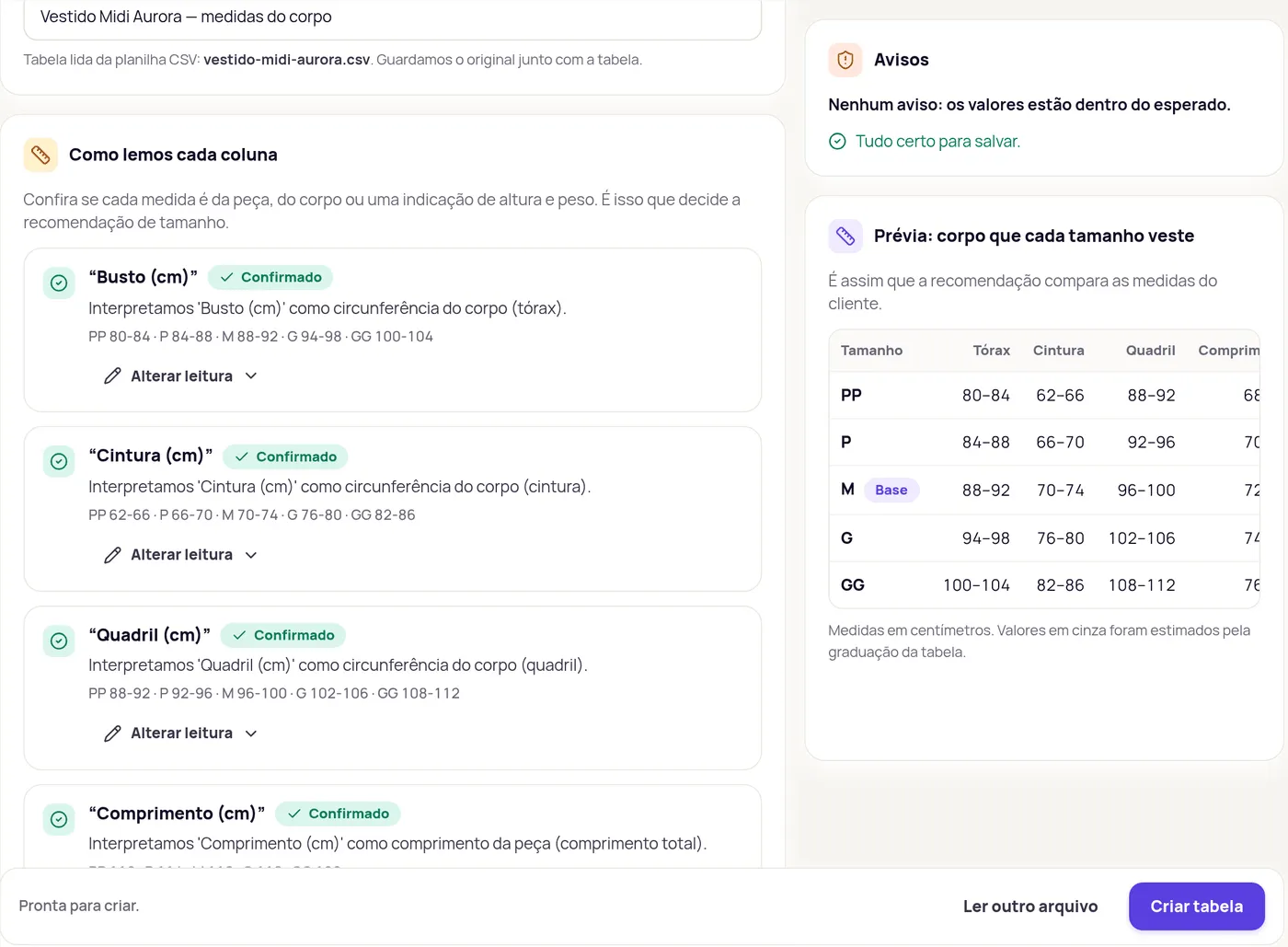
Section titled “3. Check how each column was read”The Como lemos cada coluna (How we read each column) card is the most important part: it decides the size recommendation. Each column shows a sentence with Provei’s reading and a few sample values.
-
Look for columns tagged Confirme para criar (Confirm to create, required) or Confira (Check, optional).
-
If the reading is right, click Está certo (That’s right). The column then shows Confirmado (Confirmed).
-
If it isn’t, click Alterar leitura (Change reading) and fix it:
- É medida de quê? (What is it a measurement of?): Peça (Garment, the finished garment’s measurement), Corpo (Body, the wearer’s measurement) or Indicação (Suggestion, the height or weight suggested for the size).
- Como foi medida? (How was it measured?): Largura (Width, garment laid flat, side to side), Circunferência (Circumference, all the way around with a tape) or Comprimento (Length, top to bottom or end to end).
- Parte do corpo ou da peça (Body or garment part): bust, waist, hips, length and others.
- Unidade (Unit): centimeters, millimeters, inches or kilograms. Values in mm or inches are converted to cm.
4. Describe the garment
Section titled “4. Describe the garment”In the Sobre a peça (About the garment) card, check what Provei deduced from the name or the values. Fields tagged Confira need a look; click Está certo to confirm.
- Tipo de peça (Garment type): for example Parte de cima (Top), Parte de baixo (Bottom), Vestido ou macacão (Dress or jumpsuit) or Conjunto (Set).
- Modelagem (Fit): from Justa (Tight) to Oversized. An oversized garment is loose on purpose, and the recommendation takes that into account.
- Elasticidade do tecido (Fabric stretch): Não estica (Doesn’t stretch), Estica um pouco (Stretches a little) or Estica bastante (Stretches a lot).
- Tamanho base (Base size): the size the brand uses as its reference. If unsure, leave the middle of the grid.
Mais detalhes da peça (More garment details) holds the age group, the fabric and the shoulder. Fill them in only if you know them.
5. Fix values and warnings
Section titled “5. Fix values and warnings”- In Valores lidos (Values read), check the numbers. Did something come out wrong when reading the photo? Fix it right in the cell. Cells tagged Valor a revisar (Value to review) need attention.
- In Avisos (Warnings), read what blocks creating and what’s worth checking. Some warnings come with a ready suggestion: click Usar sugestão (Use suggestion).
6. Check the preview
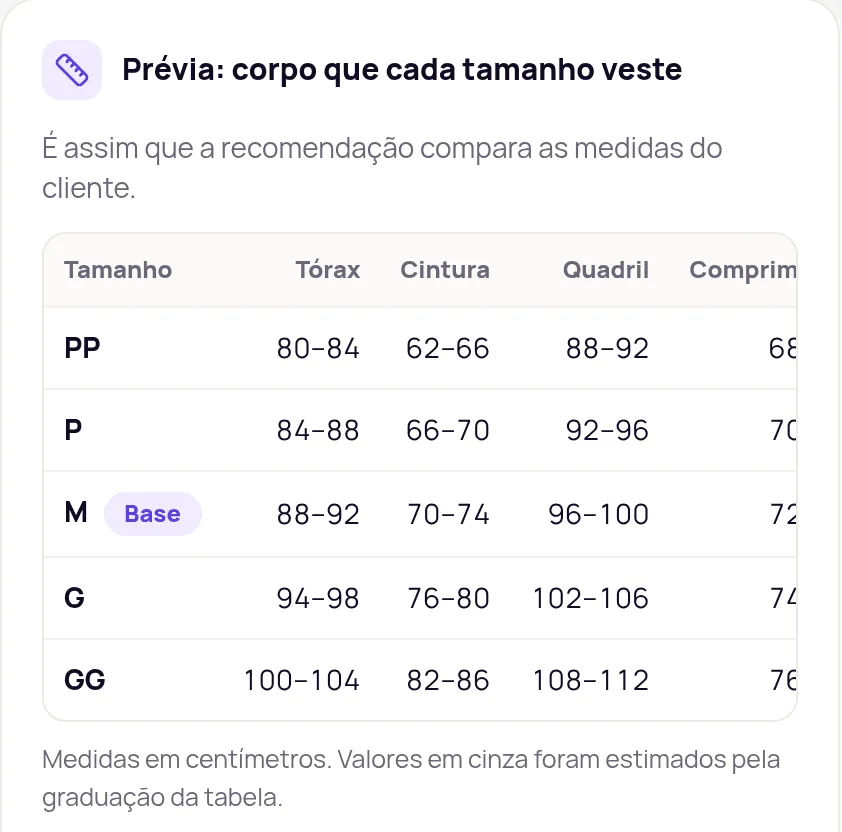
Section titled “6. Check the preview”The Prévia: corpo que cada tamanho veste (Preview: the body each size fits) card shows, in centimeters, the body measurements each size fits. This is how the recommendation compares the customer’s measurements. If a size looks off, go back to the columns and check the reading.
In garment measurement charts, customers can see these body measurements in your store’s size guide, in the Corresponde ao corpo (Matches the body) row, if you turn that option on. See Show Corresponde ao corpo.
7. Create the chart
Section titled “7. Create the chart”The bar at the bottom of the screen says what’s missing. When it shows Pronta para criar. (Ready to create.), click Criar tabela (Create chart).
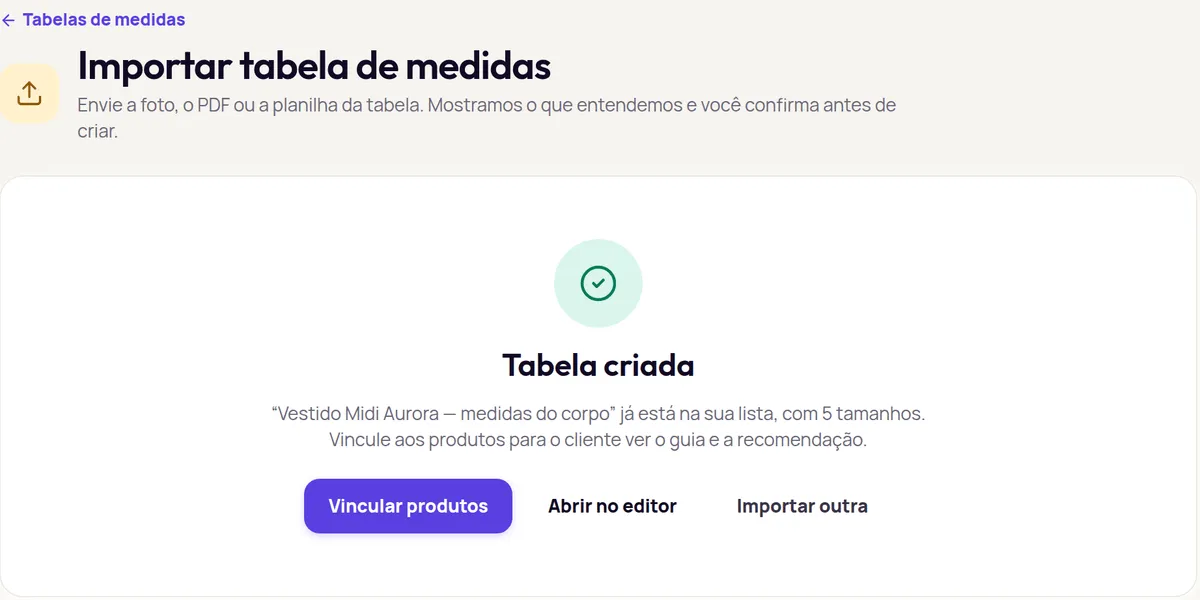
On the Tabela criada (Chart created) screen, you have three options:
- Vincular produtos (Link products): link the chart to products now (next step).
- Abrir no editor (Open in the editor): review again or adjust later. See Edit a chart.
- Importar outra (Import another): start another import.
8. Link it to products
Section titled “8. Link it to products”-
Click Vincular produtos. The chart is already selected.
-
Under Tamanhos aplicáveis (Applicable sizes), select the sizes you sell.
-
Select the products and click Revisar atribuição (Review assignment).
-
Confirm with Vincular produtos and check the final summary.
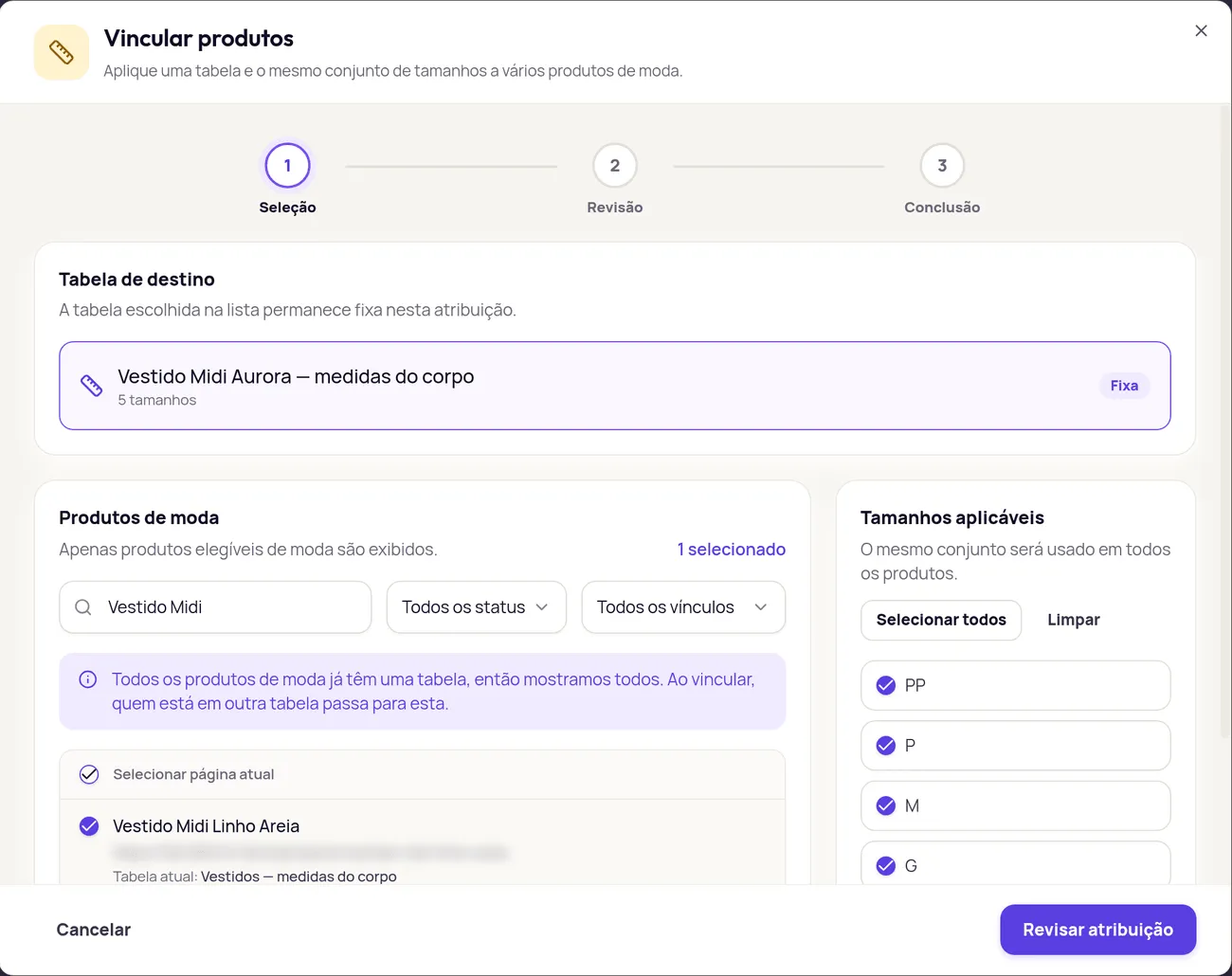
The window’s details are in Link size charts to products.
9. Check it in your store
Section titled “9. Check it in your store”Open one of the linked products in your store and try the Guia de medidas (Size guide) and Descubra seu tamanho (Find your size). The links must be turned on in Experiência na loja › Elementos › Medidas e tamanho (In-store experience › Elements › Measurements and size). To test without leaving the dashboard, use the preview’s Tamanho (Size) moment. See Measurements and size on the product page.
If something goes wrong
Section titled “If something goes wrong”| What shows | What to do |
|---|---|
| Esta importação ainda não está disponível (This import isn’t available yet) | Import a CSV with Uma tabela, sem revisão (One chart, no review) (see Import size charts), create the chart with Nova tabela (New chart) or contact support. |
| Já existe uma tabela com este nome. Escolha outro nome e crie de novo. (A chart with this name already exists.) | Change the Nome da tabela and click Criar tabela. |
| Não conseguimos ler a tabela agora. Tente de novo em alguns instantes. (We couldn’t read the chart right now.) | Wait a little and click Ler tabela again. |
| The photo reading came out with many errors | Send a sharper photo, a screenshot or the PDF, or paste the chart’s text. |
For other import errors, see Product or size chart import failed.
Frequently asked questions
Does the import save anything before I confirm?
No. The chart is only created when you click Criar tabela (Create chart). Until then, you can cancel or read another file.
Can I import a chart from another store or a supplier?
Yes, if it describes the same garment you sell. In the review, check whether the measurements belong to the garment or the body, because that decides the recommendation.
Is the original chart kept?
Yes. Provei keeps the original file or text together with the chart it creates.