Customize the try-on in your store
In this tutorial you make the try-on match your store: apply a style kit, adjust the button on the product page and its animation, set up the invitation (pop-up) and publish. Everything changes in the live preview first, and your store only gets the changes in the last step.
Before you start
Section titled “Before you start”- The Provei code must be in your store. See Install the virtual try-on in your store.
- Open the dashboard on a computer. On a phone, the editor works, but the preview hides behind Ver prévia (See preview).
- Some settings depend on your plan and show a lock. See Features that depend on your plan.
1. Open the editor
Section titled “1. Open the editor”In the side menu, click Experiência na loja (In-store experience). The four areas, Estilo (Style), Elementos (Elements), Regras (Rules) and Marca (Brand), are on the left. The live preview of a product page is on the right.
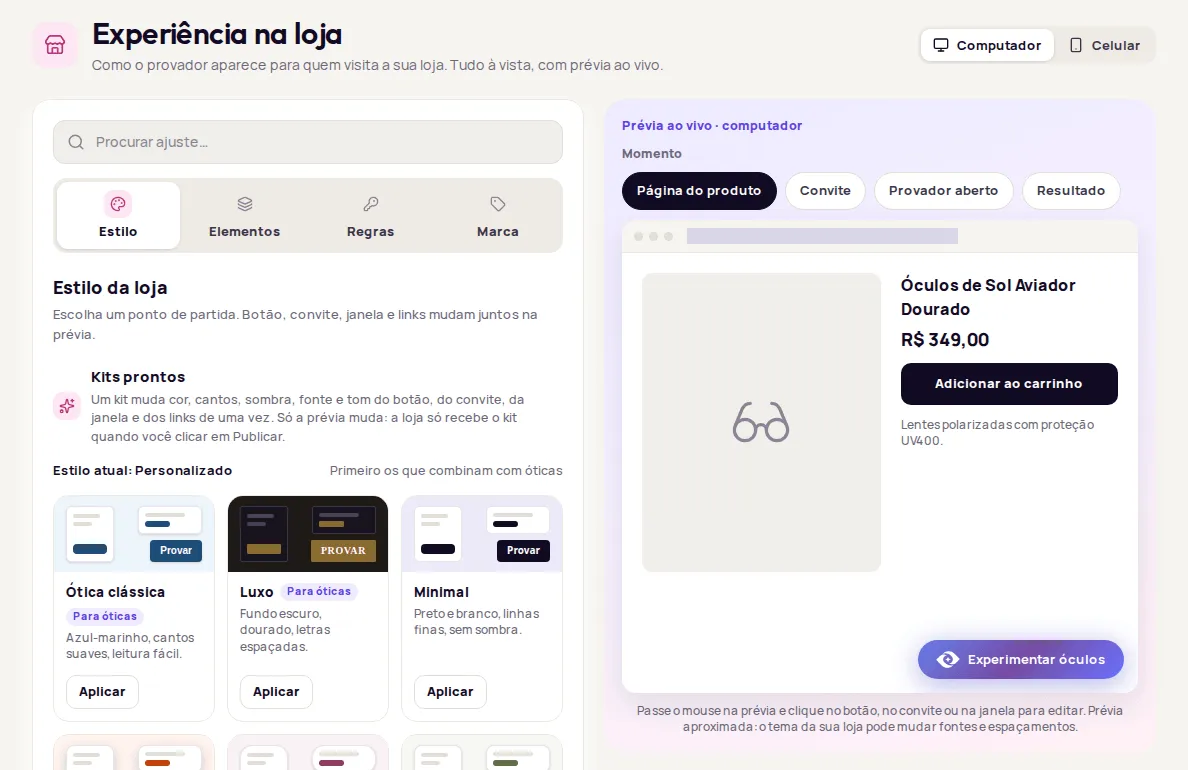
At the top of the preview, choose Computador (Computer) or Celular (Phone). Check both screens as you go.
2. Apply a style kit
Section titled “2. Apply a style kit”-
Open Estilo.
-
Under Kits prontos (Ready-made kits), look at the thumbnails. The first ones match your store type and carry a tag such as Para moda (For fashion), Para óticas (For eyewear) or Para casa (For home).
-
Click Aplicar (Apply) on the kit that best fits your store. The preview changes right away.
-
Under Ajustes globais (Global settings), change the Cor da marca (Brand color) to your store’s color and, if you like, the Cantos (Corners), Sombra (Shadow) and Fonte (Font). These settings apply to the button, invitation, window and links together.
See every option in Store style, kits and global settings.
3. Adjust the button on the page
Section titled “3. Adjust the button on the page”-
Open Elementos › Botão na página (Elements › Button on the page). Another way: click the button in the preview, on Editar botão (Edit button).
-
Under Onde aparece (Where it appears), choose Junto ao botão de comprar (Next to the buy button, recommended), Flutuante no canto (Floating in the corner) or Sobre a foto do produto (On the product photo). For the first and last, click Escolher na minha página (Pick on my page) and mark the spot on a real page of your store.
-
Under Conteúdo (Content), write a short, direct Texto do botão (Button text) and choose the Ícone (Icon).
-
Under Aparência (Appearance), keep Padrão (Default) to use the try-on’s look, or change any setting so the button switches to Personalizado (Custom).
4. Pick an animation for the button
Section titled “4. Pick an animation for the button”On the same tab, under Animação (Animation), choose the Movimento do botão (Button motion): Nenhuma (None), Pulsar (Pulse), Brilho (Shine) or Balançar (Wobble). The preview shows the motion.
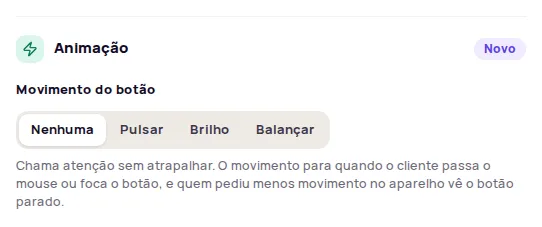
The motion stops when the customer hovers over the button, and people who asked their device for less motion see a still button. With the button Sobre a foto do produto, there’s no animation. See Button on the product page.
5. Set up the invitation (pop-up)
Section titled “5. Set up the invitation (pop-up)”The invitation reminds customers to try on, a few seconds after they land on the product page.
-
Open Elementos › Convite (pop-up) (Elements › Invitation) and turn on Mostrar convite (Show invitation).
-
Under Conteúdo (Content), write the Título (Title), the Mensagem (Message) and the Texto do botão (Button text), and choose the Imagem (Image).
-
Under Layout, choose Cartão (Card), Barra (Bar) or Bolha (Bubble), and the Animação de entrada (Entrance animation).
-
Under Quando aparece (When it appears), set Aparece depois de (seg.) (Appears after, in seconds), No máximo em (seg.) (At most after, in seconds) and Com que frequência (How often). Uma vez por visita (Once per visit) avoids showing the invitation again to someone who has seen it.
-
Under Onde aparece (Where it appears), choose the Canto (Corner) and the No celular (On phones) behavior.
-
In the preview, choose the Convite (Invitation) moment and click Ver de novo (See again) to watch the entrance.
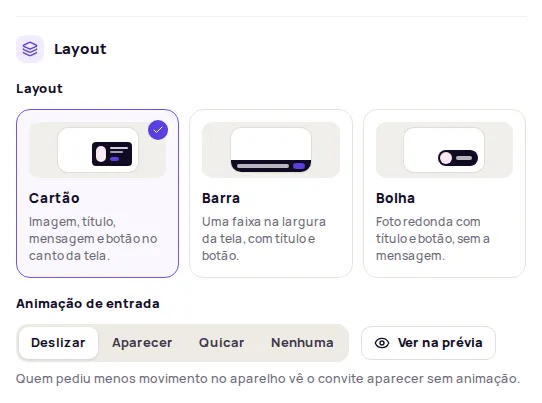
The details of each option are in Pop-up invite to try on.
6. Check the window and the brand
Section titled “6. Check the window and the brand”- In Elementos › Janela do provador (Elements › Try-on window), choose how the window opens in your store. In the preview, use the Provador aberto (Try-on open) moment. See Try-on window.
- In Marca (Brand), check the logo and the name shown in the try-on. See Your store’s brand in the try-on.
7. Publish and check your store
Section titled “7. Publish and check your store”-
In the bottom bar, check how many changes are left to publish. Areas with changes have a colored dot.
-
Click Publicar alterações (Publish changes). When it finishes, the bar shows Tudo publicado (All published).
-
Open a product page of your store in a private window and check the button, the animation and the invitation. Reload the page if it was already open.
If a part isn’t published, the notice shows Corrigir em … (Fix in …) and takes you straight to the field with the problem. If your store still looks the same, see Published changes not showing in the store.
Frequently asked questions
Do changes go to my store while I edit?
No. Everything shows in the preview first. Your store only changes when you click Publicar alterações (Publish changes).
Can I go back to what I had before?
Before publishing, click Descartar (Discard) to return to what's published. After publishing, use Restaurar padrão (Restore default) on each setting or apply a kit again.
I can't find a setting. Where is it?
Use the Procurar ajuste… (Search settings) box at the top of the editor. It opens the right area and highlights the setting.