Publish your first video showcase
In this tutorial you put your first video on sale in your store. A showcase (vitrine) is how videos show in your store: the format (here, a floating bubble in the corner of the screen), the videos it includes and the pages where it appears. At the end, each product tagged in the video shows the bubble on its page, and customers buy without leaving the video.
There are six steps. In step 3 you build the showcase; in step 5 it goes to your store, with Publicar (Publish). Until then, nothing changes for customers. The exception: if you already have a published automatic showcase, tagging the video’s products (step 2) can already show the video on their pages.
Before you start
Section titled “Before you start”- The PROVEI.AI code must be in your store. If the try-on already works, it’s there. If your store will use only videos, install it from the Instalação (Installation) screen. See Installation and cart.
- Pick a short video, ideally vertical, up to 90 seconds and 250 MB, in MP4, MOV or WebM. The videos you already post on Instagram work.
1. Upload the video
Section titled “1. Upload the video”-
In the dashboard, open Video Commerce › Vídeos (Videos).
-
Click Enviar vídeos (Upload videos) and choose the file, or drag it into the Arraste vídeos ou clique para escolher (Drag videos or click to choose) area. Is the video on your phone? Click Enviar pelo celular (Send from phone) and point the camera at the QR code.
-
Wait for the video card to go from Enviando (Uploading) to Processando (Processing) and then Pronto (Ready). Don’t close the page while it shows Enviando.
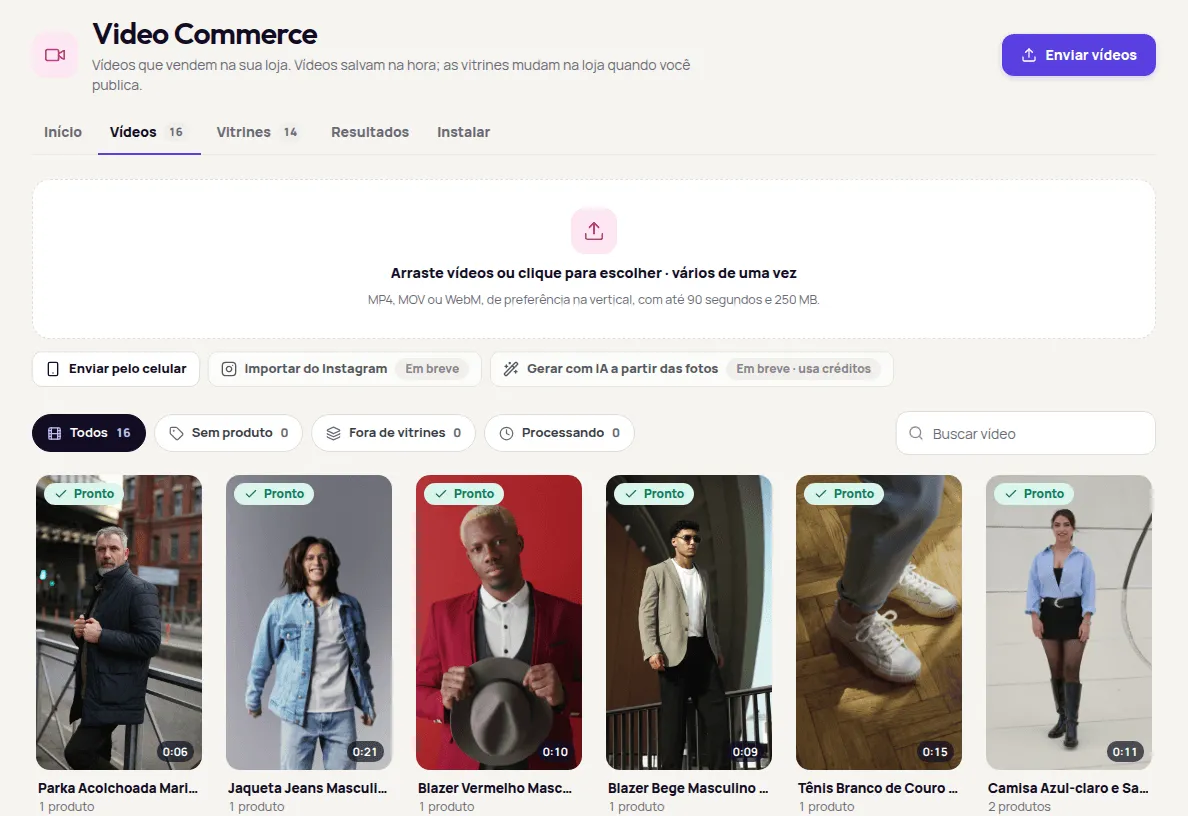
Above the list, the filters sort the videos:
- Todos (All): every video.
- Sem produto (No product): videos with no product tagged. Your new video shows here until step 2.
- Fora de vitrines (Not in showcases): ready videos that no active showcase shows, and videos with a problem.
- Processando (Processing): videos still uploading or processing.
See more in Upload videos.
2. Tag the video’s products
Section titled “2. Tag the video’s products”-
Click the video to open its details.
-
Under Produtos (Products), type the name in Buscar no seu catálogo (Search your catalog) and click Marcar (Tag) on each product shown in the video.
-
If you like, change the Título (Title) and pick the Capa (Cover). Everything saves right away.
Tagging is what makes the video sell: it’s how the video shows on each product’s page and how customers reach the product from the player. See Videos on products.
3. Build the showcase
Section titled “3. Build the showcase”-
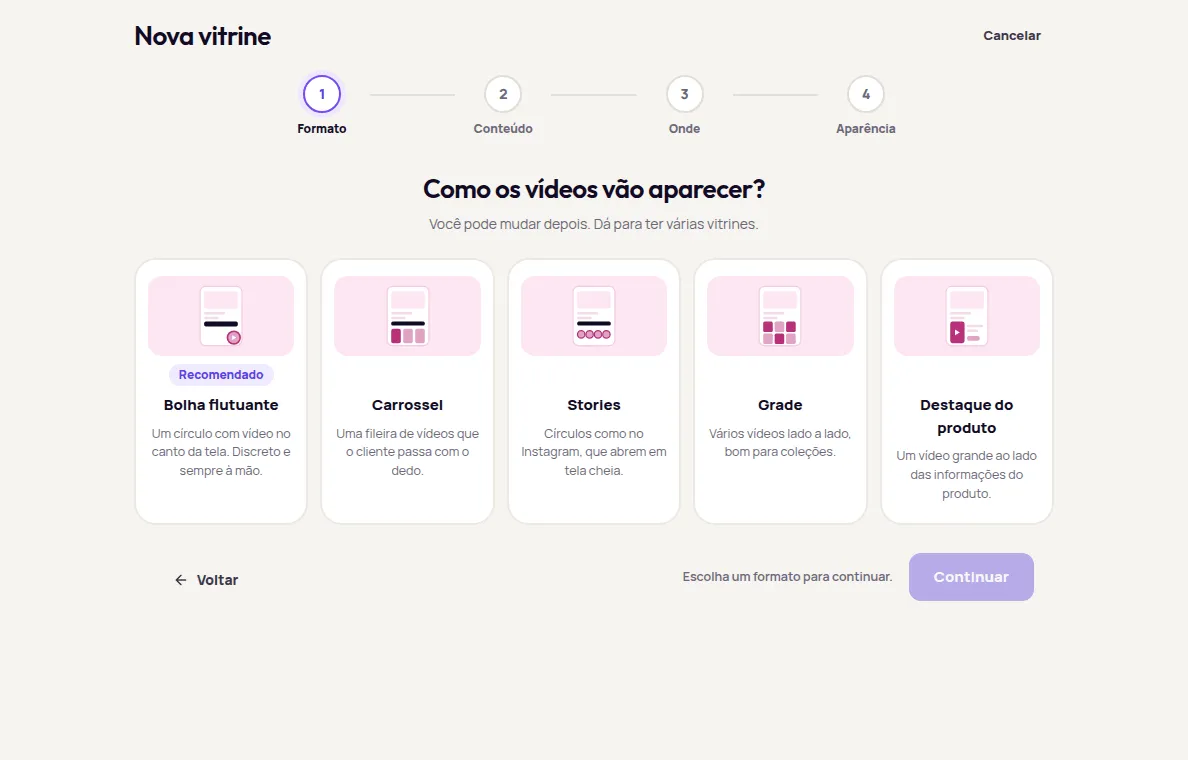
Open Video Commerce › Vitrines (Showcases) and click Nova vitrine (New showcase).
-
Formato (Format): choose Bolha flutuante (Floating bubble) and click Continuar (Continue).
-
Conteúdo (Content): choose Automático: vídeos do produto da página (Automatic: the page product’s videos) and click Continuar. On each product page, the bubble shows the videos tagged with that product.
-
Onde (Where): choose Todas as páginas de produto (All product pages) and the screen corner. The bottom corners are the most used: they sit near the thumb and don’t cover the menu. Don’t click Continuar yet: the store check, next, happens on this same screen.
4. Check your store and pick the look
Section titled “4. Check your store and pick the look”Still in the Onde step, test a real page of your store before publishing. Nothing changes in your store during the test.
-
Copy the address of a product tagged in the video. In another browser tab, open your store, go to that product’s page and copy the address shown in the browser bar, for example
https://minhaloja.com.br/produtos/vestido-midi. On a computer, click the address bar and press Ctrl+C (Cmd+C on a Mac). -
Go back to the dashboard and paste the address into the field in the Onde step.
-
Click Conferir na minha loja (Check in my store) and wait a few seconds.
-
Read the result. If Provei found the spot, it says how many videos go on that page. If it didn’t, follow the guidance on screen. See Check in my store.
-
Click Continuar. The Agora, o visual (Now, the look) step shows a summary of the showcase.
-
Click Usar o visual padrão (Use the default look). The showcase joins the Vitrines list with a Vitrine criada (Showcase created) notice and isn’t in your store yet. You can adjust colors, size and corners later in the showcase editor.
5. Publish
Section titled “5. Publish”Click Publicar (Publish) in the bar at the bottom of the screen. The showcase reaches your store within 1 minute.
In the Vitrines list, it now shows Ativa (Active). Once a customer sees it, it shows Vista na loja há… (Seen in the store … ago).
6. See it in your store and follow up
Section titled “6. See it in your store and follow up”-
Open the page of a tagged product in your store, ideally in a private window. The bubble shows in the corner you chose.
-
Tap the bubble. The player opens full screen, with a card for each tagged product. On the product’s own page, on a supported platform, the customer can tap Adicionar ao carrinho (Add to cart) right there.
-
Over the next days, follow impressions, plays and carts in Video Commerce › Início (Home) and Resultados (Results). See Video results.
The showcase didn’t show up? Follow Video Commerce troubleshooting.
Next steps
Section titled “Next steps”- More videos per product: upload videos straight from each product’s page. See Add videos from the Products screen.
- A carousel on the home page: create another showcase with Carrossel (Carousel), Vídeos escolhidos (Chosen videos) and Página inicial (Home page), placed Abaixo do banner (Below the banner). See Create and edit showcases.
- Other formats and spots: see Showcase formats and Where the showcase shows.
- Videos that sell more: see the best practices.
- Coming soon: Importar do Instagram (Import from Instagram) and Gerar com IA a partir das fotos (Generate with AI from photos) show in Vídeos as Em breve (Coming soon) and aren’t available yet. See Coming soon.
Frequently asked questions
How long does the showcase take to show up in my store?
Up to 1 minute after you click Publicar (Publish). The video must be Pronto (Ready). After the upload, it shows Processando (Processing) and turns Pronto on its own.
Do I need to install another code for the showcase?
No, if the PROVEI.AI code is already in your store. It's the same code as the try-on and already brings the video showcases.
Can I test before publishing?
Yes. Use Conferir na minha loja (Check in my store) in the Onde (Where) step. Provei opens a page of your store without changing anything and says whether it found the spot and how many videos go in.