Shoppable videos in your store
Shoppers watch, open the products in the video and go on to buy. You publish everything from the Provei dashboard, without writing code.
- Five showcase formats
- Uses the Provei code your store already has
- Activated by the Provei team
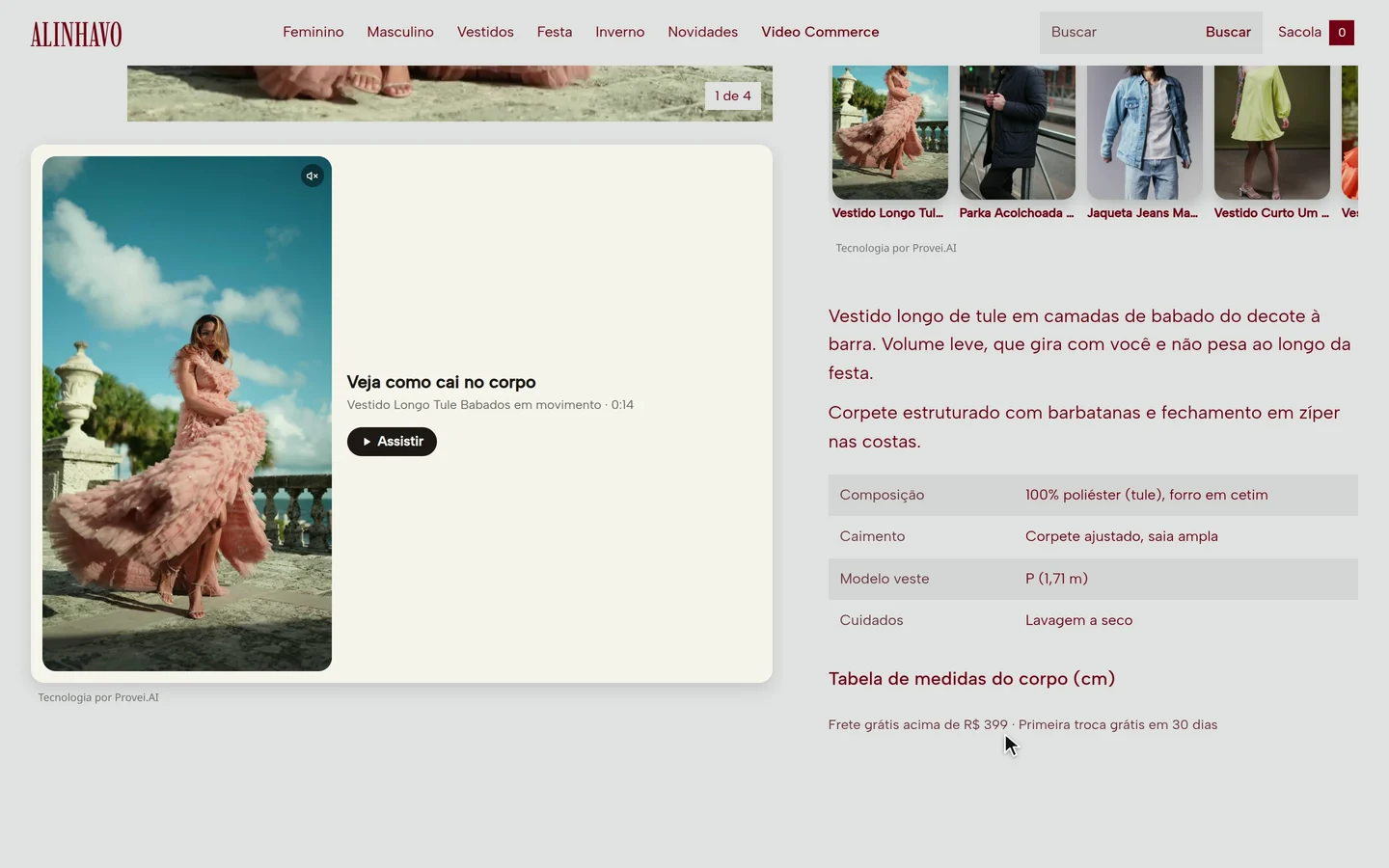
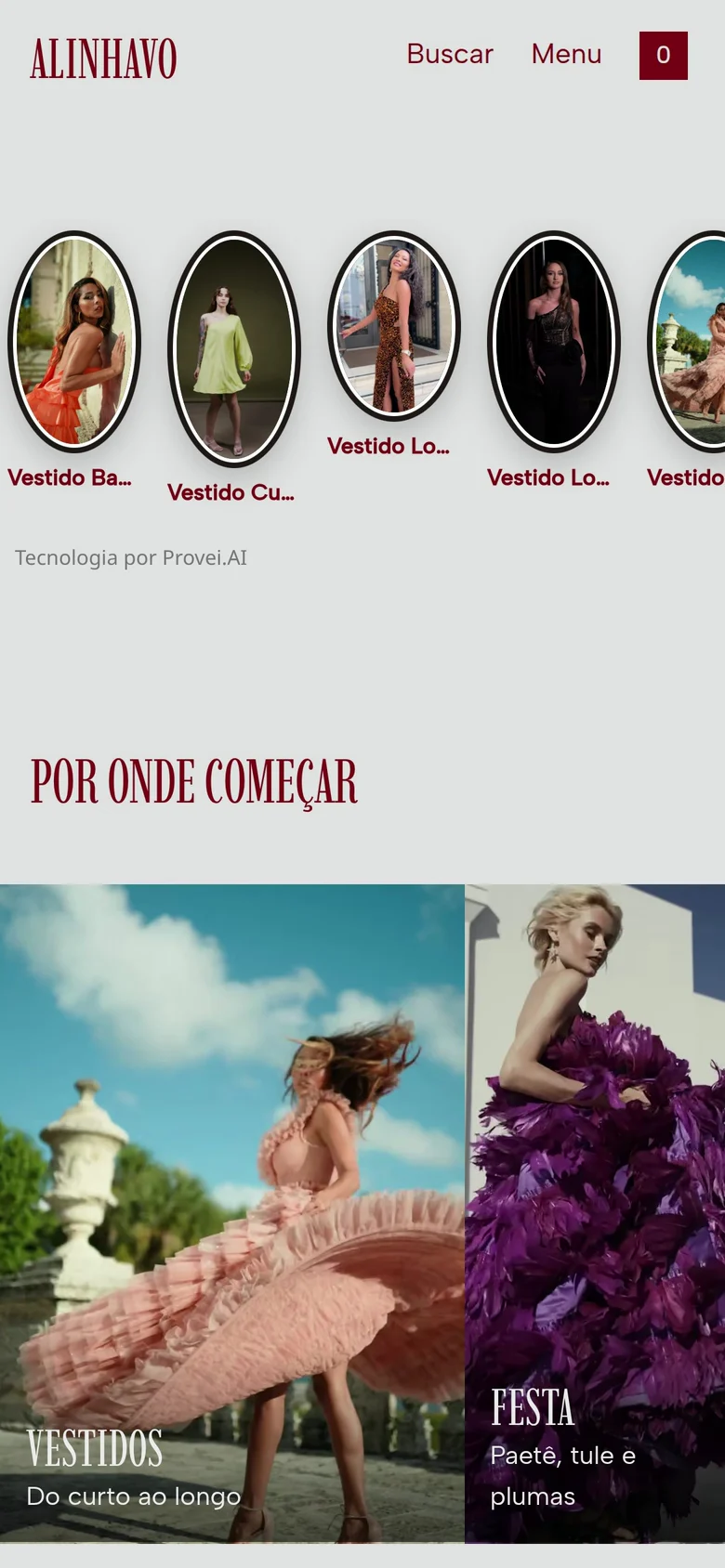
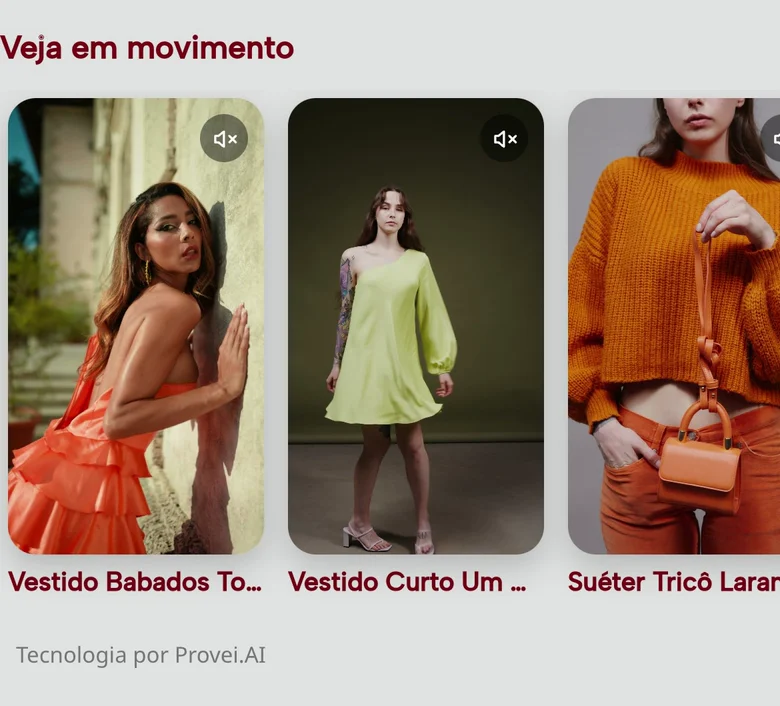
Five formats, one dashboard
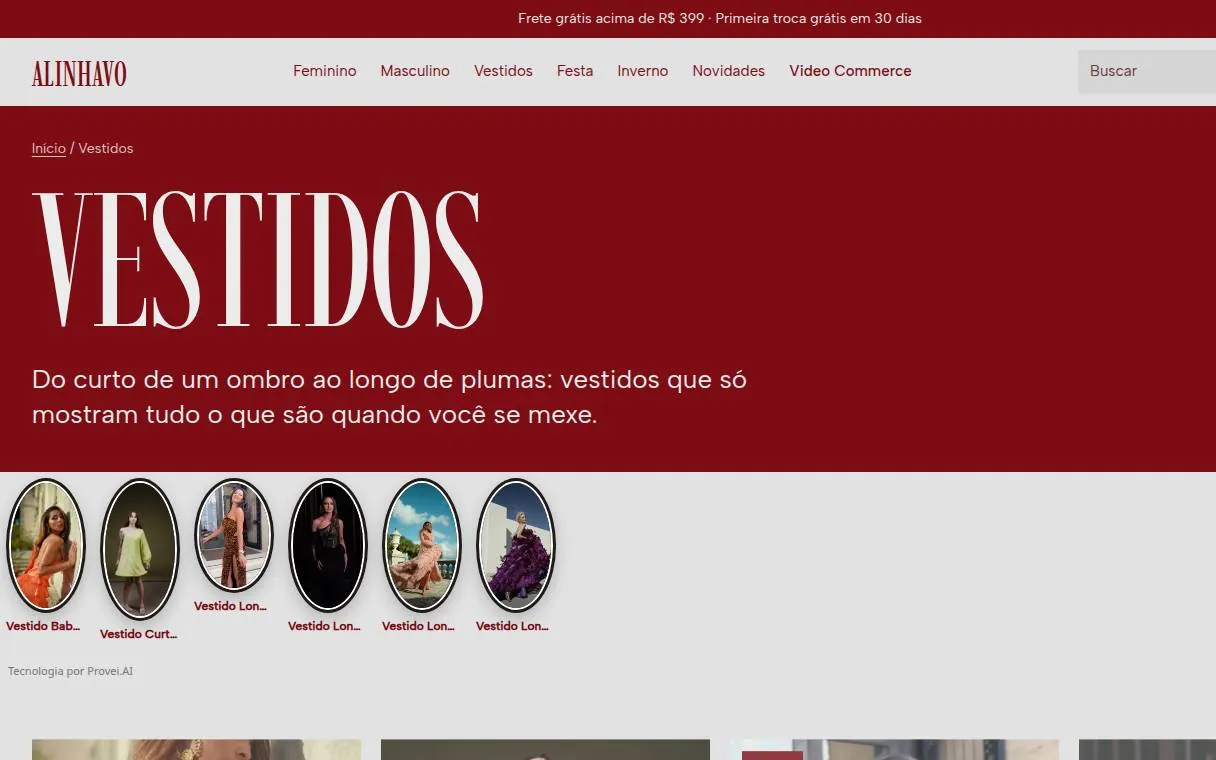
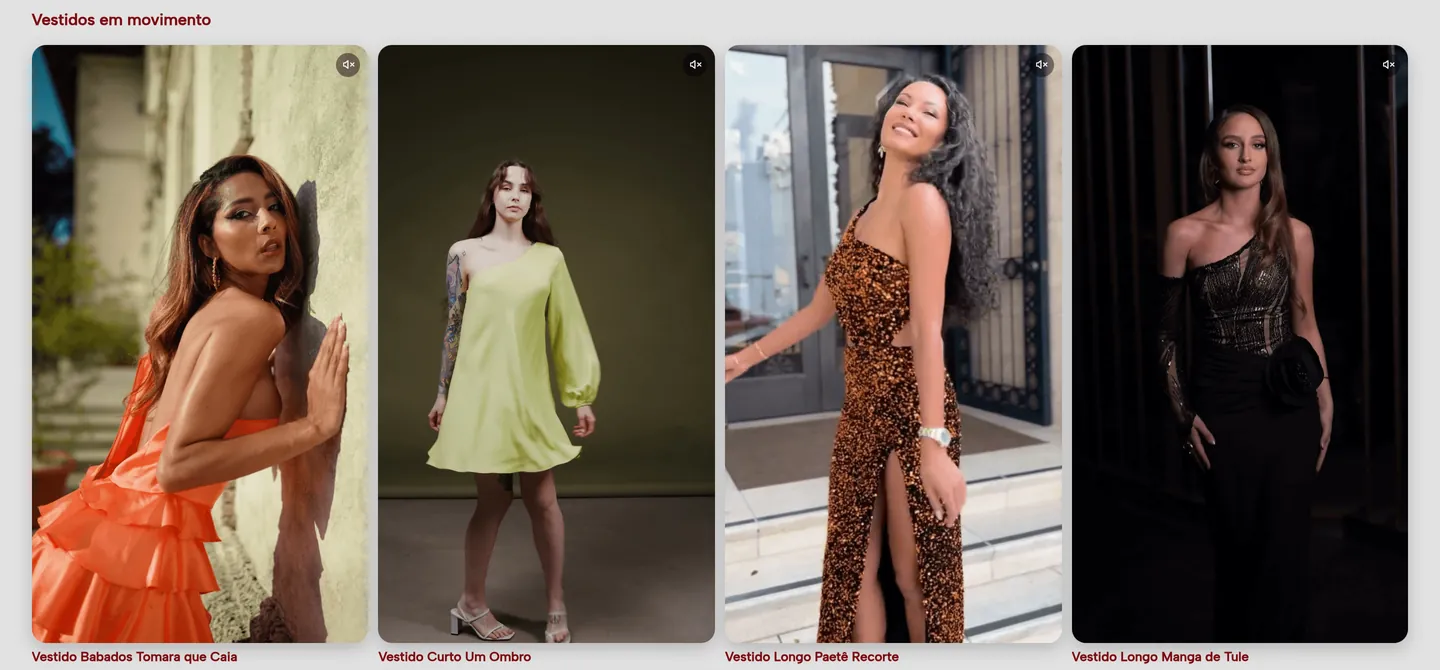
A showcase (vitrine) is a block of videos on your store, with a format and a place. A store can run several at once. Pick a format to see it on the demo store.

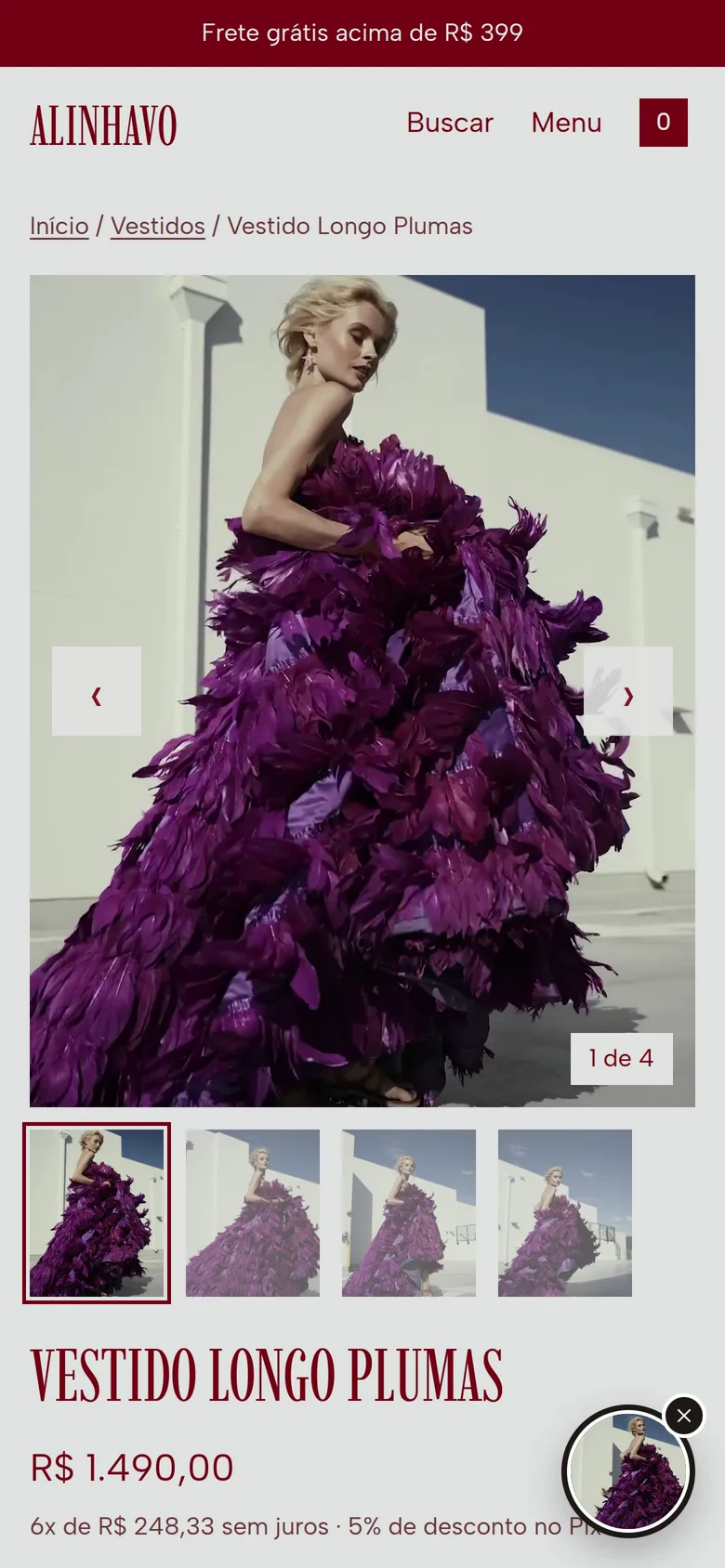

From video to cart, in the player
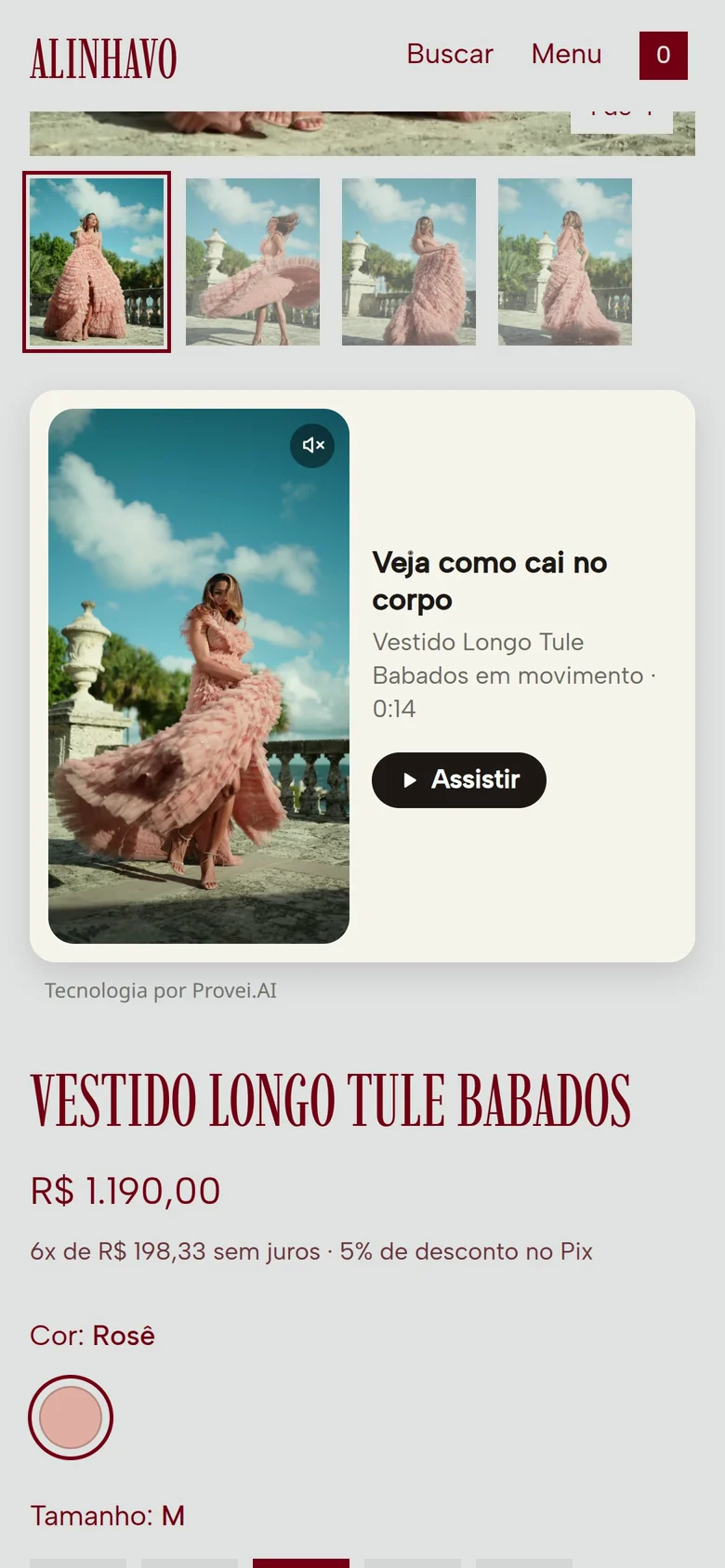
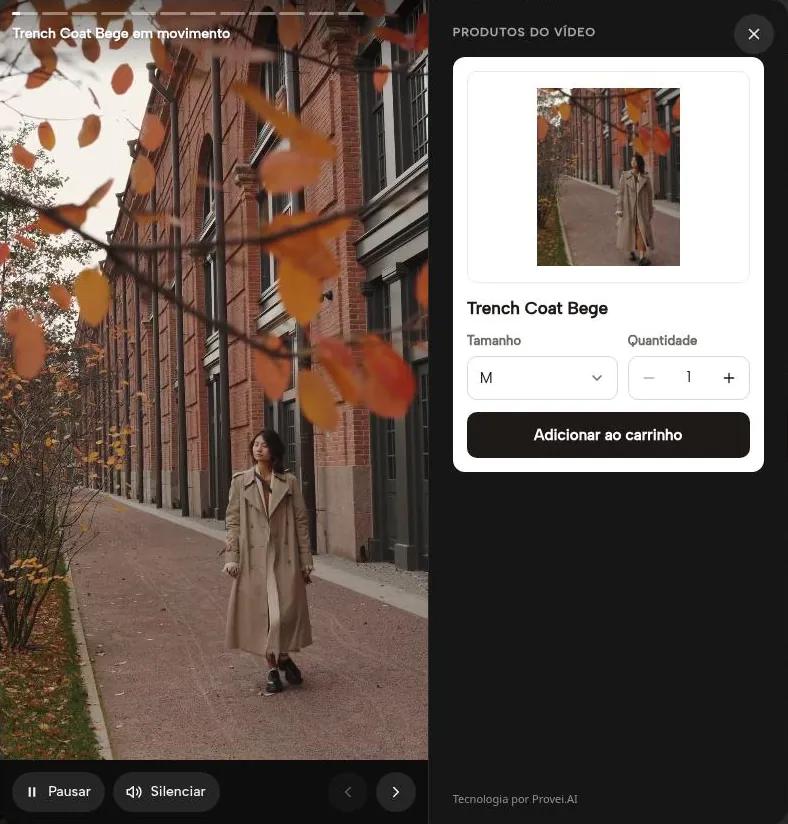
Shoppers tap a video and the player opens full screen, with the products in the scene right below. On the product’s own page, on a compatible platform, they pick and add to cart right there; on other pages, tapping a product opens its page.
Watch
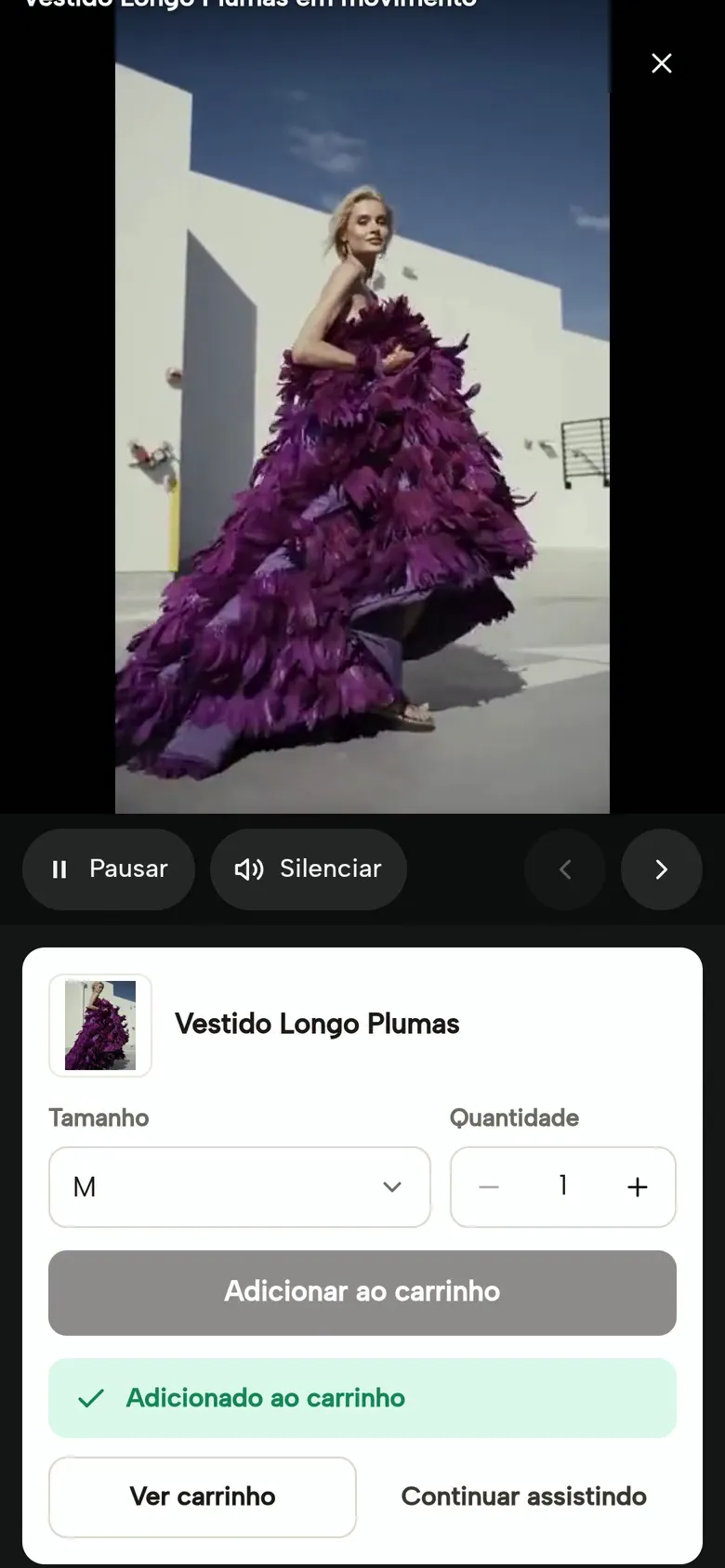
The video opens full screen, with pause, sound and the next video one tap away.
Open the products
The products panel lists the items that appear in the scene.
Pick and buy
On the product page, on a compatible platform: size, quantity and Add to cart right in the player. On other pages, a tap takes the shopper to the product page.
Keep shopping
After adding, View cart or keep watching: the shopper chooses what comes next.
The product goes into the store’s own cart.
Four steps in the dashboard
It all happens under Video Commerce in the Provei dashboard. Videos save at once; showcases change on the store when you publish.
Screens from a fictional demo store; the figures in them are illustrative.
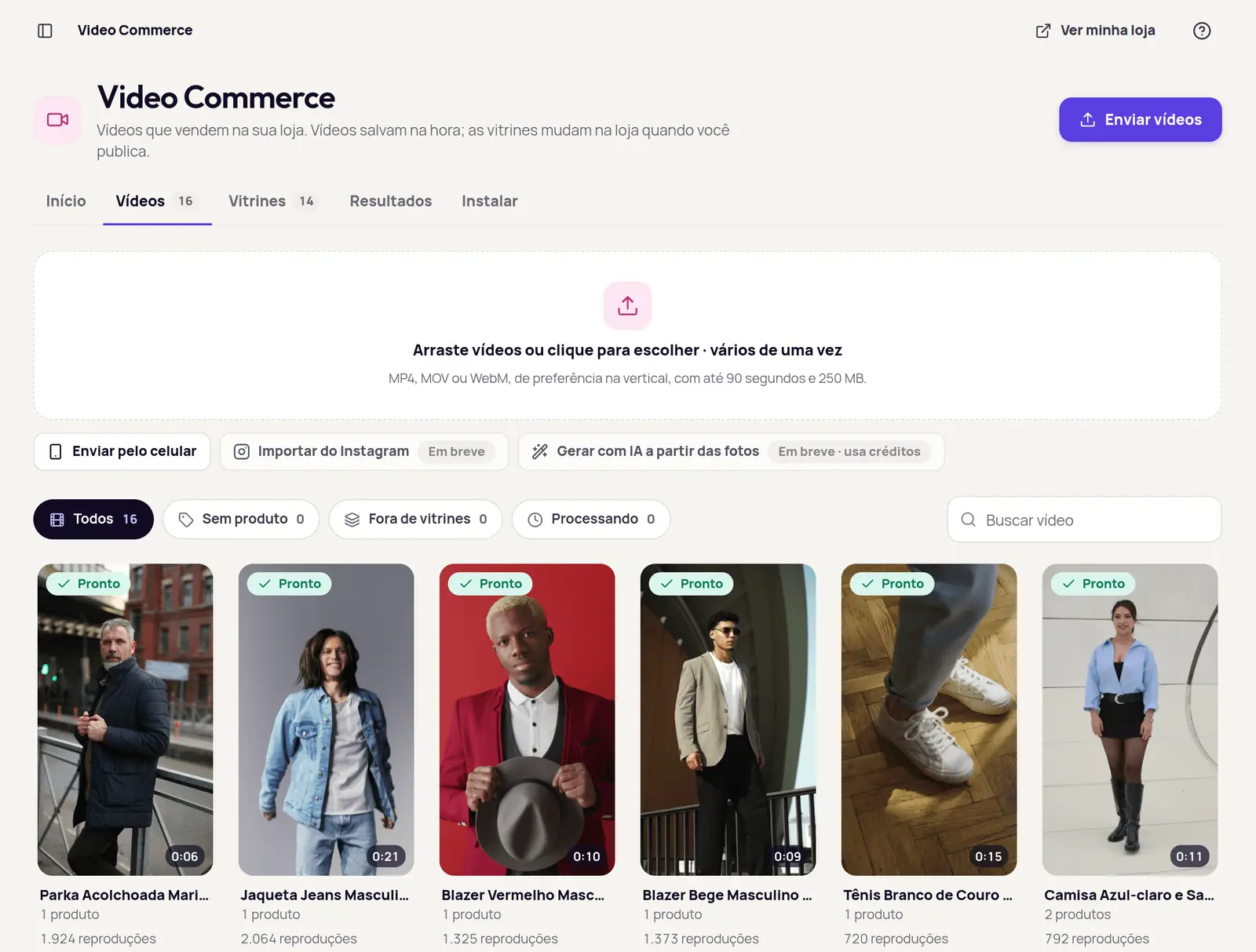
Upload the videos
Drag in several files at once. Or use “Enviar pelo celular” (send from your phone): a QR code opens the upload page on the phone.
Tag the products
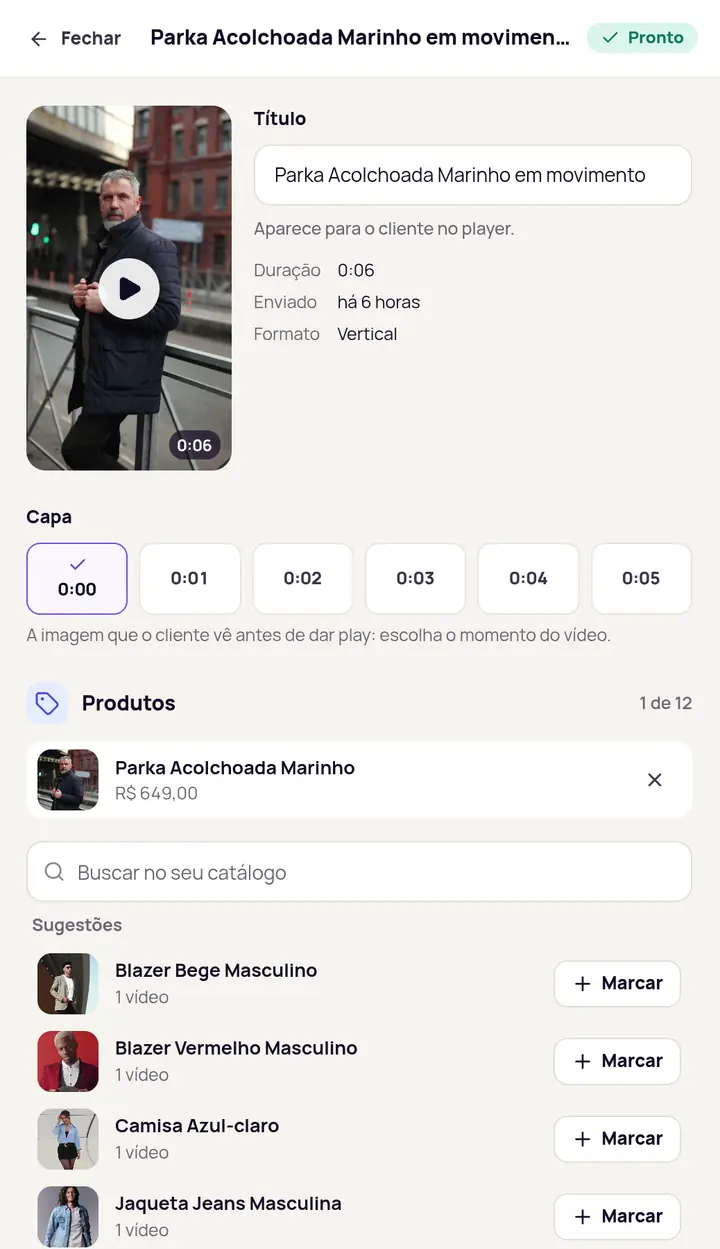
Search your catalog or paste a product link. Title and cover save at once, with Undo where the change can be reversed.
Build the showcase with a live preview
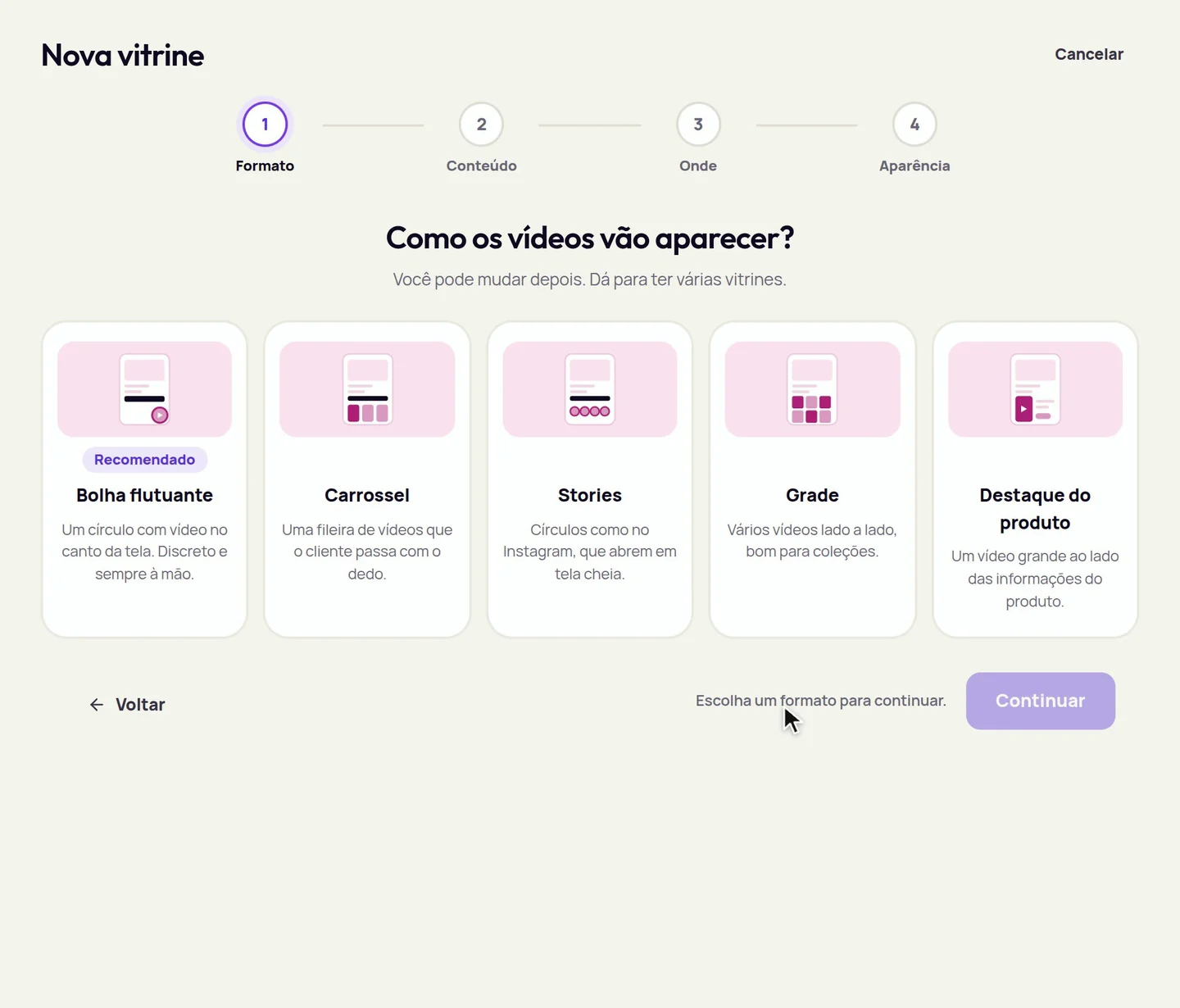
“Nova vitrine” (new showcase) guides you through four steps: format, content, placement and look.
The live preview shows the showcase as shoppers will see it, on a phone or a computer, with the player open and after add to cart.
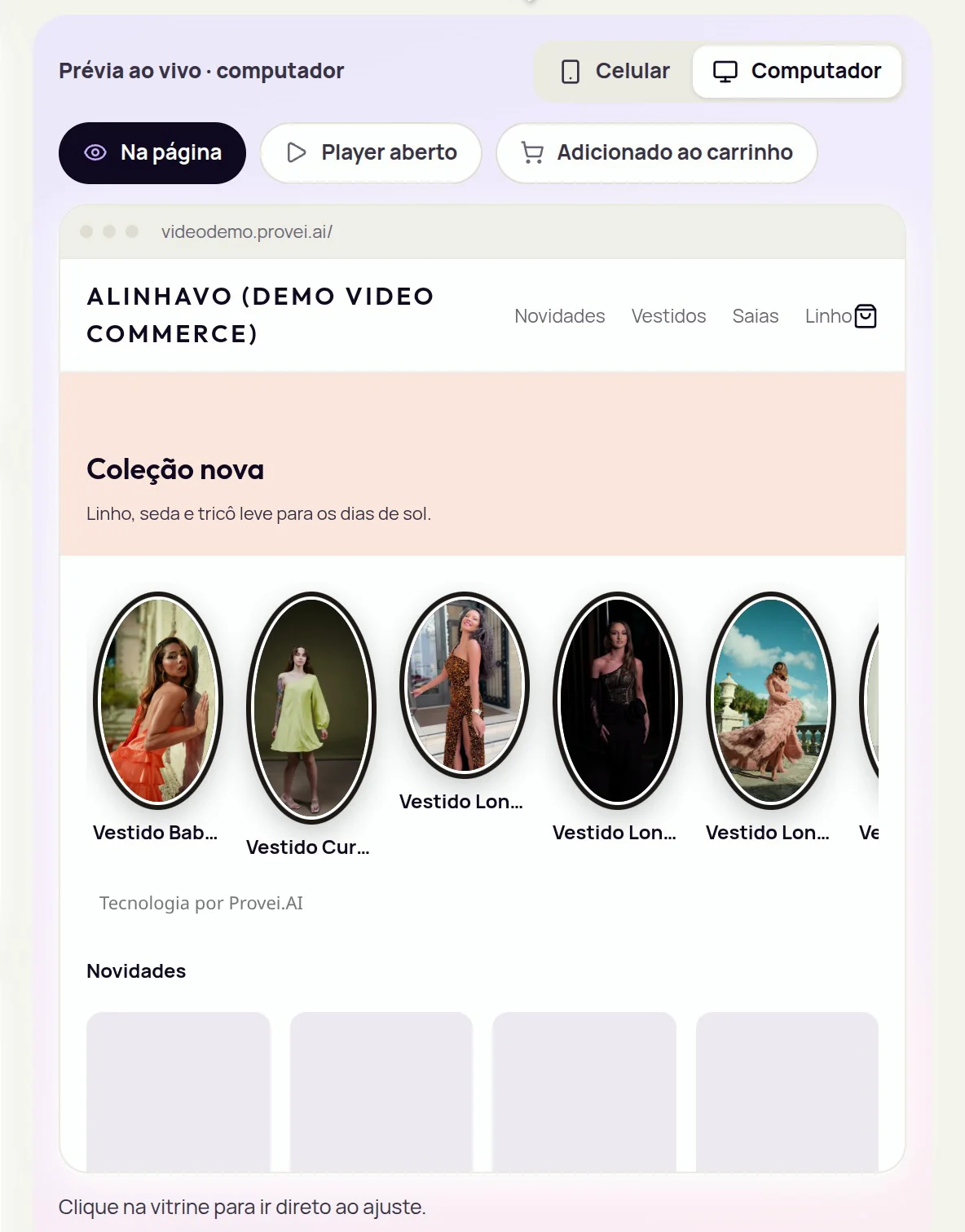
Publish
Changes stay as a draft until you press Publicar (publish). A video that isn’t ready yet is skipped and listed, and “Conferir na minha loja” checks that the showcase appeared.
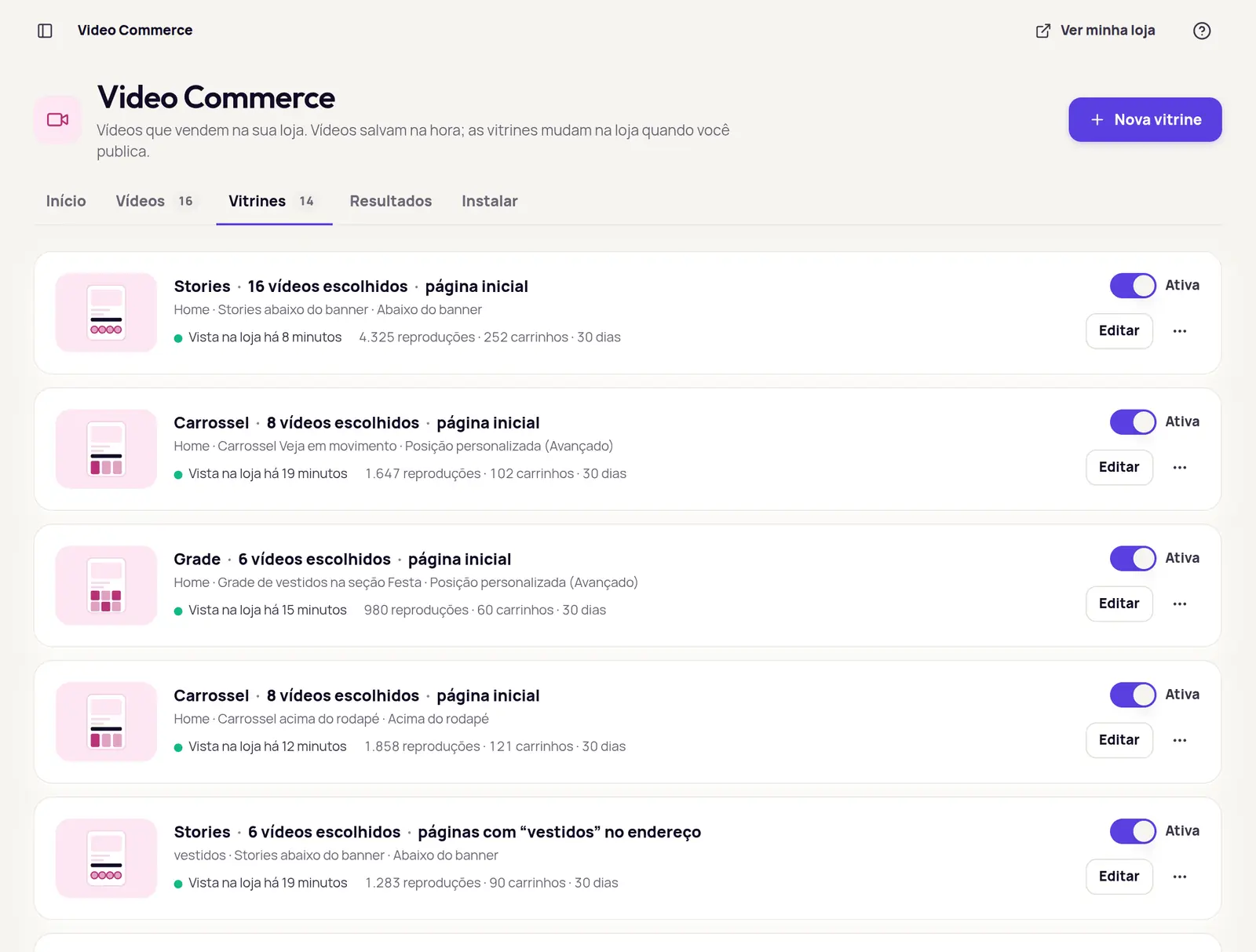

Each video shows on its product
Tag a video with a product and it appears on that product’s page, with no placement to set up. When you want more control, create a showcase and choose the place.
In the automatic showcase, if a product has few videos, the carousel, grid and stories are topped up with other tagged videos, ordered by recent performance. The bubble shows only the product’s own videos.
Where a showcase can go
- Below the buy button
- Where the shopper decides. The most used.
- Below the photos
- Next to the product images.
- Below the banner
- Right at the top of the page.
- Above the footer
- At the end of the page, out of the way.
On which pages
All product pages, the home page, category pages or specific pages. The page type is recognised on its own, even on stores that change pages without reloading.
Videos inside Produtos
The Provei catalog shows which products already have a video and which don’t, and each product keeps its own videos.
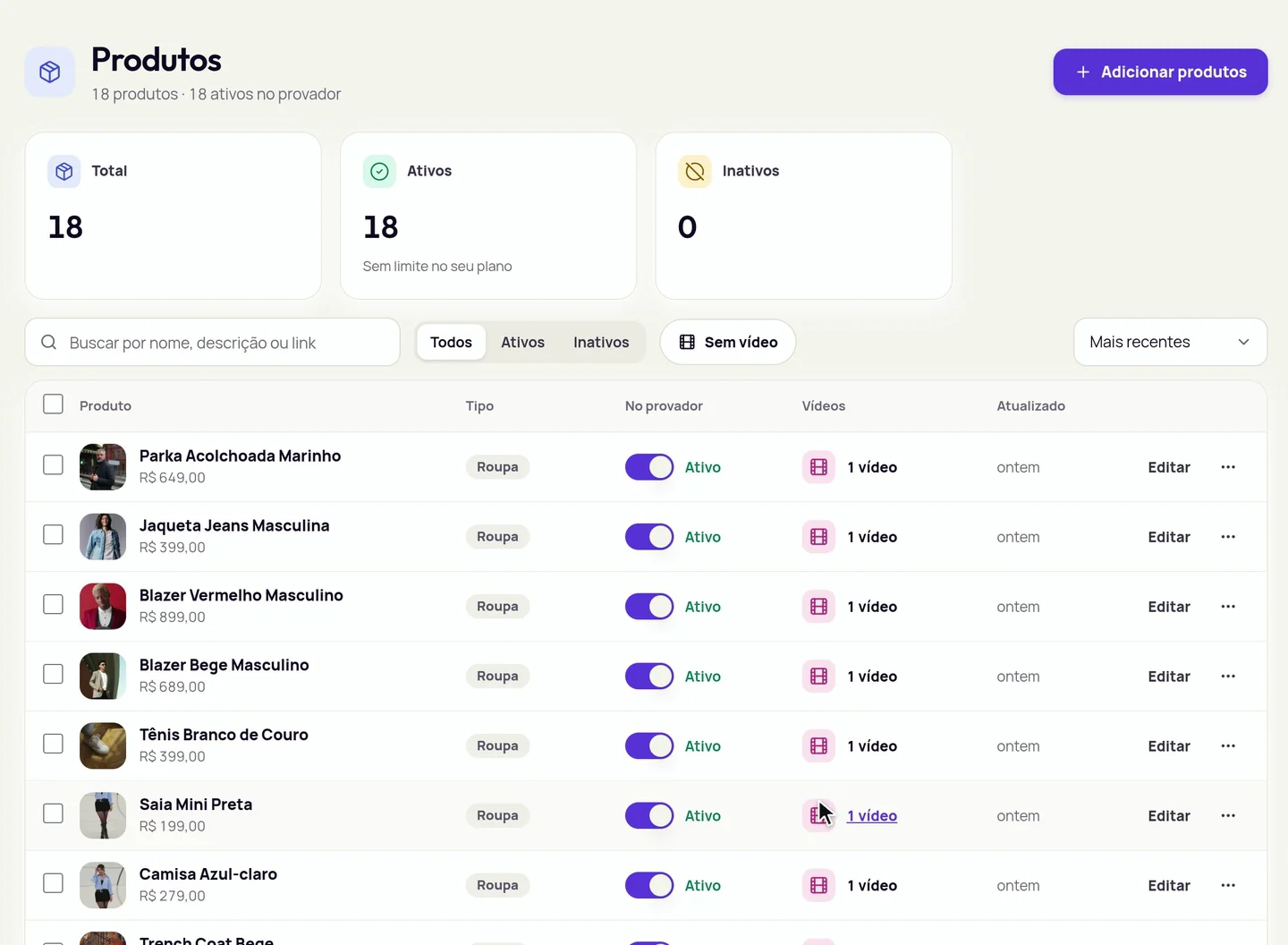
A Videos column and a No video filter
In the catalog, each row shows how many videos the product has and offers “+ Adicionar vídeo” (add video). A banner counts the active products still without a video.
Videos of this product
On the product page, upload videos already tagged with it, pick from the library or send from your phone. The “Onde aparece” block shows which showcases it appears in.
Results, from video to cart
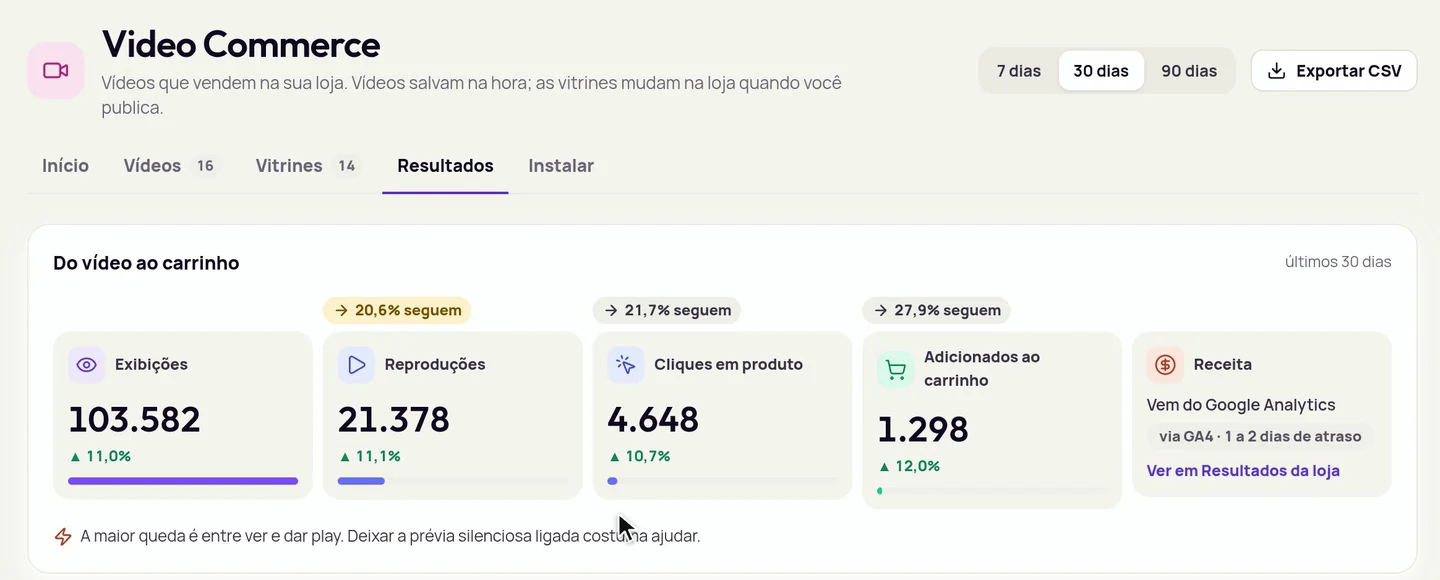
In Resultados, the funnel shows where shoppers drop off, per day and per video, on São Paulo calendar days. A ranking shows the videos that lead to the most carts.
- Impressions
- Counted when at least half of the showcase is on screen.
- Plays
- Each time a shopper presses play on a video.
- Product clicks
- Taps on the products in the video.
- Add-to-carts
- Products added to the cart from the player.
- Revenue
- Comes from Google Analytics 4, connected under Conta › Integrações, with a 1 to 2 day delay.
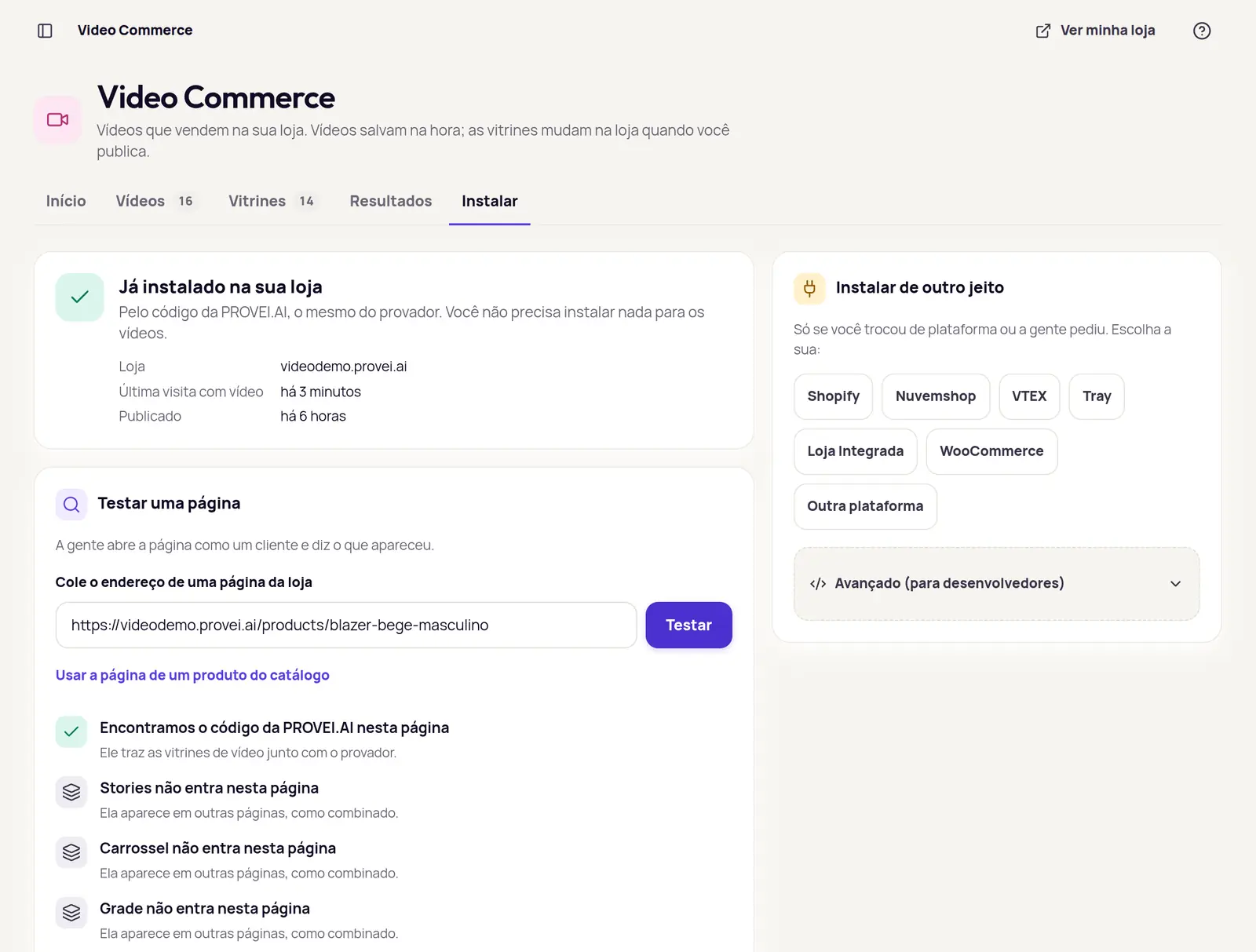
Uses the same Provei code
If your store already has the Provei code, there is nothing new to install: the videos arrive with the try-on. A store that only uses Video Commerce installs that same code.
Under Instalar, paste the address of a store page. The test opens the page as a shopper would and tells you what appeared on it.
Coming soon to Video Commerce
These aren’t available yet. In the dashboard they are marked as coming soon.
- Coming soonImport from InstagramBring the videos the brand has already posted on Instagram into the library.
- Coming soonGenerate with AI from product photosCreate product videos from the catalog photos. It will use AI credits.
- Coming soonShowcase by tagFill a showcase with the videos that carry a tag.
An add-on, priced on request
Video Commerce is contracted separately, with a quote for your store.
- Video Commerce usage is counted in video views, not in AI credits.
- It is activated by the Provei team.
- It works alongside the try-on and the other products, in the same dashboard.
Frequently asked questions
Do I need to write any code? No. You upload the videos, tag the products and publish showcases from the dashboard. You choose where each showcase goes from a list, with no code.
Do I need to install another script on my store? No. Video Commerce uses the Provei code your store already has. A store that only uses Video Commerce installs that same code.
Which formats are there? Five: floating bubble, carousel, stories, grid and product spotlight. A store can run several showcases at once, on different pages.
Does a video show on its product page by itself? Yes. A video tagged with a product appears on that product’s page with no placement to set up. For another format or place, create a showcase.
Can I see it before publishing? Yes. The editor shows the showcase live, on a phone and on a computer, and changes stay as a draft until you publish. Afterwards, “Conferir na minha loja” checks that it appeared.
What if a video isn’t ready yet? Publishing still goes ahead: a video that isn’t ready is skipped and listed, and it joins once it is ready.
Can I upload videos from my phone? Yes. The send-from-phone option shows a QR code that opens an upload page on the phone.
How do I follow the results? In Resultados: impressions, plays, product clicks and add-to-carts, per day and per video. Revenue comes from the Google Analytics 4 property connected to the account.
Does Video Commerce use AI credits? No. Usage is counted in video views, not in your plan’s AI credits. Pricing is on request.
How do I get it activated? The Provei team activates it. Book a demo or contact support to turn it on for your store.

See all five formats at work
The demo store is a fictional fashion store with every format published. Open it on a phone or a computer and shop from the videos.